


Emacs for the curious: install it, survive it, keep it
Emacs is older than most of the people who use it. The first version showed up at MIT in 1976, as a set of macros for an editor called TECO, and GNU Emacs, the one we all mean today, came out in 1985.
Contents
- Installing on Linux
- Installing on Windows
- How to read Emacs keys
- Surviving day one
- Moving around
- Editing, copying and pasting
- Buffers and windows
- Emacs explains itself
- The things that make people stay
- Dired, a file manager made of text
- Org mode
- Magit, Git that makes sense
- Editing files on other machines
- A shell (or three)
- Programming
- Your first config
- Tricks I'd show a friend
- Where to go from here
Emacs is older than most of the people who use it. The first version showed up at MIT in 1976, as a set of macros for an editor called TECO, and GNU Emacs, the one we all mean today, came out in 1985. Version 31.1 shipped in August 2026. Forty years of releases, and a plain install still opens in about a second, which is more than I can say for most chat apps.
People like to joke that Emacs is a great operating system lacking a decent text editor. It's funny because it's half true. Under the hood, Emacs is a Lisp machine that happens to edit text, and over the years people taught it to read email, manage tasks, browse files, run shells, talk to Git and play Tetris. You don't have to use any of that. But it's nice to know it's there.
This is the guide I'd give a friend who's curious and a little scared: how to install it on Linux and Windows, how to survive the first day, the commands that matter, a small config to start with, and a pile of tricks that make people fall in love with the thing.
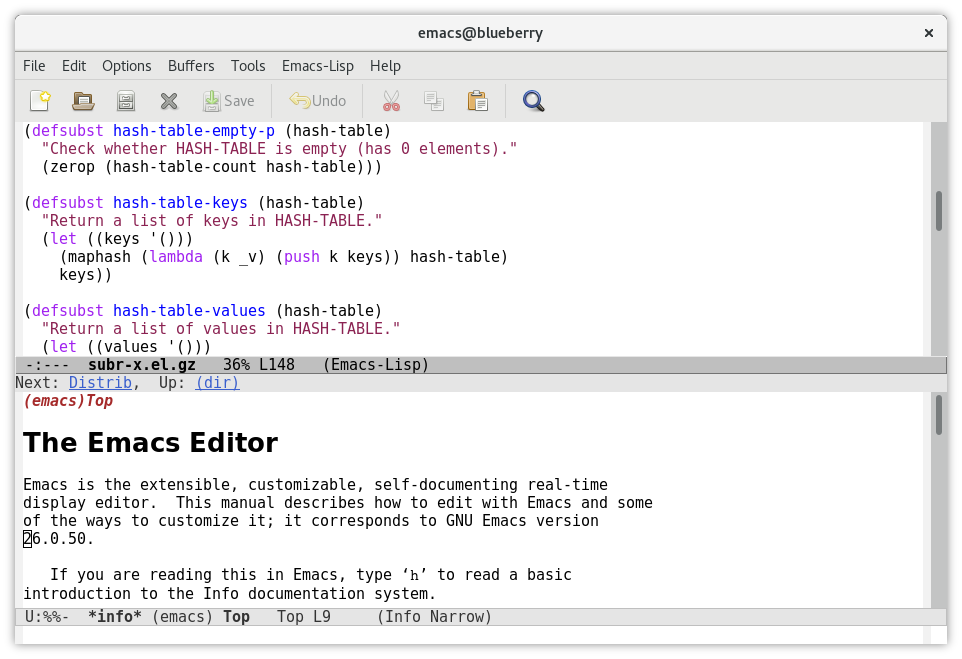
Installing on Linux #
Every distribution has Emacs in its repositories, and that's the easiest way to get it. Pick your line:
sudo apt install emacs        # Debian, Ubuntu, Mint
sudo dnf install emacs        # Fedora
sudo pacman -S emacs          # Arch, Manjaro
sudo zypper install emacs     # openSUSE
guix package -i emacs         # Guix
Check that it worked:
emacs --versionOn Debian and Ubuntu there's also emacs-nox, a version without the graphical interface, perfect for servers. Even with the full version you can always run it inside the terminal with emacs -nw ("no window").
One thing to know: stable distributions often ship an older Emacs. That's fine for learning, everything in this post works on Emacs 29 and newer (with one exception I'll point out). If you want 31.1 right now, rolling distros like Arch and Fedora get it quickly, and Ubuntu has community Snap and Flatpak packages. You can also build it from source, which is less dramatic than it sounds.
Installing on Windows #
Windows gets official builds too. Go to the GNU mirror (the download page at gnu.org/software/emacs sends you to the closest one), open the windows folder, pick the newest version and grab the file that ends in -installer.exe. Run it, click next a few times, and you'll have Emacs in your Start menu.
If you don't want to install anything, download the .zip from the same folder instead, unzip it anywhere and run bin\runemacs.exe. That works fine from a pen drive too.
And if you already live in MSYS2, it's one command:
pacman -S mingw-w64-x86_64-emacsA Windows detail that confuses everybody: when Emacs says ~, it usually doesn't mean C:\Users\you. Unless you've set a HOME environment variable, it often points to C:\Users\you\AppData\Roaming. That's where your config folder will live. If you ever get lost, press C-h v, type user-emacs-directory and hit Enter. Emacs will tell you exactly where it's looking.
On a Mac, by the way, Homebrew has a cask for it (brew install --cask emacs). But this post is about Linux and Windows, so let's move on.
How to read Emacs keys #
Before anything else, you need to read the notation, because every Emacs tutorial in the world uses it.
-
C-xmeans hold Ctrl and press x. -
M-xmeans hold Alt and press x. The M is for "Meta," a key from old keyboards. If Alt doesn't work in your terminal, press Esc and then x. -
C-x C-fmeans Ctrl+x, then Ctrl+f. Two chords, one after the other. -
C-x bmeans Ctrl+x, let go, then just b. -
RETis Enter,SPCis the space bar.
And M-x is the most important key of all. It lets you run any command by name. Forgot a shortcut? M-x, type a piece of the name, Tab to complete, Enter. Everything in Emacs is a command, and every command has a name.
Surviving day one #
Open Emacs and do this first:
C-h tThat's the built-in tutorial. It takes about half an hour, it's written by people who clearly enjoyed writing it, and it teaches you the basics by making you use them. Honestly, it's the best Emacs tutorial ever written, and it's been sitting inside the program the whole time.
If you skip it anyway (I know), these are the keys that will keep you alive:
C-x C-f: open a file (or create a new one)
C-x C-s: save
C-x C-w: save as
C-/: undo
C-g: cancel whatever is happening
C-x C-c: quit Emacs
C-g deserves a moment. Whenever Emacs is waiting for something you didn't mean to ask for, a half-typed command, a weird prompt, a mode you don't understand, C-g gets you out. Press it two or three times if you panic. It's the Esc key of Emacs, and you'll use it a lot in the first week.
Moving around #
Arrow keys, Page Up and Home all work, so nobody is forcing you. But the Emacs keys keep your hands on the home row, and after a while they feel faster:
C-f / C-b: forward / back one character
M-f / M-b: forward / back one word
C-n / C-p: next / previous line
C-a / C-e: start / end of the line
C-v / M-v: page down / page up
M-< / M->: top / bottom of the file
M-g g: go to a line number
C-l: center the screen on the cursor (press again to move it to the top)
Notice the pattern: C- does something small, M- does the bigger version of the same thing. Character and word, line and sentence. Once you see it, a lot of the keys start to guess themselves.
Editing, copying and pasting #
Emacs had copy and paste before Ctrl+C and Ctrl+V existed, so it uses its own words. Cutting is "killing," pasting is "yanking," and the clipboard is the "kill ring," because it remembers a whole history of things you cut.
C-SPC: start selecting (set the "mark"), then move the cursor
C-w: cut the selection
M-w: copy the selection
C-y: paste
M-y: right after C-y, cycle through older things you cut
C-k: cut from the cursor to the end of the line
M-d: cut the next word
M-y is the hidden gem here. Cut three different things, press C-y, then M-y a few times, and watch Emacs walk back through your clipboard history.
For searching and replacing:
C-s: search forward, as you type
C-r: search backward
M-%: search and replace, asking at each match
In M-%, Emacs asks about every match: y to replace, n to skip, ! to replace all the rest, q to stop. There's also M-x replace-regexp when you need regular expressions.
If you're not ready for any of this, M-x cua-mode turns on the familiar Ctrl+C, Ctrl+V, Ctrl+X and Ctrl+Z. Purists will frown. Purists frown at everything.
Buffers and windows #
Here's the vocabulary that trips people up. A buffer is anything open in Emacs: a file, a shell, a help page. A window is a space on screen showing a buffer. And what the rest of the world calls a window, Emacs calls a frame. Yes, really.
C-x b: switch to another buffer
C-x C-b: list all buffers
C-x k: close (kill) a buffer
C-x 2: split into top and bottom
C-x 3: split side by side
C-x o: jump to the other window
C-x 1: keep only this window
C-x 0: close this window
You can open a file on the left, its tests on the right and a shell at the bottom, all in one frame, all driven from the keyboard. Emacs 31 even added commands to rotate, flip and transpose window layouts, for when you change your mind about who sits where.
Emacs explains itself #
This is my favorite thing about Emacs, and it's the reason you'll never be stuck for long. Everything is documented from inside, and the help system knows exactly what's loaded right now.
C-h k: what does this key do? (press it after)
C-h f: describe a function
C-h v: describe a variable
C-h m: explain the modes active in this buffer
C-h a: search commands by keyword
C-h i: open the full manuals
Press C-h k and then C-x C-s and Emacs tells you which command runs, what it does and where it's defined. Click the link and you're reading its source code. No other editor I know lets you be this nosy.
The things that make people stay #
Most people come to Emacs for the editing and stay for one of these.
Dired, a file manager made of text #
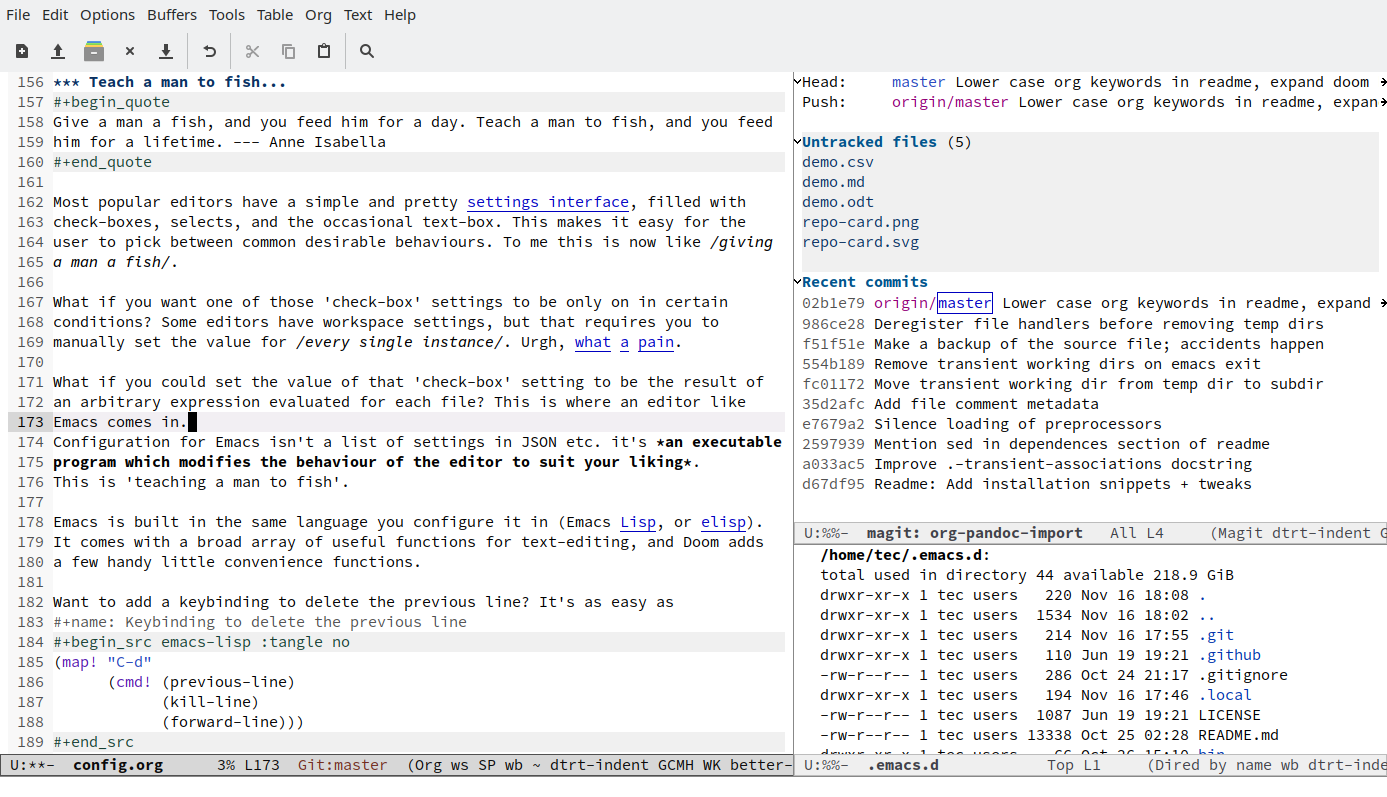
C-x d opens Dired, a directory listing you can edit like a file. Move with the usual keys, Enter opens a file, d marks for deletion and x deletes, C copies, R renames or moves, + creates a folder. The best trick is C-x C-q: it makes the listing editable, so you can rename forty files with a search and replace, then C-c C-c to apply. It feels like cheating.
Org mode #
Org is the reason a lot of people install Emacs in the first place. It's plain text with superpowers: outlines you fold and unfold with Tab, to-do lists, deadlines, tables that recalculate, links, agendas, and export to HTML, PDF (through LaTeX) or OpenDocument. The files are ordinary .org text files, readable anywhere, forever.
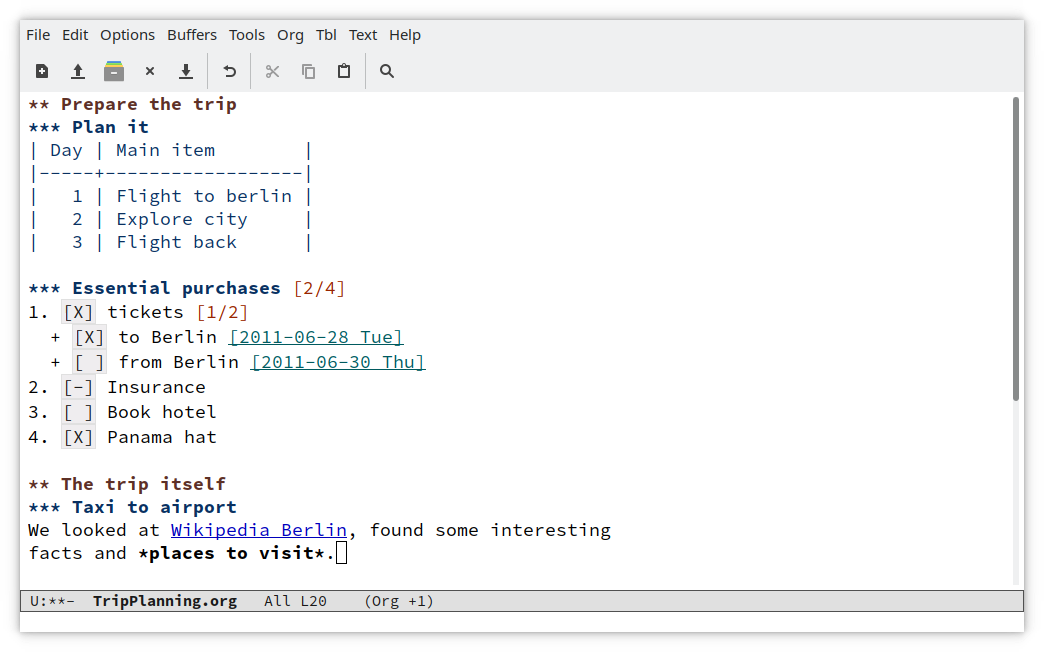
To try it, open a file ending in .org and type:
* Weekend
** TODO Fix the backup script
   DEADLINE: <2026-11-01 Sun>
** DONE Buy cat food
* Ideas
- A guestbook that only accepts haiku
Press Tab on a heading to fold it. C-c C-t cycles a heading between TODO and DONE. C-c C-d adds a deadline with a little calendar. M-↑ and M-↓ move whole sections around, children included. And C-c C-e opens the export menu. You can live in Org for years and keep finding new things.
Magit, Git that makes sense #
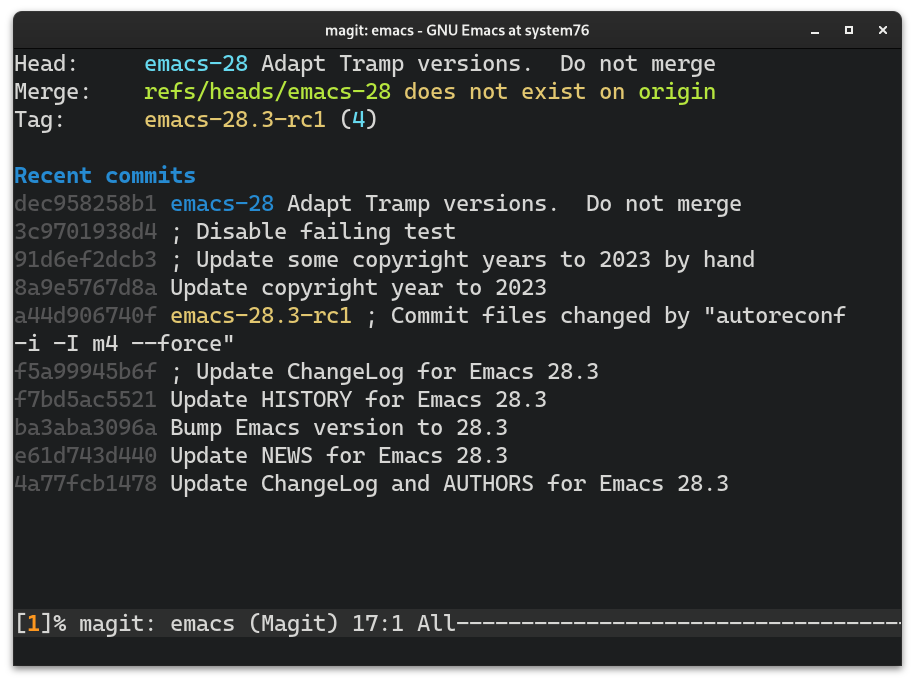
Magit isn't built in, you install it as a package (the config below does that for you), but almost everyone who uses Emacs and Git ends up with it. C-x g opens a status screen for your repository. Move to a file and press s to stage it, u to unstage, Tab to see the diff, c c to write a commit, P p to push. You can even stage single lines of a change. People who swear they hate Emacs have been known to keep it installed just for Magit.
Editing files on other machines #
TRAMP lets you open remote files as if they were local. Press C-x C-f and type:
/ssh:you@your-server:/etc/nginx/nginx.confEmacs connects over SSH, opens the file and saves it back when you press C-x C-s. Need root? Chain it:
/ssh:you@your-server|sudo:your-server:/etc/nginx/nginx.confDired works over TRAMP too, so you can browse a server's folders like they were on your desk. On Windows, TRAMP can use plink from PuTTY instead of ssh (with /plink: instead of /ssh:) if you don't have OpenSSH installed.
A shell (or three) #
M-x eshell is a shell written in Emacs Lisp. It works the same on Linux and Windows and you can mix Lisp into your commands. M-x shell runs your system shell inside a buffer, so you can search and copy its output like any text. And M-x term runs a real terminal emulator for programs that need one.
Programming #
Modern Emacs comes with Eglot, a client for language servers (the same ones VS Code uses), built in since Emacs 29. Install the language server for your language, say pyright for Python or gopls for Go, open a file and run M-x eglot. You get completion, go to definition, rename, errors as you type. Emacs also ships tree-sitter modes for a bunch of languages, which means faster and more accurate syntax highlighting.
Your first config #
Emacs reads its settings from a file called init.el. It lives in ~/.emacs.d/init.el or, on newer setups, ~/.config/emacs/init.el (on Windows, remember, ~ is probably that AppData\Roaming folder). Create the file, paste this in, save, and restart Emacs:
;;; init.el --- a small, honest start

;; Quieter startup
(setq inhibit-startup-screen t)
(setq ring-bell-function 'ignore)
(tool-bar-mode -1)                ; the menu bar stays, it helps while you learn

;; Comfort
(global-display-line-numbers-mode 1)
(column-number-mode 1)
(electric-pair-mode 1)            ; close brackets and quotes for you
(global-auto-revert-mode 1)       ; reload files changed outside Emacs
(recentf-mode 1)                  ; remember recent files
(savehist-mode 1)                 ; remember minibuffer history
(save-place-mode 1)               ; reopen files where you left them
(which-key-mode 1)                ; show possible keys as you type (Emacs 30+)

;; A good built-in theme (try modus-operandi for a light one)
(load-theme 'modus-vivendi t)

;; Keep backup files out of your projects
(setq backup-directory-alist
      `(("." . ,(expand-file-name "backups" user-emacs-directory))))

;; Packages from MELPA
(require 'package)
(add-to-list 'package-archives '("melpa" . "https://melpa.org/packages/") t)

(use-package vertico                ; better completion lists
  :ensure t
  :init (vertico-mode))

(use-package orderless              ; type words in any order to find things
  :ensure t
  :custom (completion-styles '(orderless basic)))

(use-package marginalia             ; little descriptions next to completions
  :ensure t
  :init (marginalia-mode))

(use-package magit
  :ensure t
  :bind ("C-x g" . magit-status))
The first start after this takes a minute, because Emacs downloads the packages. After that it's instant. If you're on Emacs 29, delete the which-key-mode line, since which-key only became part of Emacs in version 30.
Two things worth knowing while you tinker. You don't need to restart after every change: M-x eval-buffer reloads the file you're editing. And if a change breaks something, start Emacs with emacs -Q to skip your config completely, then fix the file in peace.
Tricks I'd show a friend #
Keyboard macros. Press F3, do something once (edit a line, move down), press F4. Now every F4 repeats it. Fix two hundred lines of a CSV in ten seconds and feel like a wizard.
Repeat anything. C-u 8 C-n moves down eight lines. C-u 40 # types forty hashes. Almost every command takes a number this way.
Rectangles. Select a block, then C-x r t and type something: it gets inserted at the start of every line in the block. Perfect for commenting a bunch of lines or adding a prefix to a list. C-x r k cuts a rectangle instead.
Lazy autocomplete. M-/ completes the word you're typing using words already in your open buffers. No setup, works everywhere.
Find every match at once. M-x occur lists every line matching a pattern in a separate buffer. Click a result to jump there.
Type any character. C-x 8 RET, then type a name like snowman or em space. Emacs knows the whole Unicode table.
Zoom. C-x C-+ and C-x C-- make the text bigger and smaller, C-x C-0 goes back to normal.
Fill paragraphs. M-q rewraps a messy paragraph to a nice width. Great for plain text, commit messages and emails.
Instant startup. Run emacs --daemon once (or M-x server-start inside Emacs), then open files with emacsclient -c file.txt. The window shows up immediately because Emacs is already running. On Windows, the matching program is emacsclientw.exe.
A calculator. M-x calc is a full RPN calculator with units, matrices and algebra. Type 2 RET 3 + and you're in.
Games. M-x tetris. M-x snake. And M-x butterfly, an old joke from xkcd that someone implemented for real. Try it once, at least.
Where to go from here #
Don't try to learn everything. Use Emacs for one thing first, notes in Org, or Git through Magit, or editing config files on your servers, and let the rest grow around it. Every time you catch yourself doing something annoying twice, ask Emacs for help (C-h a and a keyword) and you'll almost always find a command that already does it.
For reading, everything is free and most of it is already on your disk. C-h t for the tutorial, C-h i for the Emacs manual, and inside that same menu, "An Introduction to Programming in Emacs Lisp," which is how people go from using Emacs to bending it. The manuals are also online at gnu.org/software/emacs/manual.
It's a forty-year-old program that still gets better every year, and it'll happily outlive whatever editor is trendy this month. Give it a weekend. Worst case, you learn that C-g gets you out of anything, and honestly that's a pretty good life lesson too.