


50 more Obsidian plugins worth your time
Fifty more Obsidian plugins, zero repeats from part one: screenplays, sheet music, chess and recipes next to the writing, planning and publishing tools. What each one does, how to start using it, and the catch when there is one.
A week ago I wrote about 50 Obsidian plugins worth your time, and a lot of you read it. A lot. So here's part two, with fifty more and zero repeats.
Since that post the directory went past 9,800 community plugins, so there was plenty to dig through. This time I went wider on purpose. There's the usual writing and organizing stuff, but also plugins for screenplays, sheet music, chess, recipes, podcasts and Dungeons & Dragons, because a vault is not only for work notes.
Same rules as before. Every plugin here got an update in the last twelve months, every name links to its page in the official directory, and the download numbers come from Obsidian's public stats, early November 2026. When a plugin has a catch (desktop only, needs an account, costs money, the newest version is closed source), I say so.
And the same advice too: install one or two, live with them for a week, then come back. If you've never installed a plugin, part one explains how in two paragraphs.
Writing and formatting #
Latex Suite makes typing math almost as fast as writing it by hand, which is what its own description promises. It turns short snippets into LaTeX as you type: dm opens a display math block, x/y followed by Tab becomes a fraction, @a becomes alpha. About 700 thousand downloads. One warning from its own README: snippet files are JavaScript, so don't paste in snippet collections from strangers without reading them.
Easy Typing formats text while you write. It capitalizes the start of sentences, pairs brackets and adds proper spacing when you mix scripts. Many of its defaults were built for people who write Chinese, Japanese or Korean alongside Latin text. Out of the box, Ctrl+Shift+S (Cmd on a Mac) formats the whole note.
Typewriter Mode keeps the line you're writing at the same spot on the screen, dims the paragraphs around it and highlights the current line. There's even a "Hemingway mode" that won't let you edit what you already wrote, for those first drafts where you just need to keep going.
Harper is a grammar and spell checker that runs entirely inside Obsidian. Nothing you type goes to a server. It's made by Automattic, the WordPress people, it's free and it's open source. The catch: English only, for now. You install it and it starts underlining things, no setup.
Dragger brings Notion's drag handles to Obsidian. Hover the left edge of any paragraph, heading, list, table or code block, grab the handle and drop it somewhere else. Move sideways while dragging and it changes the indent.
Cinema people, this one is for you. Fountain Editor styles screenplays written in Fountain, the plain text format for scripts, right inside your notes. Name a note with .fountain.md at the end, or give it a fountain tag, and lines like EXT. GAS STATION - NIGHT start looking like a script. It only handles the editor side; for a final PDF you'll still want a screenwriting tool.
Fast Text Color colors text with its own tidy syntax, ~={id}your text=~, where the id is one of the colors you set up, and no HTML shows up in your editor. Colors live in themes you set up once, and the "change text color" command opens a menu you can drive from the keyboard.
Callout Manager is for people who live in callouts, those colored boxes like > [!note]. It lists every callout type your vault knows, including the ones your theme adds, and lets you create new types and change their colors and icons, no CSS needed.
Finding your way around #
Hover Editor takes the little preview that appears when you hover a link and turns it into a real editor. You can drag it, resize it, pin it and keep several open. More than 600 thousand downloads. It uses parts of Obsidian that aren't in the official API, so an Obsidian update can break it now and then.
Breadcrumbs adds a trail at the top of notes, like on websites. You add up: [[Parent note]] as a property, run "Breadcrumbs: Rebuild Graph" and the trail appears. It also does next and previous links, which is perfect for courses, book chapters or a series of posts. The project got a new maintainer in 2026 and needs a recent Obsidian.
Folder notes attaches a note to a folder, so clicking the folder name opens it, like a page in Notion. Right-click a folder, choose "Create folder note", and you have an index page for that folder.
Quiet Outline replaces the outline panel with one that doesn't jump around while you type. You can search the headings, drag a heading to move its whole section, and walk the list with J and K like in Vim. Great for long notes.
Automatic Table Of Contents puts a table of contents inside a note that updates itself. Add a code block with the language toc, or run "Insert table of contents" from the command palette, and forget about it.
Supercharged Links changes how links look based on the note they point to. Links to notes tagged #person can be blue, links to notes with status: done can get a check mark. The no-code way to style them goes through Style Settings, which was in part one.
Properties and data #
MetaEdit makes editing properties less fiddly. You run it on a note and pick what to change from a menu. Its best trick is auto properties: you define a list of values, say "reading", "finished", "gave up", and it offers them every time.
Multi Properties changes properties on a lot of notes at once. Right-click a folder, a selection of files or the search results, and add or remove a property in all of them. Perfect after an import. Be careful with removing, though: the README mentions no undo.
Datacore is the successor to Dataview, from the same author, and much faster. Fair warning: it's still a work in progress, and for now you write your views in JavaScript, inside a code block with the language datacorejsx. If code doesn't scare you, it's worth a look. If it does, Bases and Dataview are still there.
Calendar Bases adds a calendar layout to Obsidian's Bases. Pick a date property, like startDate, and your notes show up on a month view. Drag one to another day and its date changes in the note. This is the modern answer to the old Calendar plugin I left out of part one.
Numerals turns a code block with the language math into a calculator that understands units and variables. Write price = $1.50, then cups = 120, then price * cups =>, and the result appears. It also works inline: #: 3ft * 4ft shows 12 ft^2. Currencies are just units here, there's no exchange rate.
Planning, journals and habits #
Journals handles daily, weekly, monthly, quarterly and yearly notes, plus custom periods like numbered sprints. You set up each journal in the settings, with its folder and template, then move between days with "Open next note" and "Open previous note". It's meant to replace Daily notes, Periodic Notes and the Calendar plugin, so don't run them all together.
Reminder adds alarms to plain checkboxes. Put the date in parentheses at the end of a task, like Call the bank (@2026-11-14 09:30), and at that time Obsidian pops a notification with "Mark as Done" and "Remind Me Later". On phones the alert only shows inside the app, because Obsidian doesn't get system notifications there.
Todoist Sync shows your Todoist tasks inside notes. Paste your Todoist API token in the settings, then add a code block with the language todoist and a filter like filter: "today | overdue". It's unofficial, and despite what the README says, the docs admit it's mostly one-way, from Todoist into Obsidian.
Task Genius is a whole task manager: list, kanban, calendar and Gantt views, recurring tasks, habits and quick capture. Run "Open Task Genius View" and follow the onboarding. Its license is source-available (FSL), not a classic open source one, if that matters to you.
Heatmap Tracker draws one of those GitHub-style yearly grids from your daily notes. Put a property like steps: 8420 or meditated: true in each day, run "Insert Heatmap Tracker" and watch the squares fill up. It needs Dataview installed.
Reading, watching and listening #
Media Extended plays video and audio inside Obsidian, YouTube and Vimeo included, and inserts timestamp links that jump back to that exact moment. Run "Insert timestamp snippet to note" while watching a lecture and your notes stay tied to the video. Desktop only, and the current version 4 is closed source; only version 3 is still MIT.
RSS Dashboard is a feed reader inside Obsidian, for RSS, Atom, YouTube channels, podcasts and Mastodon accounts. Run "Open dashboard", click the plus sign, paste a feed. It imports OPML from your old reader and can save articles to the vault as Markdown. Yes, I'm an RSS person. You knew that.
PodNotes is a podcast player in the sidebar. Search a show or paste its feed, and while it plays, "PodNotes: Capture Timestamp" drops a link to that moment in your note. Automatic transcription needs your own paid OpenAI or Deepgram key, but saving a transcript the show already publishes is free.
Media DB creates a note for a movie, series, book, game, board game or album, already filled in with metadata from online databases. Click its icon, type a title, pick the result. Some sources, like TMDB and OMDb, need your own API key, and a few need a paid account.
ZotLit connects Zotero to Obsidian. Run "ZotLit: Open literature note quick switcher", search a paper and press Enter, and you get a literature note with its annotations, from a template you control. Desktop only, needs the Zotero app, and a recent Obsidian installer, not just an in-app update.
ePub Reader does one thing: you drop an .epub into the vault, click it, and read it with a table of contents. No highlighting or annotation, just a book next to your notes.
Attachments and housekeeping #
Paste image rename asks for a name every time you paste an image. Goodbye Pasted image 20261102143355.png. It can also name images from a pattern and batch-rename the ones already in a note. Try the batch commands on a copy of your vault first.
Custom Attachment Location is the full version of that idea. It decides where every attachment goes and what it's called, from patterns like {{noteFileName}}, so images can live next to their note or in a folder per year. Its documentation is a demo vault you can open with a command, which is a nice touch.
File Cleaner Redux finds empty notes nobody links to and attachments nobody uses, then sends them to the trash or deletes them, your choice. Leave "Preview deleted files" on in the settings, so you see the list before anything goes.
Local Backup saves a zip of your vault to a folder of your choice, on startup, on exit or every so often, and deletes old copies for you. If Git from part one felt like too much, this is the simple version. Desktop only.
Lazy Loader makes Obsidian open faster when you have lots of plugins. In its settings you choose, plugin by plugin, whether it loads right away, after 5 seconds or after 15. After reading this post, you might need it, hehe.
Exporting and publishing #
Better Export PDF replaces the built-in PDF export with one that has a preview, bookmarks from your headings, page numbers and margins. It also exports a whole folder or merges several notes into one PDF. Desktop only.
Enhancing Export uses Pandoc to turn notes into Word, LaTeX, HTML and other formats, bringing the images along. You need Pandoc installed first. The author says the Markdown and HTML exports are the well-tested ones, so double-check the rest.
Share Note publishes one note as a web page, with your theme, in one command: "Share Note". The link goes to your clipboard. The text is encrypted by default and the key lives in the link, but attachments are not encrypted, so think twice before sharing anything private.
Digital Garden turns selected notes into a website, with backlinks, search and a graph. You deploy its template to Vercel or Netlify, connect your GitHub account, and mark the notes you want public with dg-publish: true. About ten minutes of setup, and only what you mark leaves the vault.
Diagrams and drawing #
Mermaid Tools is for people who like Mermaid diagrams but never remember the syntax. It opens a side panel with ready-made pieces: click one and it lands in your note as a Mermaid block.
tldraw brings the tldraw whiteboard into Obsidian, and the drawings are saved as Markdown files, so they can have tags and links. Run "Create a new drawing" and sketch. By default it loads fonts and icons from tldraw's servers, and you can download them locally in the settings if you'd rather stay offline.
For the power users #
Advanced URI lets you control Obsidian with links. A link like obsidian://adv-uri?vault=MyVault&daily=true&clipboard=true&mode=append adds whatever is in your clipboard to today's note. You can fire these from scripts, launchers, phone shortcuts or the terminal. Almost 700 thousand downloads.
And speaking of the terminal: Terminal opens real shell tabs inside Obsidian, bash, zsh or PowerShell. Ctrl+Shift+H opens one at the root of your vault. Git commands, scripts, whatever you need, without leaving the app. On phones it's only useful as a developer console.
Working together #
Relay gives you real-time collaboration on shared folders, with live cursors, like Google Docs. You create a relay in the settings, add a folder and send the share key to the other person. It needs an account with the company behind it. The free tier covers 3 people with 2 devices each, and syncing images and PDFs needs a paid plan or your own server.
For hobbies #
ABC Music Notation draws sheet music from ABC, a plain text notation used a lot for folk tunes. Write a code block with the language abc, starting with lines like X:1, T:My tune and K:G, followed by the notes, and the staff appears.
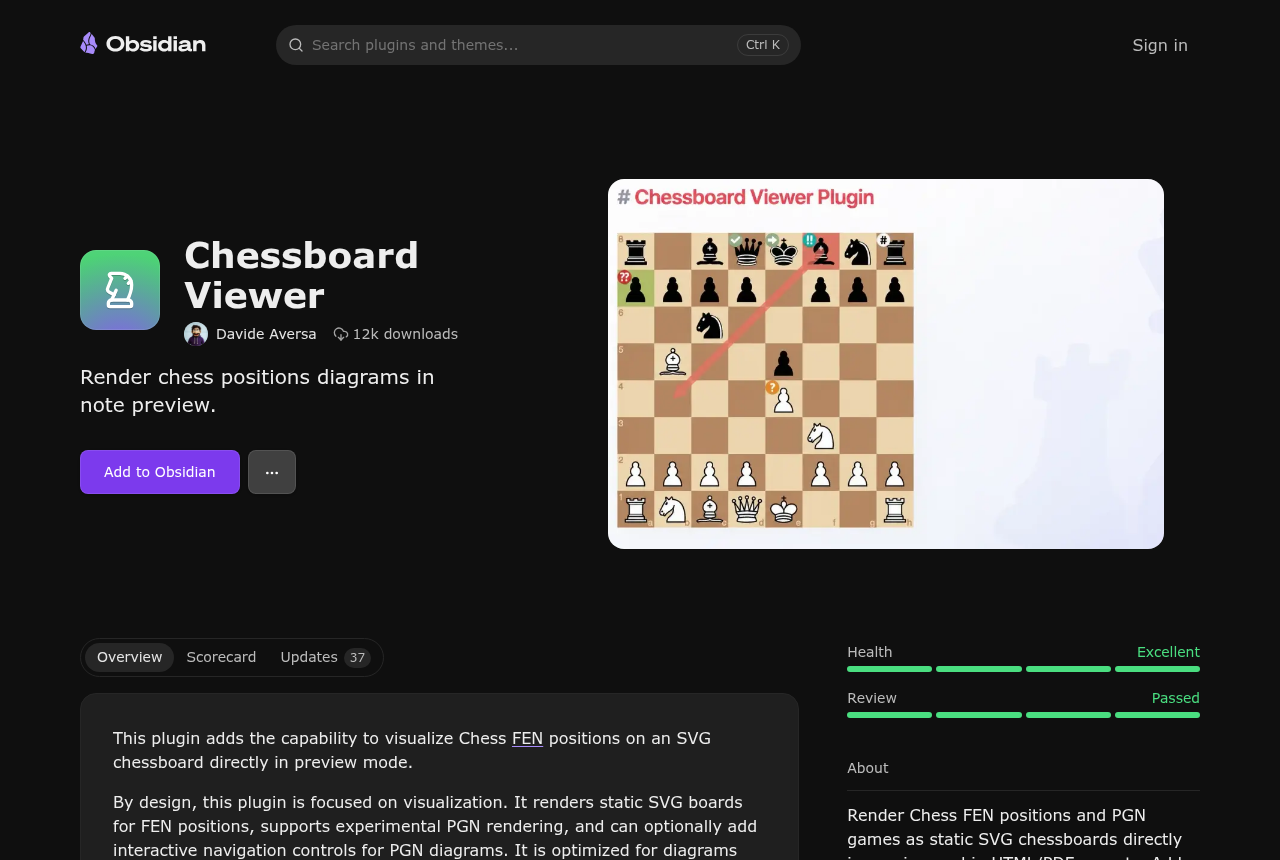
Chessboard Viewer draws chess positions. A code block with the language chessboard and a line starting with fen: becomes a board, with arrows and highlights if you want them. It can show whole games in PGN too, though that part is still experimental.
Cooklang Editor is for recipes written in Cooklang, where ingredients and timers live inside the sentences: Simmer @rice{200%g} in @water{400%ml} for ~{15%min}. The preview gives you a servings scaler, an ingredient checklist and working timers. Put the tablet on the kitchen counter and go. The project is looking for maintainers, so keep an eye on it.
And for game masters, Fantasy Statblocks renders monster stat blocks for D&D 5e, Pathfinder 2e and other systems from a simple statblock code block, and keeps your own bestiary. The README itself warns that bugs may delete data, so back up your campaign notes.
And two for AI #
Agent Client puts Claude Code, Codex, Gemini CLI and other agents in a chat panel inside Obsidian, and they can read and edit your notes. You mention a note with @ and see its edits as diffs. Desktop only, and you need the agent installed and logged in. Keep in mind these agents have the same access they'd have in your terminal.
Local GPT adds AI actions to selected text: continue, summarize, fix grammar, pull out action items. It can run fully on your machine with Ollama. You'll also need its companion plugin, AI Providers, to set up the model.
Before you go #
Kanban and Calendar are still out, for the same reasons as in part one, but Calendar Bases and Journals cover most of what Calendar used to do.
If I had to pick three from this list for almost anyone, I'd go with Hover Editor, Folder notes and Paste image rename. One saves clicks, one gives your folders a front page, and one keeps your attachments folder from turning into a junk drawer.
That's a hundred plugins between the two posts. If your favorite still isn't in either one, send it my way. Maybe there's a part three, hehe.