


Backups you can trust: the 3-2-1 rule with restic and rclone
Contents
- First, a confession about sync
- The 3-2-1 rule
- What to back up (and what to skip)
- Meet restic
- Step 1: install it
- Step 2: a password you can't lose
- Step 3: create two repositories
- Step 4: the first backup
- Step 5: send it off-site
- Step 6: keep history without keeping everything
- Step 7: restore, before you need to
- Step 8: make it automatic
- Things that will bite you
- The checklist
A quick note before we start: if you've been around here for a while, you know how I work. I disappear for months, and when I come back, I write compulsively. Well, to be honest, I mostly post the texts I had already left prepared. So if your feed suddenly fills up with my posts, that's what's going on.
A few days ago I wrote about keeping KeePassXC as a backup for 1Password. Before that, I wrote about rclone, my favorite way to talk to almost any cloud from the terminal. This post is where the two ideas meet: how to build backups you can actually trust, for everything, using the 3-2-1 rule, restic and rclone.
It's a long one, so grab a coffee. By the end you'll have encrypted, versioned backups in two places, running on their own, and you'll know how to prove they work.
First, a confession about sync #
Sync feels like a backup, and that's the trap. This is the most important idea in the whole post.
When you sync a folder to the cloud, the cloud becomes a mirror. If you delete a file by accident, the mirror deletes it too. If ransomware encrypts your documents, the mirror happily uploads the encrypted versions over the good ones. If a script goes wrong at 3 a.m., the mirror copies the damage faithfully. Sync protects you from a dead disk. It does very little against your own mistakes.
A real backup needs history. You want to be able to say "give me this folder the way it was last Tuesday", and get it.
The 3-2-1 rule #
The rule is old, simple and still the best sanity check I know:
- 3 copies of your data (the original plus two backups)
- 2 different types of storage (your laptop's disk and an external drive, for example)
- 1 copy off-site, somewhere that won't burn down with your house
YOUR DATA
|
|-- copy 1: the original, on your computer
|
|-- copy 2: local backup, on an external disk or NAS
|
|-- copy 3: off-site backup, in the cloud or at a friend's house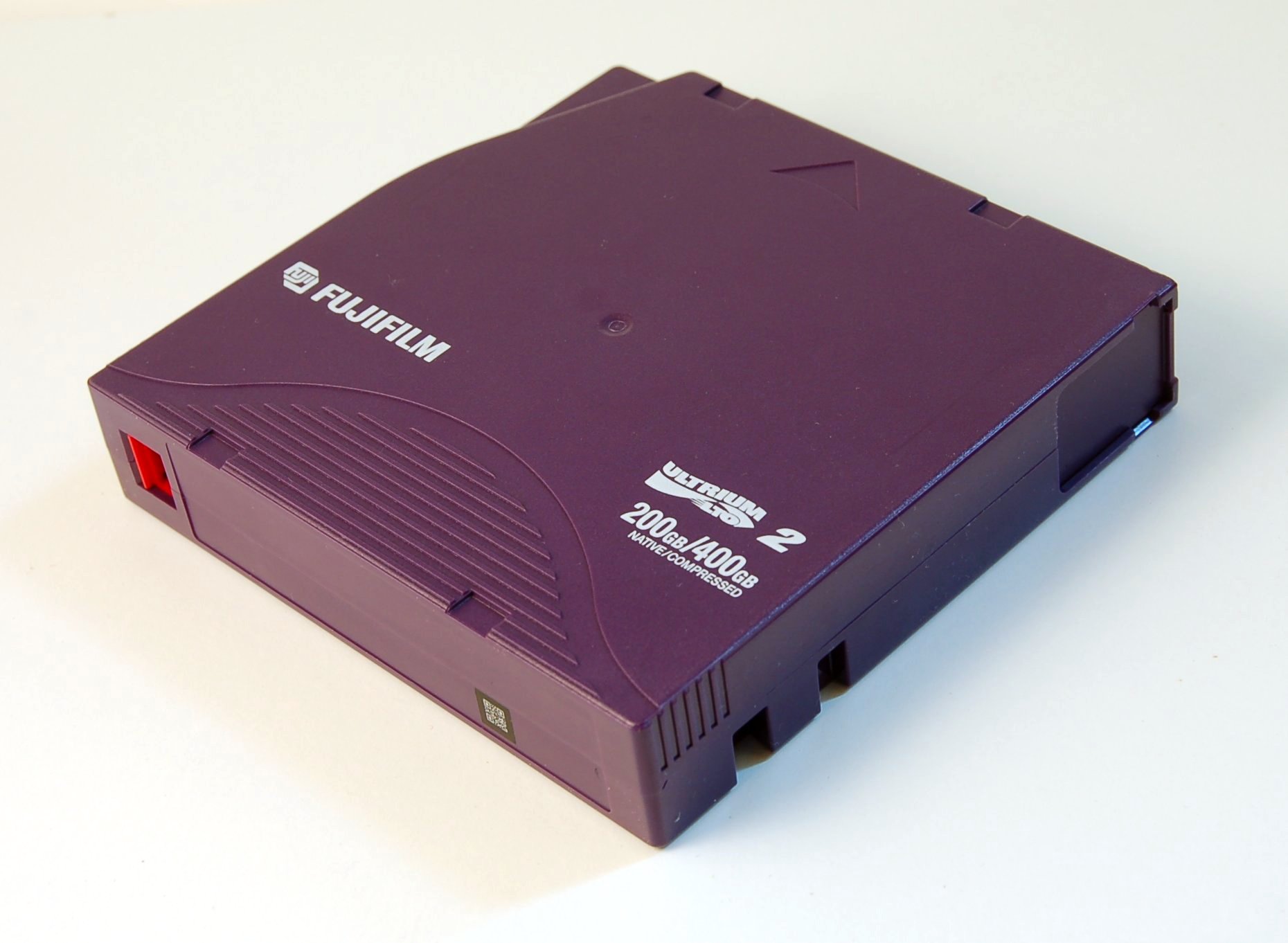
Companies used to do this with tape cartridges like this one, rotated and carried to a vault. We get to do it with a free program and a cheap USB disk, which is a pretty good deal.
Why does the off-site copy matter so much? In March 2021, a fire at an OVHcloud data center in Strasbourg destroyed one building completely and damaged another. Customers who kept their backups in the same place as their servers lost both at once. Fire, flood, theft and a curious toddler with a glass of juice all work the same way: they take out everything in one location.
What to back up (and what to skip) #
Before installing anything, make a list. It sounds boring, and it's the step that saves you.
Back up:
- Documents, photos, projects, notes (your Obsidian vault!)
- Dotfiles and configs:
~/.ssh,~/.gnupg,~/.config, your editor setup - Database dumps from your servers, not the live database files
- Exported data from services you depend on, including your password manager export (encrypted!)
- Anything you'd cry about
Skip:
- Caches,
node_modules, virtual environments, build folders - Things you can download again in five minutes, like ISOs and installers
- The operating system itself, unless you have a specific reason
The smaller and cleaner the backup, the faster it runs and the cheaper the off-site copy gets.
Meet restic #

restic is a free, open-source backup program. It's a single binary, it runs on Linux, macOS, Windows and the BSDs, and its mascot is a gopher in a raincoat, which tells you everything about its attitude toward bad weather.
What makes it great:
- Encrypted by default. Everything is encrypted on your machine before it goes anywhere. The storage provider only ever sees noise.
- Snapshots. Every backup is a snapshot you can browse and restore, so you get the "last Tuesday" history that sync doesn't give you.
- Deduplication. restic splits files into chunks and stores each chunk once. Your second backup only uploads what changed, and moving or renaming files costs almost nothing.
- Compression is on by default for new repositories.
- Lots of places to store things: a local folder, SFTP, S3-compatible storage, Backblaze B2, and through rclone, basically every cloud rclone speaks.
That last point is why this post exists. restic does the backup, rclone carries it to the cloud.
Step 1: install it #
Debian/Ubuntu:
sudo apt install restic
restic version
macOS:
brew install resticWindows (in PowerShell as administrator):
winget install --exact --id restic.restic --scope MachineDistro packages are sometimes a bit old. If you installed the official binary, restic self-update brings it to the latest release.
Step 2: a password you can't lose #
restic's documentation is very direct about this, and so am I: if you lose the repository password, your data is gone forever. No reset link, no support ticket. That's the price of real encryption.
So let's create a strong one and keep it in a file the scripts can read:
mkdir -p ~/.config/restic
openssl rand -base64 32 > ~/.config/restic/password
chmod 600 ~/.config/restic/password
Now copy that password into your password manager. Into 1Password, and into the KeePassXC backup too. Do it right now, before you forget. A backup locked with a password that only exists on the computer that died is a very sad thing.
Step 3: create two repositories #
A repository is where restic keeps your snapshots. We'll make two, one for each backup copy in the 3-2-1 rule.
Copy 2, local lives on an external disk mounted at /media/backup:
restic -r /media/backup/restic-repo init --password-file ~/.config/restic/passwordCopy 3, off-site goes through rclone. If you followed the rclone post, you already have a remote called cloud. restic uses it like this:
restic -r rclone:cloud:restic-repo init --password-file ~/.config/restic/passwordThat rclone: prefix is all it takes. restic starts rclone in the background and talks to your OneDrive, Google Drive, B2, SFTP server or whatever cloud points to. Everything is encrypted before rclone even sees it, so you don't need rclone's crypt remote here.
To stop typing the password flag every time, export it once per terminal session:
export RESTIC_PASSWORD_FILE=~/.config/restic/passwordStep 4: the first backup #
Create an exclude file at ~/.config/restic/excludes.txt, one pattern per line:
# junk that can be rebuilt
.cache
node_modules
.venv
*.tmp
# things I can download again
*.iso
Then run the backup to the local repository:
restic -r /media/backup/restic-repo backup ~ --exclude-file ~/.config/restic/excludes.txt --exclude-caches --tag dailyThe first run takes a while. When it ends, restic prints a summary with new, changed and unmodified files, plus how much was actually added to the repository. Run the same command again right away and watch it finish in seconds with almost nothing added. That's deduplication doing its thing, and the first time you see it, it feels like magic.
List your snapshots:
restic -r /media/backup/restic-repo snapshotsStep 5: send it off-site #
You could run a second backup command pointing to the cloud. There's a neater way: copy the snapshots you already have from the local repository to the cloud one.
restic -r rclone:cloud:restic-repo copy --from-repo /media/backup/restic-repo --from-password-file ~/.config/restic/passwordYour computer only reads your files once, and the cloud repository ends up with exactly the same history. If you set this up from scratch, the restic docs suggest creating the second repository with init --from-repo ... --copy-chunker-params so both deduplicate the same way and copies stay small. I'd do that on a fresh setup.
Step 6: keep history without keeping everything #
Snapshots pile up. A retention policy decides which ones stay:
restic -r /media/backup/restic-repo forget --keep-daily 7 --keep-weekly 4 --keep-monthly 12 --pruneIn plain words: keep one snapshot per day for the last week, one per week for the last month, and one per month for the last year. --prune actually deletes the data nobody needs anymore. Want to see what would go before deleting anything? Add --dry-run. Run the same command on the cloud repository too, because each repository has its own snapshots.
Step 7: restore, before you need to #

This is a spinning disk with the lid off. Every one of these will stop spinning one day, and you won't get a warning email. This is the part most people skip, and it's the only part that matters on the day something goes wrong. A backup you've never restored is just a file you hope works.
Restore one folder to a test location:
restic -r /media/backup/restic-repo restore latest --target /tmp/restore-test --include /home/you/Documentsrestic recreates the full path inside the target, so your files land in /tmp/restore-test/home/you/Documents. Open a few. Compare them with the originals:
diff -r ~/Documents /tmp/restore-test/home/you/DocumentsBrowse snapshots like folders (Linux and macOS, with FUSE):
mkdir -p ~/restic-mnt
restic -r /media/backup/restic-repo mount ~/restic-mnt
Open ~/restic-mnt/snapshots in your file manager and walk through time. It's a lovely way to find "that file I deleted sometime in August". Press Ctrl+C in the terminal when you're done.
See what changed between two snapshots (use the IDs from restic snapshots):
restic -r /media/backup/restic-repo diff 5845b002 2ab627a6Check the repository itself:
restic -r rclone:cloud:restic-repo check --read-data-subset=5%A plain check verifies the structure. With --read-data-subset it also downloads and verifies a random slice of the actual data. Checking a small random slice on every run means that, over time, you've read most of the repository without downloading all of it at once. Every so often, do a full test on a different computer: install restic, use the password from your password manager, and restore something from the cloud. That's the real disaster drill.
Step 8: make it automatic #
A backup that depends on you remembering is a backup that stops in two weeks. Save this as ~/bin/backup.sh:
#!/usr/bin/env bash
set -euo pipefail
export RESTIC_PASSWORD_FILE="$HOME/.config/restic/password"
LOCAL="/media/backup/restic-repo"
CLOUD="rclone:cloud:restic-repo"
restic -r "$LOCAL" backup "$HOME" --exclude-file "$HOME/.config/restic/excludes.txt" --exclude-caches --tag daily
restic -r "$CLOUD" copy --from-repo "$LOCAL" --from-password-file "$RESTIC_PASSWORD_FILE"
restic -r "$LOCAL" forget --keep-daily 7 --keep-weekly 4 --keep-monthly 12 --prune
restic -r "$CLOUD" forget --keep-daily 7 --keep-weekly 4 --keep-monthly 12 --prune
restic -r "$CLOUD" check --read-data-subset=2%
set -euo pipefail makes the script stop at the first error, so a failed backup doesn't get "cleaned up" by the next line. Make it executable with chmod +x ~/bin/backup.sh, run it once by hand, read the output, and only then schedule it with crontab -e:
30 3 * * * /home/you/bin/backup.sh >> /home/you/backup.log 2>&1That runs every day at 3:30. Remember the warning from the rclone post: a sleeping laptop skips cron jobs. If that's your case, a systemd timer with Persistent=true runs the missed job when the machine wakes up.
On Windows, the same commands go into a PowerShell script scheduled with Task Scheduler. Add --use-fs-snapshot to the backup command and run it as administrator, so restic can use Volume Shadow Copy and back up files that are open.
Then, and this is important, look at the log once in a while. Silent failures are the worst kind.
Things that will bite you #
- The external disk isn't plugged in. The script fails, which is good, but only if you notice. Read the log.
-
A stale lock. If a backup gets interrupted, restic may leave a lock behind.
restic unlockremoves stale locks. -
Downloading costs money on some providers. Full
check --read-dataruns and big restores can generate egress fees. Know your provider's pricing before you test a 500 GB restore. - Ransomware can reach a mounted backup disk. Unplug the external disk when you're not using it, or look into restic's rest-server in append-only mode for a repository that clients can add to but never delete.
- The password lives only in one place. Already said it, saying it again.
The checklist #
If you only remember one part of this post, make it this:
- I know what I'm backing up and what I'm skipping
- The restic password is in my password manager
- One repository on local storage, one off-site
- The script runs on a schedule and I read the log
- I've restored real files from both repositories
- I've done a restore on a different computer at least once
Backups are one of those things that feel like a waste of time right up until the day they're the only thing that matters. Set this up on a quiet weekend, test it, and then enjoy the strange calm of knowing that a dead disk is now just an annoying afternoon.
Got a different setup? Borg, Kopia, a pile of tapes in the basement? Tell me about it. I love seeing how other people sleep at night.