

Setting up soju as your IRC bouncer on Debian
A step-by-step guide to running soju, a modern IRC bouncer, on Debian: installing the package, getting a real TLS certificate, creating your user, connecting clients like goguma, senpai, motd or irssi, and managing networks and channels with BouncerServ.
Speaking of soju: in my last note I mentioned motd, an Android client that gets along well with it. This post is the other half. It walks through setting up soju on a Debian server, from the first apt install to a bouncer with a real certificate, your own account and your favorite networks, ready for any client you like.
What a bouncer does #
IRC is old and simple: you're only in a channel while your client is connected. Close the laptop, lose the signal on your phone, and you're gone. Whatever was said while you were away, you never see.
A bouncer fixes that. It's a small program that runs on a server, stays connected to your IRC networks around the clock, and keeps what happens while you're away. Your clients connect to the bouncer instead of connecting to the networks directly. When you come back, the history is waiting, your nick never dropped, and every device you own sees the same conversations.
soju is a modern bouncer written in Go. It supports several users on the same server, many IRCv3 extensions, chat history playback, channels you can "detach" to keep logging without cluttering your client, and an extension called soju.im/bouncer-networks that lets good clients see and manage all your networks over a single connection.
What you need #
- A Debian 13 (trixie) server that stays on, like a small VPS or a home server
- A user with
sudo - A domain name pointing to the server, for example
irc.example.org, so you can get a real TLS certificate - Port 6697/tcp open for IRC over TLS, and port 80/tcp open while you request the certificate
Debian stable ships soju 0.9.0, which covers everything in this guide. Testing and unstable carry newer versions, if you want the latest features.
Step 1: install the package #
sudo apt update
sudo apt install soju
The package does a lot of the boring work for you:
- creates a system user called
soju, with its data in/var/lib/soju - installs a systemd service called
soju.service, already enabled - writes a default config file at
/etc/soju/config - installs the
soju,sojuctlandsojudbcommands, plussoju-utilswith extra tools, like an importer for people moving from ZNC
Here's the default config Debian ships:
db sqlite3 /var/lib/soju/main.db
message-store fs /var/lib/soju/logs/
listen ircs://
listen unix+admin://
tls /etc/ssl/certs/ssl-cert-snakeoil.pem /etc/ssl/private/ssl-cert-snakeoil.key
Line by line:
-
db sqlite3keeps users, networks and channels in a SQLite file. PostgreSQL is also supported, but SQLite is plenty for a personal bouncer. -
message-store fssaves the chat logs as plain files on disk, in the same format ZNC uses. The other option,message-store db, keeps messages in the database with a full-text search index, which helps clients that can search the history. -
listen ircs://listens for IRC over TLS on the standard port, 6697. -
listen unix+admin://opens an admin socket at/run/soju/admin, which is whatsojuctltalks to. -
tlspoints to Debian's "snakeoil" certificate, a self-signed certificate created on install. It works for a first test, but clients will rightly complain that they can't verify it. The next step replaces it.
Step 2: a real certificate #
Install certbot and ask Let's Encrypt for a certificate. The --standalone mode starts its own little web server on port 80 for a moment, so that port must be free and open:
sudo apt install certbot
sudo certbot certonly --standalone -d irc.example.org
There's one detail to solve. Certbot saves the private key where only root can read it, and soju runs as the soju user. The cleanest fix is a small deploy hook that copies the certificate to soju's folder with the right owner, and tells soju to reload it. Certbot runs every script in that folder after each successful renewal.
Create /etc/letsencrypt/renewal-hooks/deploy/soju.sh:
#!/bin/sh
set -e
DOMAIN=irc.example.org
install -d -m 0750 -o soju -g soju /var/lib/soju/tls
install -m 0640 -o soju -g soju /etc/letsencrypt/live/$DOMAIN/fullchain.pem /var/lib/soju/tls/fullchain.pem
install -m 0640 -o soju -g soju /etc/letsencrypt/live/$DOMAIN/privkey.pem /var/lib/soju/tls/privkey.pem
systemctl reload soju
Make it executable and run it once by hand, since the first certificate already exists:
sudo chmod +x /etc/letsencrypt/renewal-hooks/deploy/soju.sh
sudo /etc/letsencrypt/renewal-hooks/deploy/soju.sh
Debian's certbot package comes with a systemd timer that renews certificates on its own, and from now on every renewal ends with this script. The systemctl reload sends soju a HUP signal, which makes it reread the config file, the certificate and the key without dropping anyone.
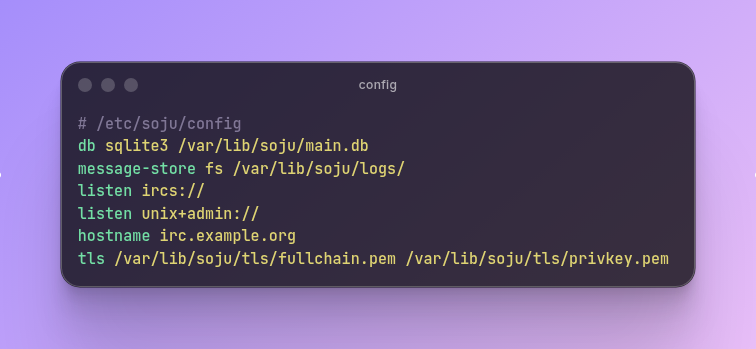
Now edit /etc/soju/config to use the new certificate and your domain:
db sqlite3 /var/lib/soju/main.db
message-store fs /var/lib/soju/logs/
listen ircs://
listen unix+admin://
hostname irc.example.org
tls /var/lib/soju/tls/fullchain.pem /var/lib/soju/tls/privkey.pem
The hostname line tells soju its public name, which should be a full domain. Restart soju so it picks everything up:
sudo systemctl restart sojuStep 3: create your user #
soju has no users after a fresh install. The simplest way to create the first one is sojudb, which writes straight to the database. The soju documentation asks you to restart the daemon after changing the database this way, so stop it first:
sudo systemctl stop soju
sudo -u soju sojudb create-user yourname -admin
sudo systemctl start soju
sojudb asks for the password without echoing it, so it never ends up in your shell history. Running it as the soju user keeps the database file owned by the right account. The -admin flag makes this user an administrator, which you need to create more users and see server statistics later.
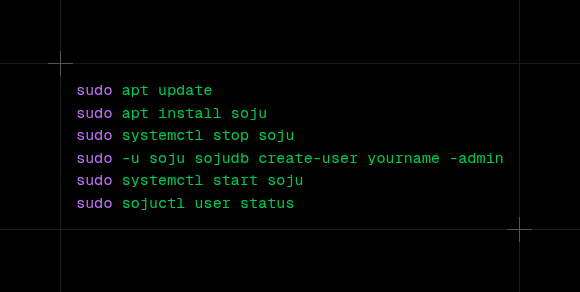
To check that everything is up:
sudo systemctl status soju
sudo sojuctl user status
sudo sojuctl server status
sojuctl sends commands to the running bouncer through the admin socket, which is why it needs sudo. If something looks wrong, the logs are one command away:
sudo journalctl -u soju -fStep 4: open the port #
If you use ufw, allow IRC over TLS:
sudo ufw allow 6697/tcpKeep port 80 open too if you used certbot's standalone mode, since renewals need it. With another firewall, or a firewall at your hosting provider, the idea is the same: 6697/tcp in.
Step 5: connect a client #
How you connect depends on whether your client understands soju's network extension.
Clients that understand soju #
Some clients were made with soju in mind, like goguma on Android and iOS, gamja in the browser and senpai in the terminal. motd on Android also manages soju networks. With these, you add a single server:
- Server:
irc.example.org - Port:
6697, with TLS on - Username:
yourname - Password: your soju password
The client then shows every network you have in soju, and lets you add new ones from its own interface.
Every other client #
Clients like irssi, WeeChat, HexChat or Emacs' ERC see the bouncer as a regular IRC server, so you add one server entry per network. The trick is in the username: you tell soju which network you want right there.
yourname/irc.libera.chatIf that network doesn't exist in soju yet and the name is a valid hostname, soju creates it on the spot and connects. If you use more than one client, add a name for each one at the end, so each keeps its own place in the history:
yourname/irc.libera.chat@laptop
yourname/irc.libera.chat@desktop
For irssi, for example:
/network add -user yourname/irc.libera.chat@laptop libera
/server add -auto -tls -network libera irc.example.org 6697 yourpassword
/connect libera
WeeChat users can install the soju.py script, which connects to all your soju networks from a single server entry.
Step 6: manage everything with BouncerServ #
soju has a built-in service called BouncerServ. You talk to it like any other user, with private messages, from any connected client. /msg BouncerServ help lists every command.
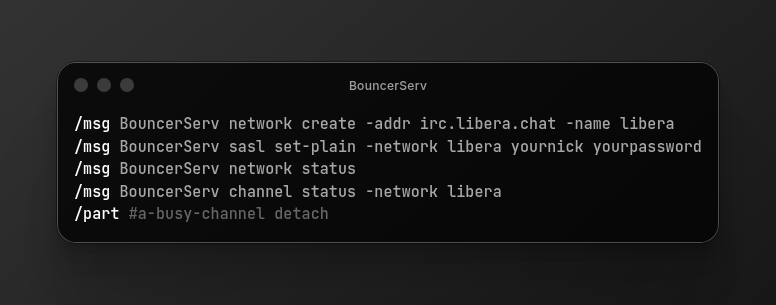
Add a network and give it a short name:
/msg BouncerServ network create -addr irc.libera.chat -name libera -nick yournickLog in to your account on that network with SASL, so soju identifies you on every reconnect:
/msg BouncerServ sasl set-plain -network libera yournick yourpasswordSASL credentials only apply after a reconnect, so update the network afterwards, which makes soju reconnect:
/msg BouncerServ network update liberaSee where you stand:
/msg BouncerServ network status
/msg BouncerServ channel status -network libera
Channels are simpler than they look. Join with a normal /join #channel and soju remembers it, so it rejoins by itself on the next connection. To leave for good, use /part. To keep a busy channel logged without seeing it in your client, part it with the reason detach:
/part #a-busy-channel detachThe channel stays joined on the bouncer and keeps its history, and by default soju sends you a notice from BouncerServ when someone mentions you there. channel update lets you change that behavior, or make a channel detach on its own after a period of silence.
Since you're an admin, you can also create accounts for friends:
/msg BouncerServ user create -username friend -password a-long-passwordDay to day #
A few things worth knowing once it's running:
-
Logs live in
/var/lib/soju/logs/, one folder per user and network, as plain text files you can read or grep. -
Backups are easy: everything soju knows is inside
/var/lib/soju. Copy that folder and/etc/soju/config, and you can rebuild the bouncer anywhere. -
Config changes take effect with
sudo systemctl reload soju, except forlisten,dband the message store, which need a restart. -
Updates come through
apt, like any other package. -
Debug mode exists (
-debug, or/msg BouncerServ server debug true), but the documentation warns that it writes passwords to the logs. Turn it on only while you're chasing a problem, and off again right after.
And that's it: a bouncer that never sleeps, a real certificate that renews itself, and your networks waiting for you on every device.