


Build your own tilde, part I: from an empty server to ~you
A step-by-step guide to building your own tilde, a shared Unix server with ~user web pages. Part I goes from an empty Debian VPS to SSH with keys only, a firewall, /etc/skel, Apache userdir with HTTPS and two test members.
Contents
- What you're actually building
- Step 0: Write down why, before you buy anything
- Step 1: Get a server you can rescue
- Step 2: An admin account and SSH that only takes keys
- Step 3: A firewall with three doors
- Step 4: Make /etc/skel the welcome mat
- Step 5: Web pages at /~name/ with Apache
- Step 6: Your first two members are fake
- What's next
- ...
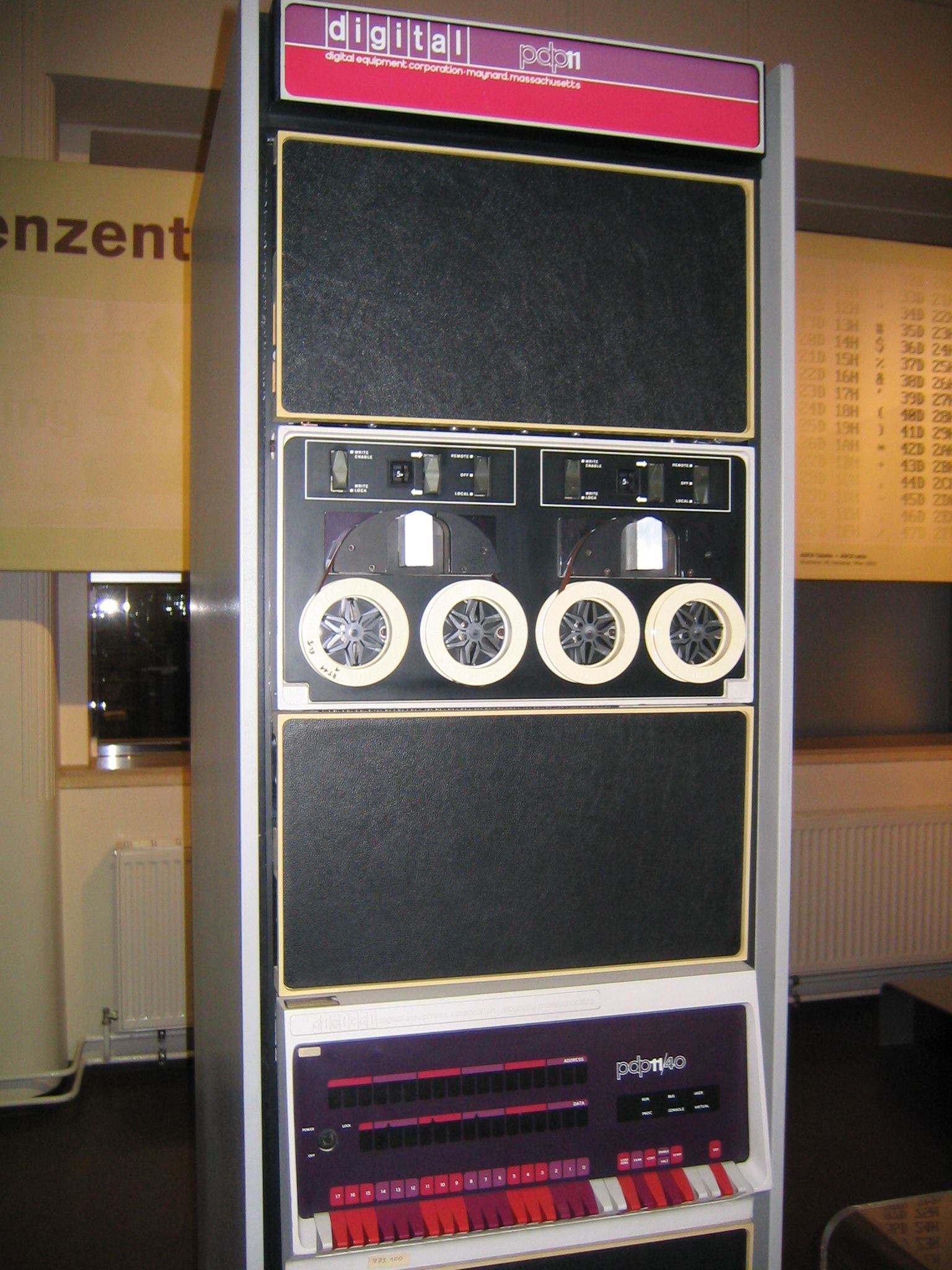
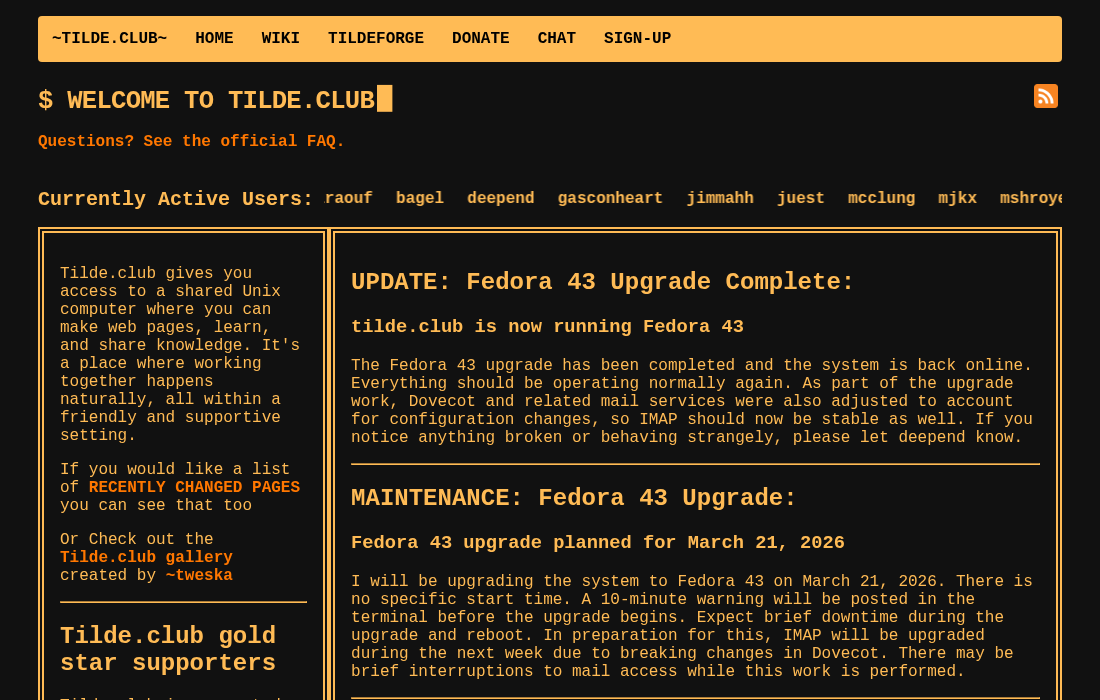
A tilde is a shared Unix computer where people get a shell account, a home folder and a web page at server/~name. The name comes from that ~ in the address. You may also see them called pubnixes, short for public Unix systems. They've been around for a long time, and in 2014 tilde.club brought the idea back to life for a new generation. Today there are dozens of them, from tiny machines shared by ten friends to old institutions like SDF.
This is a two-part guide to building your own. Part I goes from an empty server to the moment a member can log in with a key and see their page at https://your-tilde/~them/. Part II covers everything that turns that machine into a place people can trust: account requests, disk and memory limits, backups you've actually restored, monitoring, and what to do when someone misbehaves.
A lot of what's here comes from rebuilding runv.club, and from reading how other tildes do it. The best single reference out there is tilde.club's own guide, Build a tilde-style machine. It uses Fedora and nginx. This guide uses Debian and Apache instead, because Debian is stable, boring and well documented, and Apache's mod_userdir turns /~name/ into a home folder with almost no work. The ideas carry over to any system.
You should be comfortable with a terminal and editing files over SSH. Everything else, I'll explain as we go.
What you're actually building #
Installing SSH and creating users is the easy part. A tilde is really six things stacked on top of each other:
- the base system: updates, network, DNS, firewall, clock
- identity: accounts, groups, SSH keys and a way to recover access
- publishing:
public_html, HTTPS and file permissions - resources: disk, memory, CPU and processes, shared fairly
- operations: logs, alerts, backups and written procedures
- community: purpose, rules, moderation, how people join and leave
When something goes wrong, it almost always lives in one of these layers. A server with perfect configuration and no rules is a problem. A lovely community on a machine with no backups is a bigger one.
Step 0: Write down why, before you buy anything #
The tildeverse zine has a great essay called So, You Wanna Make A Tilde?, and its first question isn't about operating systems. It's about why. A tilde for friends, one for text art and one for learning to program will need different tools, different rules and a different amount of your time.
Before touching a server, write a short page that answers:
- what is this place for?
- who can ask for an account, and who approves it?
- what's allowed, and what isn't?
- what do you log about members, and for how long?
- do you promise backups or uptime? (It's fine to say no.)
- when does an inactive account get archived?
- how do people report abuse or ask for help?
- how will you announce maintenance, or the end of the project?
The rules should forbid the obvious: crypto mining, spam, phishing, malware, scanning other people's networks, open proxies, harassment, trying to read other members' files, and hogging the machine. They should also protect what makes a tilde worth joining: compiling things, writing code, hosting pages, running an IRC client, experimenting. Don't remove compilers to feel safer. Programming is the point.
Step 1: Get a server you can rescue #
For a small group, tilde.club's guide suggests 2 CPUs, 4 GiB of RAM and 60 GiB of SSD as a reasonable start. That's a cheap VPS. Compilers, bots, games and mail change those numbers fast, so plan to start small (five to ten people) and measure.

The most important feature isn't the CPU. It's a recovery console: a way to reach the machine from your provider's web panel when SSH is broken. You're going to lock yourself out at some point. Everybody does. Before you change anything else, open that console once and make sure it works.
Install a minimal Debian stable, point a domain at it (I'll use tilde.example in the examples), and bring it up to date:
apt update && apt full-upgrade
hostnamectl set-hostname tilde
timedatectl
apt install unattended-upgrades
dpkg-reconfigure -plow unattended-upgrades
timedatectl should say the clock is synchronized. unattended-upgrades installs security updates on its own, which matters a lot on a machine where other people run code.
One small trap: don't publish an IPv6 (AAAA) record until you've tested your firewall over IPv6 from outside. It's easy to lock down IPv4 and forget the other door.
Start a text file, outside the server, with the provider, IP addresses, DNS settings, Debian version and how to reach the console. This is the beginning of your runbook, and future you will be grateful for it.
Step 2: An admin account and SSH that only takes keys #
Root shouldn't log in over the network. You'll have a personal admin account with sudo, and members will be in their own group. Create the groups and your admin user:
groupadd pubnix-admin
groupadd pubnix
adduser op
usermod -aG sudo,pubnix-admin op
From your own computer, copy your public key to the new account and log in with it:
ssh-copy-id op@tilde.example
ssh op@tilde.example
sudo -v
If that last command asks for your password and works, you have a working admin. Keep this session open. It's your safety net for the next part.
Now tell SSH to accept keys only. On Debian, files in /etc/ssh/sshd_config.d/ are read before the main config, and for most settings the first value wins, so a drop-in file is the clean way to do it. Some cloud images ship their own file there that turns passwords back on, and giving yours a low number makes it load first. Create /etc/ssh/sshd_config.d/10-tilde.conf:
PermitRootLogin no
PubkeyAuthentication yes
PasswordAuthentication no
KbdInteractiveAuthentication no
AllowGroups pubnix-admin pubnix
X11Forwarding no
PermitTunnel no
AllowGroups means only people in those two groups can log in at all. Check the file for mistakes, look at the configuration SSH will actually use, and reload:
sudo sshd -t
sudo sshd -T | grep -Ei 'permitrootlogin|passwordauth|allowgroups'
sudo systemctl reload ssh
Then open a second terminal and log in again as op. Only when that works do you close the first one. If it fails, the first session is still there to fix it, and if you closed it anyway, that's what the recovery console is for.
One honest note from the OpenSSH manual: turning off forwarding doesn't make a shell account a sandbox. Anyone with a shell can run their own programs, including network ones. These settings reduce noise. The real protections are permissions, limits and choosing members carefully.
Step 3: A firewall with three doors #
At the start, the world only needs SSH, HTTP and HTTPS. Debian uses nftables. Install it with sudo apt install nftables, then replace /etc/nftables.conf with:
flush ruleset
table inet filter {
chain input {
type filter hook input priority 0; policy drop;
ct state established,related accept
iif "lo" accept
meta l4proto { icmp, ipv6-icmp } accept
tcp dport { 22, 80, 443 } accept
}
}
The inet table covers IPv4 and IPv6 at once. Everything that isn't an answer to your own traffic, local, ping or ports 22, 80 and 443 is dropped. Check the syntax and turn it on, with your console within reach:
sudo nft -c -f /etc/nftables.conf
sudo systemctl enable --now nftables
sudo nft list ruleset
If your provider also has a firewall in its panel, set the same three ports there. Two layers are better than one.
Step 4: Make /etc/skel the welcome mat #
When you create a user, Debian copies everything in /etc/skel into their new home. That makes it the first thing every member sees, so it's worth getting right before you create anyone.
sudo mkdir -p /etc/skel/public_html /etc/skel/.ssh
sudo chmod 700 /etc/skel/.ssh
sudo touch /etc/skel/.ssh/authorized_keys
sudo chmod 600 /etc/skel/.ssh/authorized_keys
sudo chmod 755 /etc/skel/public_html
Give everyone a starter page:
sudo tee /etc/skel/public_html/index.html <<'EOF'
<!doctype html>
<meta charset="utf-8">
<title>a new tilde page</title>
<h1>Hello from my corner of the tilde</h1>
<p>Edit ~/public_html/index.html to change this page.</p>
EOF
And add a WELCOME.txt in plain words: how to edit the page, how to change your shell, how to check your disk quota, how to ask for a package, where the rules are and how to reach the admins. Never put a private key, a password or a token in /etc/skel. Everything in there gets copied to every single person.
Debian's adduser creates home folders that nobody else can enter (mode 0700). The web server needs to pass through a home folder to reach public_html, so change the default to 0711, which lets others pass through without listing what's inside:
sudo sed -i 's/^#*DIR_MODE=.*/DIR_MODE=0711/' /etc/adduser.conf
grep DIR_MODE /etc/adduser.conf
Keep in mind that changing /etc/skel later doesn't update homes that already exist.
Step 5: Web pages at /~name/ with Apache #
Install Apache and turn on the module that maps /~name/ to /home/name/public_html:
sudo apt install apache2
sudo a2enmod userdir
Replace the contents of /etc/apache2/mods-available/userdir.conf with this:
<IfModule mod_userdir.c>
UserDir public_html
UserDir disabled root
<Directory /home/*/public_html>
AllowOverride None
Options -Indexes +SymLinksIfOwnerMatch
Require all granted
</Directory>
</IfModule>
Line by line: pages live in public_html; root never gets a page; members can't override settings with .htaccess files; folders without an index aren't listed; and a symbolic link only works if the person who made it also owns the file it points to, so nobody can link /etc/passwd into their page. Test and reload:
sudo apache2ctl configtest
sudo systemctl reload apache2
Next, HTTPS. Certbot gets a free certificate from Let's Encrypt and sets up renewal:
sudo apt install certbot python3-certbot-apache
sudo certbot --apache -d tilde.example
sudo certbot renew --dry-run
The permission model is simple, and worth printing on the wall:
-
/home/name:0711, others can pass through but not look around -
~/.ssh:0700, only the owner -
~/.ssh/authorized_keys:0600, so nobody can add their key to your account -
~/public_html:0755, the web server can read it - web files:
0644, everyone reads, only the owner writes - private folders:
0700 - private files:
0600
There's one web risk that most tutorials skip, and Apache's own documentation warns about it. Every /~name/ page lives on the same domain, which browsers treat as the same origin. JavaScript on one member's page can mess with another member's page, or with anything logged in on that domain. So for now: static pages only, no PHP, no CGI, and never put an admin panel on the same domain. If you want dynamic pages one day, give each member their own subdomain, like name.tilde.example.
Step 6: Your first two members are fake #
Before any real person joins, create two throwaway accounts and try to make them hurt each other.
sudo adduser --disabled-password --comment "" alice
sudo adduser --disabled-password --comment "" bob
sudo usermod -aG pubnix alice
sudo usermod -aG pubnix bob
--disabled-password means there's no password at all. Members log in with keys only. On your own computer, make a test key for Alice:
ssh-keygen -t ed25519 -f ~/.ssh/tilde-aliceCopy the .pub file to the server and install it:
sudo install -m 600 -o alice -g alice tilde-alice.pub /home/alice/.ssh/authorized_keysNow log in as Alice from your computer with ssh -i ~/.ssh/tilde-alice alice@tilde.example, and open https://tilde.example/~alice/. You should see the starter page. Then run the nasty tests from your admin account:
ls -ld /home/alice
sudo -u bob ls /home/alice
sudo -u alice sh -c 'echo secret > /home/alice/notes.txt; chmod 600 /home/alice/notes.txt'
sudo -u bob cat /home/alice/notes.txt
sudo -u alice ln -s /etc/passwd /home/alice/public_html/passwd
curl -I https://tilde.example/~alice/passwd
curl -I https://tilde.example/~root/
What you want to see: Alice's home is drwx--x--x, Bob gets "Permission denied" when listing it and when reading her notes, the symlink to /etc/passwd returns 403, and /~root/ returns 404. Restart Apache, log in as Alice again and repeat the tests, to be sure nothing depends on luck. If any of these tests passes for Bob, stop and fix it before going further.
When everything fails the way it should, delete the symlink, and you have a tilde. A tiny one, with no members, but a real one.
What's next #
Right now, one member could fill the disk, eat all the memory or start a few thousand processes, and you'd find out when the machine falls over. There's no way to request an account, and no backup. That's all in part II: a repeatable way to create accounts, quotas and per-user limits with systemd, backups with restic (including the restore test everyone skips), basic monitoring, a calm way to suspend someone, and a private preview before you open the doors.
Take a break, look at your page at /~alice/ for a minute, and enjoy it. Then go to part II.