


Build your own tilde, part II: limits, backups and real people
Part II of building your own tilde: a safe script to create accounts, disk quotas, per-user memory and process limits with systemd, encrypted restic backups you actually restore, monitoring, suspending without deleting and a private preview.
Contents
- Step 7: An account process you can repeat
- Step 8: Disk quotas
- Step 9: Memory, CPU and processes, shared fairly
- Step 10: Backups you've actually restored
- Step 11: Keep an eye on the machine
- Step 12: When something goes wrong, suspend, don't delete
- Step 13: A private preview
- What to add later, and what it really costs
- Before your first public member
In part I we built the skeleton of a tilde: a Debian server you can rescue, SSH that only takes keys, a small firewall, a welcome kit in /etc/skel and pages at /~name/ over HTTPS. Two fake members, Alice and Bob, proved they can't read each other's files.
That machine works, but it isn't ready for people. One member could fill the disk or start a few thousand processes and take everyone down with them. There's no backup. There's no calm way to handle a problem. This part fixes that, one step at a time, and ends with a private preview before you open the doors.
Same promise as before: I'll explain why each step exists, not just what to type.
Step 7: An account process you can repeat #
Every account should be created the same way, every time, with a record of who did it. First, decide what you ask people for, and keep it short:
- the username they want
- their public SSH key
- a way to contact them
- a few lines about why they want to join
- that they've read and accepted the rules
Don't ask for a birth date, documents or an address. Data you don't collect can't leak. envs.net is a good example of a clear signup form and a published list of what's allowed, if you want to see how a mature tilde does it.
Do the first ten accounts by hand, with a checklist, so you learn where things break. Then turn the checklist into a small script. Here's a simple one. Save it as /usr/local/sbin/newmember:
#!/bin/sh
set -eu
user="$1"
keyfile="$2"
case "$user" in
[a-z]*) ;;
*) echo "invalid name"; exit 1 ;;
esac
case "$user" in
*[!a-z0-9_]*) echo "invalid name"; exit 1 ;;
esac
test "${#user}" -ge 3 && test "${#user}" -le 16 || { echo "invalid name"; exit 1; }
if grep -qx "$user" /etc/tilde/reserved-names 2>/dev/null; then echo "reserved name"; exit 1; fi
if id "$user" >/dev/null 2>&1; then echo "user exists"; exit 1; fi
ssh-keygen -l -f "$keyfile" >/dev/null || { echo "invalid key"; exit 1; }
adduser --disabled-password --comment "" "$user"
usermod -aG pubnix "$user"
install -m 600 -o "$user" -g "$user" "$keyfile" "/home/$user/.ssh/authorized_keys"
setquota -u "$user" 1000000 1200000 20000 25000 /
echo "$(date -Iseconds) created $user by ${SUDO_USER:-root}" >> /var/log/tilde-accounts.log
Make it executable with sudo chmod 700 /usr/local/sbin/newmember and use it like sudo newmember carol carol.pub.
What it does, in order: the username must start with a letter, use only lowercase letters, numbers and underscores, and be 3 to 16 characters long. Checking every character this way (instead of with a quick grep, which a name with a line break can fool) keeps out anything that could be read as a command. Names you've reserved (like admin, www, root, abuse) are refused. Existing users are refused. ssh-keygen -l checks that the file really is a public key. Then it creates the user with their own private group, adds them to pubnix so SSH lets them in, installs only their public key, sets a disk quota (next step) and writes a line in a log.
You can't test the login yourself, because you don't have their private key, and that's exactly how it should be. Ask the person to try, then send them the welcome instructions. Never send a password or anything secret by email.
Later, if you want, the same steps fit nicely into Ansible. The order matters, though: automate a process that already works, not one you're still figuring out.
Step 8: Disk quotas #
Without quotas, the first person who downloads a big dataset fills the disk, and then nobody can write anything, including the system. Debian's quota package sets limits per user on the filesystem that holds /home. On most VPSes, that's /.
sudo apt install quotaEdit /etc/fstab and add usrquota,grpquota to the options of that filesystem. The line ends up looking something like this:
UUID=1234-abcd / ext4 errors=remount-ro,usrquota,grpquota 0 1Then remount, build the quota files and turn quotas on:
sudo mount -o remount /
sudo quotacheck -cugm /
sudo quotaon -v /
Now set a limit for Alice:
sudo setquota -u alice 1000000 1200000 20000 25000 /
sudo quota -s -u alice
sudo repquota -as
The four numbers are: soft and hard limits for space, in 1 KiB blocks (so about 1 GB and 1.2 GB), then soft and hard limits for the number of files (inodes). The soft limit can be passed for a few days as a warning. The hard limit can't. Don't forget inodes: a million tiny files can break a disk that still shows plenty of free gigabytes.
Test it. Log in as Alice and try to write a file bigger than her limit with fallocate -l 2G /home/alice/big. It should fail with "Disk quota exceeded". Delete the file afterwards.
Step 9: Memory, CPU and processes, shared fairly #
A disk quota does nothing about memory or CPU. For those, systemd is the right tool. Every user who logs in gets their processes grouped into a "slice" called user-UID.slice, and systemd can put limits on that slice.
Here's the trick: a drop-in folder named user-.slice.d applies to every user slice at once. Create /etc/systemd/system/user-.slice.d/50-tilde.conf:
[Slice]
TasksMax=256
MemoryHigh=1G
MemoryMax=1536M
CPUWeight=50
TasksMax caps processes and threads, so a fork bomb hits a wall instead of the whole machine. MemoryHigh is where the kernel starts squeezing a user's memory, and MemoryMax is the hard ceiling. CPUWeight decides how CPU is shared when everyone wants it at once. There's also CPUQuota for hard CPU caps, but fairness is usually enough.
Your admin account shouldn't live under the same limits, or you might not be able to fix the machine when it's in trouble. Find your UID with id -u op (usually 1000) and create /etc/systemd/system/user-1000.slice.d/90-admin.conf:
[Slice]
TasksMax=infinity
MemoryHigh=infinity
MemoryMax=infinity
CPUWeight=100
Drop-in files are read in name order, so 90-admin wins over 50-tilde. Apply and check:
sudo systemctl daemon-reload
sudo systemctl show user-$(id -u alice).slice -p TasksMax -p MemoryMax
sudo systemctl show user-1000.slice -p TasksMax -p MemoryMax
The numbers above are a starting point, not a rule. Too tight and nobody can compile anything, which defeats the purpose of a tilde. Log in as Alice and try something heavy, then watch it live with systemd-cgtop. A safe way to test the process limit is a loop that starts lots of sleeping processes:
for i in $(seq 300); do sleep 600 & doneSomewhere around 256 it should start failing with "Resource temporarily unavailable". Clean up with pkill -u alice sleep.
Remember what these limits are for. They keep accidents and greedy programs from hurting everyone. They don't turn a shared shell into a fortress. If you expect people who are actively hostile to each other, they need separate virtual machines, not a tilde.
Step 10: Backups you've actually restored #

This is the step that decides whether your tilde survives a bad day. People trust you with their pages, their writing and their keys. The backup has to leave the server, be encrypted, and be tested.
restic does all of that. It encrypts everything, stores only what changed, and can send backups over SFTP to another machine you control. Install it and create a long random password, kept in a file only root can read:
sudo apt install restic
sudo sh -c 'umask 077; openssl rand -base64 32 > /root/restic.pass'
Keep a copy of that password somewhere off the server, like your password manager. Without it, your backups are noise. Root will also need an SSH key that can log into the backup machine. Then create the repository:
sudo restic -r sftp:backup@backup.example:/srv/restic/tilde --password-file /root/restic.pass initNow the backup script, /usr/local/sbin/tilde-backup:
#!/bin/sh
set -eu
export RESTIC_REPOSITORY="sftp:backup@backup.example:/srv/restic/tilde"
export RESTIC_PASSWORD_FILE="/root/restic.pass"
mkdir -p /root/manifest
getent passwd > /root/manifest/passwd.txt
getent group > /root/manifest/group.txt
repquota -a > /root/manifest/quotas.txt
dpkg --get-selections > /root/manifest/packages.txt
restic backup /home /etc /srv /usr/local /var/www /root/manifest --exclude-caches
restic forget --keep-daily 7 --keep-weekly 4 --keep-monthly 6 --prune
restic check
Besides homes and configuration, it saves a small "manifest": the list of users and groups with their IDs, the quotas and the installed packages. If you ever rebuild the server from scratch, that's what lets files come back with the right owners. forget keeps seven daily, four weekly and six monthly snapshots and removes the rest. check makes sure the repository isn't damaged.
Run it every day with a systemd timer. Create /etc/systemd/system/tilde-backup.service:
[Unit]
Description=Back up the tilde with restic

[Service]
Type=oneshot
ExecStart=/usr/local/sbin/tilde-backup
And /etc/systemd/system/tilde-backup.timer:
[Unit]
Description=Daily tilde backup

[Timer]
OnCalendar=daily
RandomizedDelaySec=1h
Persistent=true

[Install]
WantedBy=timers.target
Then:
sudo chmod 700 /usr/local/sbin/tilde-backup
sudo systemctl daemon-reload
sudo systemctl enable --now tilde-backup.timer
sudo systemctl start tilde-backup.service
sudo journalctl -u tilde-backup.service
Now the part almost everyone skips. A backup job that finishes without errors only proves the job ran. Restore something and look at it. Become root with sudo -i, then:
export RESTIC_REPOSITORY="sftp:backup@backup.example:/srv/restic/tilde"
export RESTIC_PASSWORD_FILE="/root/restic.pass"
restic snapshots
restic restore latest --target /srv/restore-test --include /home/alice
ls -ln /srv/restore-test/home/alice
diff -r /home/alice /srv/restore-test/home/alice
Check that the files are there, that the owner and group numbers match, and that the permissions are the same as the original. Do this once a month with a test account. Snapshots in your provider's panel are nice for quick mistakes, but they disappear with your account, your region or a bad day at the provider. They don't replace a real backup.
Step 11: Keep an eye on the machine #
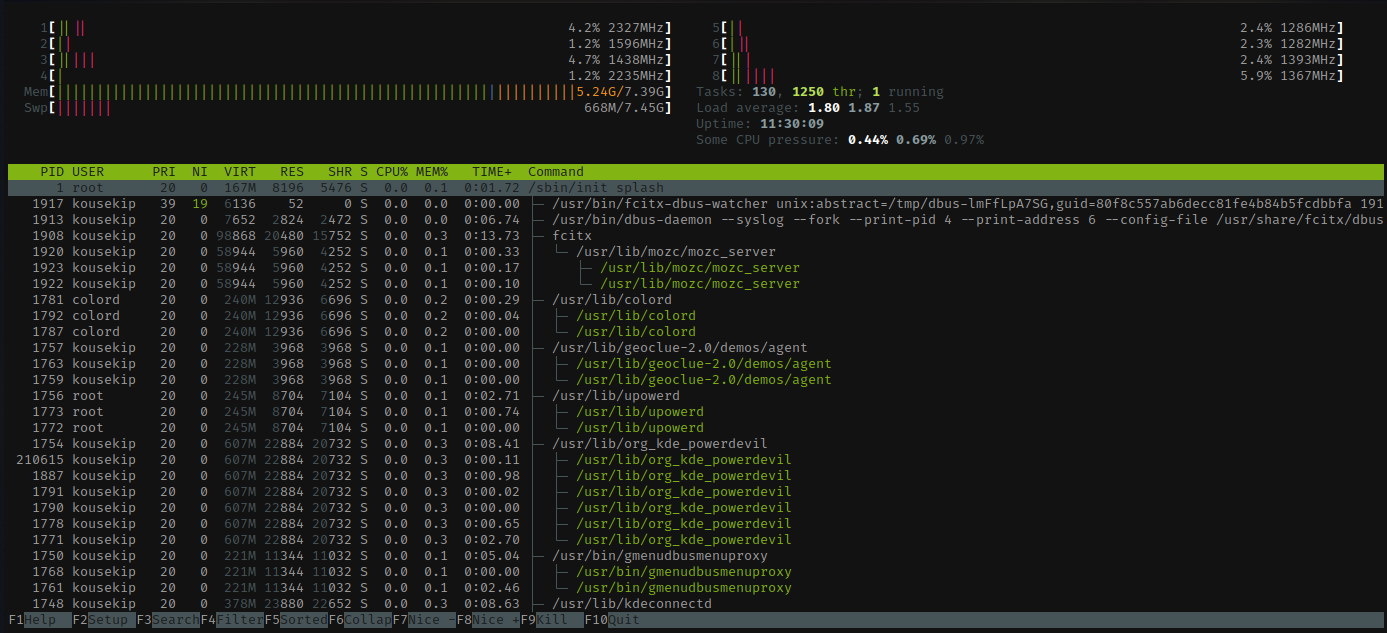
You don't need a fancy dashboard. You need to know, before your members do, when one of these happens:
- SSH or HTTPS stops answering
- disk space or inodes go past 80%, and again at 90%
- memory runs out and the kernel starts killing processes
- the load stays high, or one account uses far more than everyone else
- lots of failed logins
- the backup is late, failed or wasn't checked
- the certificate is about to expire
- security updates are waiting
- something new is listening on a port you didn't open
Most of this is a few commands away:
df -h /
df -i /
systemd-cgtop
ss -tlnp
journalctl -u ssh --since today
systemctl list-timers
sudo certbot certificates
Put the checks you care about in a small script, run it from a systemd timer and have it email you when something's off. Add an external uptime monitor that checks your site and SSH from outside, because a server can't tell you it's down. And make sure someone actually reads those alerts. That's the whole trick.
Be careful with logs, too. Keep what you need for logins, capacity and incidents, publish how long you keep it, and don't record everyone's shell commands or poke around in private files without a clear rule and a reason.
Step 12: When something goes wrong, suspend, don't delete #
Sooner or later someone will run a miner, send spam, or just break the rules. Have a calm procedure ready before it happens:
sudo usermod --expiredate 1 alice
sudo loginctl terminate-user alice
sudo crontab -l -u alice
sudo loginctl disable-linger alice
The first line expires the account, which blocks new logins (keys included) without touching any files. The second ends every running process and session. Then look for things that would come back on their own: crontabs, systemd user services in ~/.config/systemd/user, extra keys in authorized_keys, anything running from their page.
Write down what happened and who acted. Talk to the person when it's safe to do so, and let them explain. If it was a mistake, undo it with sudo usermod --expiredate "" alice.
Never "solve" an incident by deleting someone's home right away. It destroys the evidence, makes a false alarm impossible to undo, and might wipe the only copy of someone's work. When an account is closed normally, give the person time and a simple way to download their files first.
Step 13: A private preview #
Don't open to the world yet. Invite five to ten people you know for about a month, and ask them to really use the place:
- add and replace their SSH keys
- publish and delete pages
- compile something small
- check their quota
- read the welcome file and follow it
- ask for help and report a fake problem through your abuse contact
- live through an announced maintenance window and a restart
Meanwhile, watch disk, inodes, memory, load, processes per user, failed logins, backup age and certificate dates. Lock yourself out on purpose and get back in through the recovery console. Every surprise goes into the runbook before strangers arrive.
When you do open, open slowly. Read every request yourself and let in a few people at a time. Automatic, unlimited signups turn spam and abuse into your problem on day one.
What to add later, and what it really costs #
Once the core has run quietly for a few weeks, you can grow it, one service at a time. Roughly in this order:
- a message of the day and a list of members' pages: cheap, but someone has to keep them up to date
- Gopher and Gemini for static pages: more daemons, more certificates, more docs
- IRC: start by pointing people to an existing network like tilde.chat, it saves you from running a network on day one
- a shared IRC bouncer: credentials, ports, updates, possible abuse
- local mail between members: privacy, quotas, clients
- shared Git: permissions, quotas, backups
- PHP or CGI: only after each member has their own subdomain and their code runs as their own user
- sending email to the internet: only with a lot of experience, because IP reputation, spam, SPF, DKIM and DMARC are a job in themselves
Every service needs an owner, limits, logs and a restore plan. The goal isn't the longest list of daemons. It's a place people want to come back to.
Before your first public member #
Go through this list. Every line should be a yes:
- the recovery console was tested
- members have at least two ways to reach an admin
- root can't log in remotely, and the admin account works with a key
-
sshd -tandsshd -Twere reviewed - the host firewall and the provider firewall only open the ports you meant to open
- IPv4 and IPv6 were tested separately
-
/etc/skelwas checked on a fresh account - two test users tried and failed to read each other's files
- pages don't expose dotfiles, keys, backups or homes
- disk, inode, process and memory limits were tested on purpose
- an off-site backup finished and a restore was checked
- the certificate renews automatically, and the dry run passed
- rules, privacy policy, account removal and abuse contact are published
- there's a way to suspend without deleting
- your configuration is in version control, with no secrets in it
- every service has an owner, an update plan and a recovery plan
If you got here, congratulations. You're not just running a server anymore. You're keeping a small piece of the internet open for people who want a quieter one. And if you'd rather join a tilde than run one, runv.club opens its doors soon.
Well, that's it.