

Dotfiles: the small text files that make a computer mine
A fresh computer works, but it isn't yours yet. What makes it yours fits in a few dozen text files. What dotfiles are, why they start with a dot, how to build and version your own, how I keep mine with chezmoi, and what they can and can't do.
Contents
- What dotfiles are
- Why they start with a dot
- The home folder got crowded
- Why they matter so much to me
- How I keep mine
- How to start yours
- Step 1: find what you've actually changed
- Step 2: pick a way to manage them
- Step 3: write the restore script
- Step 4: keep the habit
- Limitations
- And what they can do
A fresh computer works, but it isn't mine yet. The shell has the wrong prompt, git doesn't know my name, the editor opens with someone else's defaults, the terminal font is the wrong size and none of my shortcuts exist. What turns that machine into my machine fits in a few dozen small text files. They're called dotfiles, and they're one of the things I care about most in my whole setup. They live in a repository, and one command puts them on a new computer.
This post is about them: what they are, where the dot came from, how to start your own, how I keep mine, and what they can and can't do.
What dotfiles are #
Dotfiles are the configuration files that programs read from your home folder. On Unix-like systems they traditionally start with a dot, which is where the name comes from:
-
~/.bashrcand~/.zshrc, for the shell -
~/.gitconfig, for git -
~/.vimrc, for Vim -
~/.ssh/config, for SSH hosts and shortcuts -
~/.tmux.conf, for tmux
Newer programs keep their files in ~/.config/ instead: ~/.config/nvim/, ~/.config/kitty/kitty.conf, ~/.config/git/config. Same idea, tidier place. People still call all of it dotfiles.
They're plain text, meant to be read and edited by a person. That's what makes them special. A setting you clicked in a menu is gone when the machine dies. A line in a text file can be copied, commented, versioned and carried anywhere.
Why they start with a dot #
The dot started out as a shortcut.
In the early days of Unix, when the file system became hierarchical, every directory got two special entries: . for the directory itself and .. for its parent. They showed up every time someone typed ls, so a check was added to hide them. Rob Pike told the story years later: the right test would have compared the name with . and .., but the one that went in was shorter and only looked at the first character.
if (name[0] == '.') continue;Any file whose name started with a dot vanished from ls. Programmers noticed, and started putting their configuration files in everyone's home folder with a dot in front, so they'd stay out of sight. Pike called the hidden file "an unintended consequence" and "certainly a mistake", and pointed out that Plan 9, the system he worked on after Unix, had no dotfiles at all. Configuration lived in normal folders like $HOME/lib.
The other half of the name is older still. The rc in .bashrc, .vimrc and .zshrc comes from RUNCOM, a program written around 1963 for CTSS, a time-sharing system at MIT. It ran a list of commands stored in a file, and those files came to be called "runcoms". Kernighan and Ritchie described the rc in Unix as "a fossil from that usage". So every time you open .bashrc you're reading a word from the early sixties.
The home folder got crowded #
Since any program could drop a dotfile in your home, many did. Pike counted about a hundred in his own home folder and didn't know what most of them were for.
The modern answer is the XDG Base Directory specification, from freedesktop.org. It defines where each kind of file should go:
- configuration in
~/.config(or wherever$XDG_CONFIG_HOMEpoints) - data in
~/.local/share - state, like history and logs, in
~/.local/state - cache in
~/.cache
Most recent tools follow it, and it helps a lot with dotfiles: everything worth saving sits under ~/.config, and the cache, which you never want to save, sits somewhere else. Plenty of older programs still ignore it, which is why ~ is still full of dots.
Why they matter so much to me #
Every line in a dotfile is a decision someone made once. An alias you got tired of typing, a git setting that stopped a mistake from happening again, a shortcut that matches how your hands move. Over the years those decisions pile up into an environment that fits you, and that environment is worth more than any single machine.
Keeping them in a repository gives you a few things at once:
- A new machine in minutes. Clone, run one command, and the computer behaves like yours.
- The same environment everywhere. Laptop, desktop, a server you SSH into, a VM you'll throw away tomorrow.
- History. Git tells you when a setting changed and why, as long as you write decent commit messages.
-
Courage to experiment. If a new config breaks everything,
git checkoutbrings the old one back.
There's a whole culture around this. People publish their dotfiles on GitHub, and dotfiles.github.io works as an unofficial guide, with tutorials, tools and other people's setups to learn from. GitHub even builds it into Codespaces: point it at your dotfiles repository and every new codespace clones it and runs your install.sh (or bootstrap.sh, setup.sh and a few other names). If there's no script, it links every file that starts with a dot into the home folder.
How I keep mine #
My dotfiles live in a private repository managed with chezmoi. It covers two very different systems: Omarchy, the Arch Linux setup with Hyprland, and Windows. On a new Linux machine, restoring everything looks like this:
chezmoi init --apply runawaydevil/dotfiles
~/.local/share/chezmoi/meta/restore.sh
hyprctl reload
The first line clones the repository and writes every file to its place. The second installs packages, themes, plugins and services from lists kept in the repository, in steps I can also run one at a time. On Windows the same first line works, and a PowerShell script does the equivalent with winget, Scoop and Chocolatey.
A file called .chezmoiignore decides what goes where. Hyprland, the terminals (Alacritty, foot, Ghostty and kitty), Neovim, Zed, mise and the small scripts in ~/.local/bin only exist on Linux. The Windows Terminal settings and the PowerShell profiles only exist on Windows. The git config is shared, as a template with the few lines that change per system:
{{ if eq .chezmoi.os "windows" }}
# lines only Windows gets
{{ end }}
Saving changes is a snapshot script and a normal git commit. Even the wallpapers are in there, a folder of old seascapes by Aivazovsky, Hokusai, Turner and Winslow Homer, so a new machine looks like home from the first boot.
What stays out matters as much. Themes and plugins I download from elsewhere go in as a list of URLs, and binaries that come from packages are installed by the restore script. The repository stores my decisions and leaves out whatever can be downloaded again.
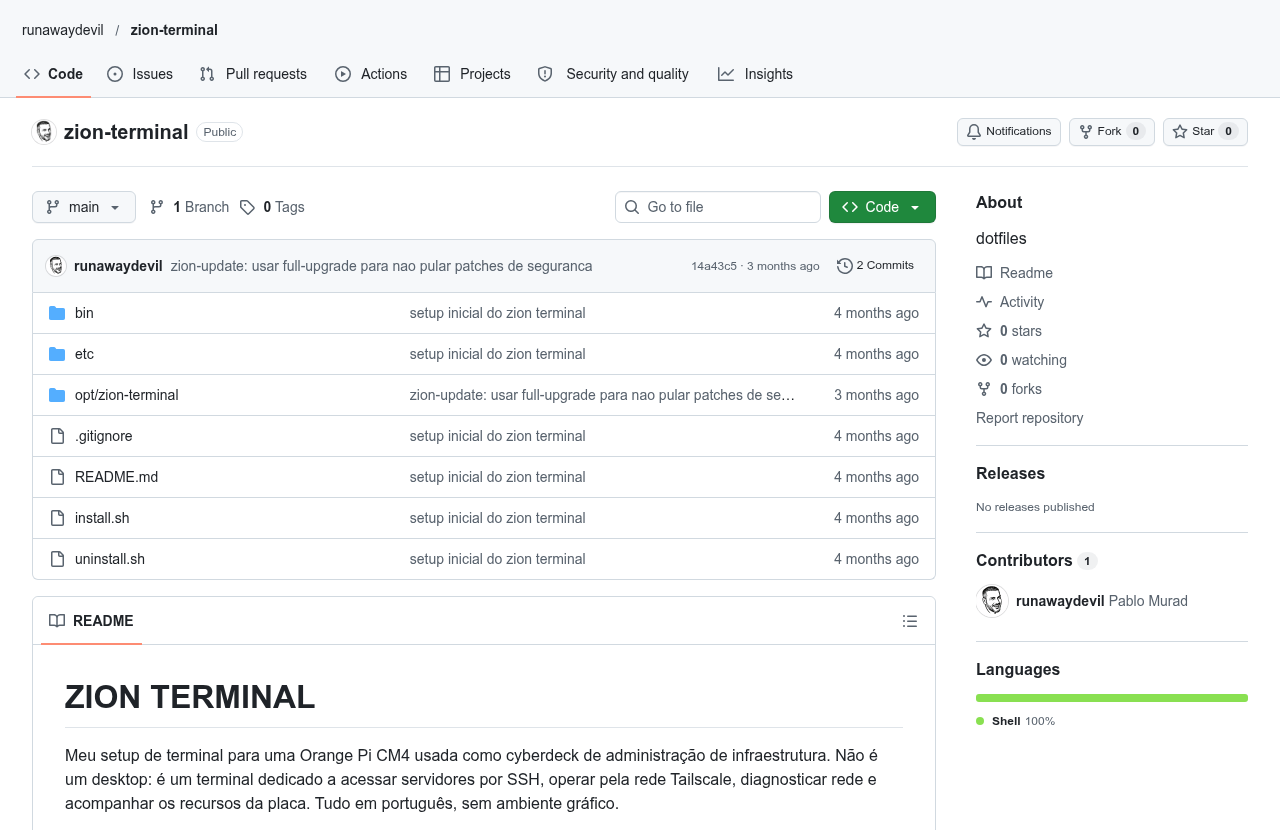
I have a second, smaller example that's public: Zion Terminal, the terminal setup for an Orange Pi CM4 I use as a cyberdeck. It started as dotfiles and grew into a small tool, with an install.sh that can run twice without breaking anything and an uninstall.sh with a --dry-run flag.
How to start yours #
Step 1: find what you've actually changed #
Don't start by copying someone's famous repository. Start with your own machine and list the files you've edited by hand. For most people the first batch is short:
- the shell:
~/.bashrcor~/.zshrc - git:
~/.gitconfig - the editor:
~/.vimrc,~/.config/nvim/or your editor's settings file - the terminal: something in
~/.config/
Three or four files are a perfectly good first commit.
Step 2: pick a way to manage them #
There are four common approaches, from the simplest to the most capable.
A folder and symbolic links. Move the real file into a folder that's a git repository, and leave a link in its old place:
mkdir ~/dotfiles
cd ~/dotfiles
git init
mv ~/.bashrc ~/dotfiles/bashrc
ln -s ~/dotfiles/bashrc ~/.bashrc
The program still finds ~/.bashrc, which now points into the repository. It works anywhere and needs nothing installed, but on a new machine you have to recreate every link yourself, so sooner or later you write a script for it.
GNU Stow. Stow describes itself as "a symlink farm manager", and it makes the links for you. You arrange the repository in one folder per program, mirroring where the files live in your home:
~/dotfiles/bash/.bashrc
~/dotfiles/git/.gitconfig
~/dotfiles/nvim/.config/nvim/init.lua
Then, from inside ~/dotfiles:
stow bash git nvimStow links each file into your home folder in the right place. stow -D nvim removes the links again. It's small, old and dependable, and it's a good choice if you only use one system.
A bare git repository. This trick became popular through a Hacker News comment in 2016. Your home folder itself becomes the working tree, with the repository's internals tucked into a hidden folder, and an alias keeps it from interfering with your other projects:
git init --bare $HOME/.cfg
alias config='/usr/bin/git --git-dir=$HOME/.cfg/ --work-tree=$HOME'
config config --local status.showUntrackedFiles no
config add ~/.bashrc
config commit -m "Add bashrc"
No links and no extra tools. The catch is that you have to remember to use config instead of git, and a careless config add . would try to add your whole home folder.
chezmoi. A dedicated tool, and the one I use. It keeps a copy of your files in its own repository and writes them out when you run chezmoi apply. It handles templates for differences between machines, can read secrets from password managers, can encrypt whole files with age or gpg and can run scripts, which covers installing packages too. The basic loop:
chezmoi init
chezmoi add ~/.bashrc
chezmoi edit ~/.bashrc
chezmoi apply
chezmoi cd
git add -A
git commit -m "Add bashrc"
git push
On a new machine, chezmoi init --apply your-github-user does the rest.
If you use one system and a handful of files, Stow is enough. If you move between Linux, macOS and Windows, or have files that must differ per machine, chezmoi pays for itself quickly.
Step 3: write the restore script #
Whatever you pick, put an install.sh at the root of the repository that gets a clean machine to your environment: install the packages you need, link or apply the files, set the shell. Make it safe to run more than once. If running it twice breaks something, you'll be afraid to run it at all, and a script you're afraid to run doesn't help.
Step 4: keep the habit #
Changed a setting? Commit it the same day. Dotfiles rot the same way notes do: the improvement that never made it into the repository is lost on the next machine.
Limitations #
Secrets. This is the big one. SSH keys, API tokens, .netrc, cloud credentials and shell history do not go in the repository, private or not. A private repository is still a copy of your secrets on someone else's server, and one wrong click makes it public. Keep secrets in a password manager or encrypted, and let the tool pull them in at apply time. Before your first push, read git log -p and look for anything that looks like a key.
Machines are different. Paths, package managers, screen sizes and installed tools change from one computer to the next, and a config that's perfect on the laptop can error out on a server. Templates and per-system ignore lists fix most of it, at the cost of some complexity.
Not everything is a text file. Some programs keep settings in a database, the Windows registry or macOS property lists, and some rewrite their own config file every time you change something in the interface, so every commit comes with noise you didn't write.
Other people's dotfiles. Copying a famous setup gives you hundreds of lines you don't understand, and some popular repositories install themselves with curl ... | bash, which means running a stranger's script on your machine without reading it. Read first, take what you understand, leave the rest.
The rabbit hole. Tweaking dotfiles is fun, and it can eat whole evenings that were supposed to go to the work the setup exists for.
And what they can do #
The other side is that almost anything you can write down fits in a dotfiles repository. Mine has shell and editor configs, and also systemd user services, small scripts, lists of packages to install, the window manager layout and the wallpapers. Anything that's text, or that can be fetched again from a list, can come along.
It can also grow well past configuration. Zion Terminal turned into a little command-line tool. Codespaces turns your repository into a setup that follows you into the cloud. Omarchy itself is, in my reading, a very well-organized set of dotfiles and install scripts that turns a plain Arch install into a complete desktop. Nix with home-manager goes further still and describes your entire user environment, programs included, in files.
The limit is your patience and your discipline with secrets. Everything else can be versioned.