


Org mode from zero: a complete, friendly guide
A complete, friendly guide to Org mode in Emacs: headings and folding, TODOs, dates and repeaters, the agenda, capture, links, tables with formulas, clocking, code blocks you can run, export to HTML and PDF, a starter config and a cheat sheet.
Contents
- Before you start
- One star, two stars
- Folding with Tab
- Moving things around
- Writing inside headings
- Checkboxes
- TODO: turning notes into tasks
- Your own keywords
- Remembering when you finished
- Priorities
- Tags
- Dates: scheduled, deadline and plain
- SCHEDULED and DEADLINE
- Things that repeat
- Dates that don't nag
- The agenda: every file, one view
- Living in the agenda
- Your own views
- Capture: write it down before you forget
- Refile and archive: keeping it tidy
- Links
- Tables that align themselves
- Formulas
- Properties and column view
- Clocking time
- Code blocks: a notebook in plain text
- Export: from text to HTML, PDF and friends
- Small things worth knowing
- A starter config
- A way to start
- Org outside Emacs
- Cheat sheet
- Where to go from here
Org mode is two things that grew up together. It's a way of writing plain text with a little structure (stars for headings, dashes for lists, pipes for tables), and it's the part of Emacs that knows what to do with that text. You write a file that any program on earth can open, and Emacs turns it into an outliner, a to-do list, a calendar, a spreadsheet, a notebook that runs code and a publishing tool.
It started in 2003 as a better way to fold outlines, and it's been part of Emacs since the mid-2000s. In 2026 it's on version 9.8 and still going. The files you write today will still open decades from now, in any text editor, with no app, no account and no export step, because they're just text.
This guide starts at the first star and goes all the way to agendas, code blocks and exporting a PDF. You don't need to read it in one sitting. Each section works on its own, and the cheat sheet at the end is there for the day you forget a key.

Before you start #
You need Emacs. If you don't have it yet, my post Emacs for the curious covers installing it on Linux and Windows and surviving the first day. Org already comes inside Emacs, so there's nothing else to install. If you ever want the newest Org, it's on GNU ELPA, the official package archive.
A quick reminder of how Emacs keys are written, because this post is full of them:
C-c: hold Ctrl and press c
M-x: hold Alt and press x (or press Esc, then x)
C-c C-t: Ctrl+c, then Ctrl+t
S-TAB: Shift+Tab
M-RET: Alt+Enter
To start, open a file whose name ends in .org, for example C-x C-f ~/org/inbox.org. Emacs sees the extension and switches to Org mode on its own. Everything below happens in that file.
One star, two stars #
A heading is a line that starts with one or more stars and a space. More stars, deeper level:
* Home
** Kitchen
*** Fix the dripping tap
** Garden
* Work
** Blog
*** Write the Org post
Everything under a heading, until the next heading of the same level, belongs to it. That's the whole idea of an outline, and it's what makes the next trick possible.
Folding with Tab #
Put the cursor on a heading and press TAB. The heading closes and shows three dots, meaning there's something inside. Press TAB again and you see the children. Once more and everything under it opens. Org calls this cycling: folded, children, everything.
S-TAB does the same for the whole file at once. Press it a few times and the file goes from only top-level headings, to all headings, to every line of text.
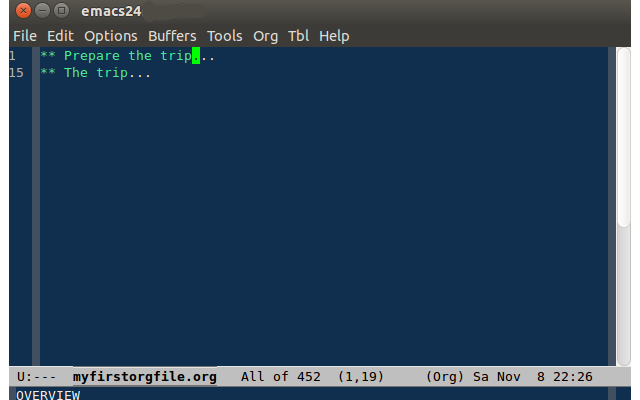
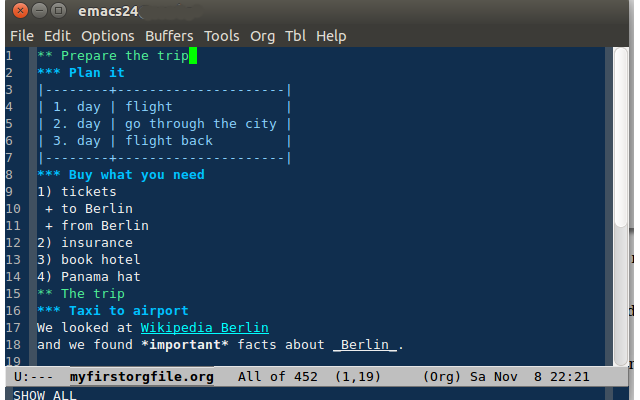
This is the first thing that makes Org feel different from a normal text file. A file with three hundred lines can look like five lines, and you open only the part you're working on.
Moving things around #
You never need to cut and paste a section in Org. You grab it with the keyboard and move it:
M-RET: new heading at the same level
C-RET: new heading after the whole current section
M-left / M-right: promote or demote this heading
M-S-left / M-S-right: promote or demote it with all its children
M-up / M-down: move the whole section up or down, children included
Try M-down on "Kitchen" in the example above. The heading jumps below "Garden" and takes the dripping tap with it.
Writing inside headings #
Under a heading you write normal paragraphs. Org gives you a handful of marks for inline styles:
*bold* /italic/ _underline_ =verbatim= ~code~ +strike-through+Lists are as simple as they look. Dashes or plus signs for bullets, numbers for ordered lists, and a double colon for term and definition:
- eggs
- flour
1. preheat the oven
2. mix everything
- Org :: an outliner made of plain text
M-RET inside a list adds a new item, and M-up and M-down move items around, the same keys you use for headings. Org also renumbers ordered lists for you when you move things.
Checkboxes #
A checkbox is a pair of square brackets with a space inside, placed right after the dash. The fastest way to make one is to let Org write it: put the cursor on a list item and press C-u C-c C-c. Then C-c C-c ticks it, and the empty box becomes [X]. In a list that already has checkboxes, M-S-RET adds a new item with an empty box.
Add a cookie to the heading above the list, [/] or [%], and Org keeps count for you:
* Packing for the weekend [2/2]
- [X] passport
- [X] charger
Every time you tick or untick a box, the cookie updates. Untick the charger and the heading goes back to [1/2]. [%] shows a percentage instead.
TODO: turning notes into tasks #
Any heading becomes a task when it starts with a keyword:
* TODO Renew the domain
* DONE Pay the electricity bill
C-c C-t cycles the heading through no keyword, TODO and DONE. S-left and S-right do the same thing in both directions.
Your own keywords #
Two states are enough for a shopping list, but real work has more steps. Put a line like this at the top of a file:
#+TODO: TODO NEXT WAIT | DONE CANCELEDEverything before the bar is open, everything after it is finished. Press C-c C-c on that line so Org reloads it, and now C-c C-t walks through all five. The config at the end of this post sets the same keywords for every file.
Remembering when you finished #
Add this to your config and Org stamps the moment you close a task:
(setq org-log-done 'time)* DONE Pay the electricity bill
CLOSED: [2026-11-06 Fri 10:42]It looks like a small thing until the day someone asks "when did we send that?" and the answer is sitting right under the heading.
Priorities #
A priority cookie goes right after the keyword:
* TODO [#A] Back up the server before the update
* TODO [#C] Reorganize the bookmarks
A is the highest and C the lowest. S-up and S-down on a heading change it, and C-c , asks for it directly.
Tags #
Tags go at the end of the heading, between colons:
* TODO Call the accountant :work:phone:
* Trip to Ouro Preto :travel:
** TODO Book the hotel
C-c C-q adds or edits tags with completion. Children inherit their parents' tags, so "Book the hotel" counts as :travel: without saying it. That matters later, when you search by tag.
Dates: scheduled, deadline and plain #
Org understands dates written between angle brackets:
<2026-11-10 Tue>
<2026-11-10 Tue 14:00>
You don't type them by hand. C-c . opens a little calendar and a prompt, and the prompt is smarter than it looks. You can type a date, but also things like these:
fri: next Friday
+3d: three days from today
+2w: two weeks from today
nov 20: the 20th of November
2pm: today at two in the afternoon
S-left and S-right on a date move it a day back or forward, and S-up and S-down change whatever part the cursor is on, year, month, day or hour.
SCHEDULED and DEADLINE #
Two kinds of dates mean something special to a task, and the difference is worth learning early:
* TODO Write the newsletter
SCHEDULED: <2026-11-09 Mon>
* TODO Send the tax documents
DEADLINE: <2026-11-20 Fri>
SCHEDULED means "this is when I plan to start working on it". DEADLINE means "this must be done by then". C-c C-s adds the first and C-c C-d the second. A deadline starts showing up in the agenda 14 days before the date, so it never catches you by surprise. You can change that window per task: <2026-11-20 Fri -5d> warns you only five days before.
Things that repeat #
Add a repeater to a date and the task comes back after you mark it done:
* TODO Water the plants
SCHEDULED: <2026-11-09 Mon +1w>
* TODO Check the backups
SCHEDULED: <2026-11-09 Mon ++1w>
* TODO Change the water filter
SCHEDULED: <2026-11-09 Mon .+3m>
The three flavors behave differently when you're late:
+1w: moves exactly one week from the old date, even if that's still in the past
++1w: moves forward in steps of one week until it lands in the future
.+3m: moves three months from the day you actually did it
+ is good for bills, ++ for weekly rituals that should stay on the same weekday, and .+ for chores where the interval matters more than the calendar, like a filter that lasts three months from the day you changed it.
Dates that don't nag #
Square brackets make an inactive date: [2026-11-06 Fri]. It's a note of when something happened, and the agenda ignores it. C-c ! inserts one. Org itself uses them for the CLOSED stamp and for logs.
The agenda: every file, one view #
Up to here everything lived in one file. The agenda is where Org starts to feel like an app. It reads all your Org files and builds views out of them: what's scheduled this week, every open task, everything tagged :work:.
First, the agenda needs a key that works everywhere in Emacs. The Org manual suggests these three, and the rest of this post assumes you have them:
(global-set-key (kbd "C-c l") #'org-store-link)
(global-set-key (kbd "C-c a") #'org-agenda)
(global-set-key (kbd "C-c c") #'org-capture)
Second, the agenda needs to know which files to read. The simplest way is to keep all your Org files in one folder and point it there:
(setq org-agenda-files '("~/org"))You can also add the file you're in with C-c [. Now press C-c a and a menu appears. These are the views you'll use most:
a: the agenda for this week, with scheduled items and deadlines
t: every open task, from every file
m: match tags, like work or travel+urgent
s: search for words across all your files
Living in the agenda #
The agenda is a live view, so you can work from inside it without opening the files:
f / b: next or previous week
.: jump back to today
d / w: day view or week view
t: change the TODO state of the item under the cursor
C-c C-s / C-c C-d: schedule or set a deadline
RET: open the item in its file
TAB: open it in the other window
I / O: clock in or out (more on that below)
r: refresh the view
s: save all Org files
q: close the agenda
The first time you press C-c a a on a Monday and see your week laid out, with deadlines from three different files already sorted by day, Org stops being a text format and starts being a planner.
Your own views #
When a view becomes a habit, give it a key. This one shows today's agenda with every task marked NEXT under it:
(setq org-agenda-custom-commands
'(("d" "Today and next"
((agenda "" ((org-agenda-span 'day)))
(todo "NEXT")))))
Now C-c a d is your morning page.
Capture: write it down before you forget #
Ideas show up while you're doing something else. Capture lets you write them down without leaving what you're doing. Press C-c c from anywhere in Emacs, pick a template, type a line, press C-c C-c, and you're back where you were. The note went to the right file in the right shape.
Templates are short:
(setq org-capture-templates
'(("t" "Task" entry (file "inbox.org")
"* TODO %?\n%U")
("n" "Note" entry (file "inbox.org")
"* %? :note:\n%U")
("j" "Journal" entry (file+olp+datetree "journal.org")
"* %<%H:%M> %?")))
The little codes are placeholders. %? is where the cursor waits for you, %U is the current date and time as an inactive date, and %<%H:%M> is the time in whatever format you like. file+olp+datetree files each entry under year, month and day headings, which turns journal.org into a diary that organizes itself. A relative file name like inbox.org lives inside org-directory, the folder you set in the config.
Inside the capture window you have three choices:
C-c C-c: save it and go back
C-c C-w: save it somewhere else (refile, see below)
C-c C-k: never mind, throw it away
Refile and archive: keeping it tidy #
An inbox only works if it gets emptied. C-c C-w on any heading (refile) asks where it should live and moves it there, children and all. With this in your config, the list of destinations includes every heading up to three levels deep in your agenda files:
(setq org-refile-targets '((org-agenda-files :maxlevel . 3)))
(setq org-refile-use-outline-path 'file)
(setq org-outline-path-complete-in-steps nil)
Finished projects can leave the stage too. C-c C-x C-a archives a heading: by default it moves it to an archive file next to the original, like inbox.org_archive. Nothing gets deleted, the agenda just stops seeing it.
One simple rhythm: capture everything into inbox.org during the week, then once a week open it, refile each item to its project, and archive what's done.
Links #
Org links use double brackets, with an optional description:
[[https://orgmode.org][the Org website]]
[[file:~/org/projects.org][my projects]]
[[file:~/Pictures/rack.jpg]]
[[*Write the Org post]]
The last one points to a heading in the same file. When the description is there, Org shows only the description, underlined and clickable, and hides the brackets.
The keys:
C-c l: store a link to wherever you are (any file, any heading, even an email in Emacs)
C-c C-l: insert a link, or edit the one under the cursor
C-c C-o: open the link under the cursor
C-c &: go back to where you were before you followed it
C-c C-x C-v: show linked images inside the buffer
C-c l and C-c C-l together are the trick. Store a link to a heading deep inside some project file, go to your journal, press C-c C-l and the stored link is right there in the prompt. That's how a pile of files turns into a web of notes.
Tables that align themselves #
Start a line with a pipe, type the column names separated by pipes, and press TAB:
|Item|Qty|Price|Total|
|-
Org aligns the columns. The second line, a pipe and a dash, turns into a separator line when you press TAB on it. From then on, TAB jumps to the next cell and RET to the next row, and the table realigns itself as you type. You can write as messy as you want.
Moving and changing the table uses the same keys as headings, which is a nice touch:
M-left / M-right: move a column
M-up / M-down: move a row
M-S-right: insert a column
M-S-left: delete a column
M-S-down: insert a row
M-S-up: delete a row
C-c -: insert a separator line below
C-c ^: sort by the current column
Formulas #
Tables can calculate. Here's a small shopping list:
| Item | Qty | Price | Total |
|-
| Coffee | 2 | 18 | |
| Bread | 3 | 7.5 | |
| Cheese | 1 | 32 | |
|-
| Total | | | |
#+TBLFM: $4=$2*$3::@>$4=vsum(@2..@-1)
Put the cursor on the #+TBLFM line and press C-c C-c. The Total column fills in with 36, 22.5 and 32, and the last row adds them up to 90.5.
The formula reads like this. $4=$2*$3 says "column 4 is column 2 times column 3", for every row. After the double colon comes a second formula: @>$4 is the last row, column 4, and vsum(@2..@-1) sums from row 2 to the row above. Change a price, press C-c C-c again, and everything updates.
You don't have to learn the syntax by heart. In any cell, C-c = asks for a formula for that column, and C-c + adds up the numbers in the column above and shows the result. For anything bigger, Org's tables can use Emacs Calc or Lisp in formulas, but the basics carry you a long way.
Properties and column view #
Any heading can carry a drawer of key and value pairs:
* TODO Replace the NAS disks
:PROPERTIES:
:Effort: 2:00
:Cost: 1200
:END:
C-c C-x p adds a property with completion, and C-c C-x e sets the effort estimate. On their own, properties are just tidy metadata. Combined with column view, they become a spreadsheet of your outline. Add this line at the top of the file:
#+COLUMNS: %40ITEM %TODO %Effort %CostThen press C-c C-x C-c on a heading. The outline turns into a table, one row per heading, one column per property, and you can edit values right there. q goes back to normal.
Clocking time #
Org can tell you where your hours went. On a task, press C-c C-x C-i to start the clock. The mode line at the bottom of Emacs shows the task and the running time. C-c C-x C-o stops it. Org writes the session under the heading:
* TODO Write the Org post
:LOGBOOK:
CLOCK: [2026-11-06 Fri 09:10]--[2026-11-06 Fri 11:25] => 2:15
:END:
A few related keys:
C-c C-x C-j: jump to the task that's being clocked
C-c C-x C-q: cancel the current clock
C-c C-x C-d: show the total time on every heading
M-x org-clock-report: insert a table with totals per task
The clock report is a block that updates with C-c C-c, so a monthly "where did my time go" is one key away. In the agenda, I and O clock the item under the cursor in and out.
Code blocks: a notebook in plain text #
This is where Org goes past what a note app does. An Org file can hold code, run it and keep the output:
#+begin_src shell :results output
df -h /
#+end_src
Put the cursor inside and press C-c C-c. Org runs the command and writes the result right under the block, in a #+RESULTS: section. Run it again and the result is replaced.
Out of the box, only Emacs Lisp runs. To enable other languages, list them in your config:
(org-babel-do-load-languages
'org-babel-load-languages
'((emacs-lisp . t)
(python . t)
(shell . t)))
Now Python works the same way:
#+begin_src python :results output
print(2 + 2)
#+end_src

#+RESULTS:
: 4
A few things that make code blocks pleasant:
C-c C-,: insert a block from a menu (src, quote, example and more)
C-c ': edit the block in a full buffer for that language, then C-c ' again to come back
C-c C-c: run the block under the cursor
C-c C-v t: write all blocks marked with :tangle into their own files
That last key is the start of what people call literate configuration. You write your Emacs config, your shell scripts or your server notes as an Org document, with explanations between the code, and add :tangle to each block:
#+begin_src shell :tangle ~/bin/backup.sh
rsync -a ~/org/ server:/backups/org/
#+end_src
C-c C-v t writes the code out to the real files. The documentation and the code can't drift apart, because they're the same file.
If you prefer typing to menus, add (require 'org-tempo) to your config. Then <s followed by TAB expands into a source block, <q into a quote, <e into an example.
When Org asks "Evaluate this code block?" before running anything, that's on purpose. A file you download could contain code, and Org won't run it without asking.
Export: from text to HTML, PDF and friends #
C-c C-e opens the export menu. Each letter picks a format, and a second letter picks what to do with it:
h h: HTML file
h o: HTML file, then open it in the browser
l p: PDF, through LaTeX
l o: PDF, then open it
o o: OpenDocument text (.odt), which LibreOffice and Word open
t U: plain text with Unicode, in a buffer
PDF export needs a LaTeX installation on your computer, such as TeX Live. HTML and ODT need nothing extra.
Markdown is not loaded by default. Add (require 'ox-md) to your config and m m appears in the menu.
A few lines at the top of a file control the export:
#+TITLE: A trip to Ouro Preto
#+AUTHOR: Your name
#+DATE: 2026-11-06
#+OPTIONS: toc:nil num:nil ^:{}
toc:nil removes the table of contents, num:nil removes the numbers in front of headings, and ^:{} stops Org from turning file_name into "file" with a subscript "name", which gets in the way when you write about code. In the export menu, C-s limits the export to the heading under the cursor, handy for sending one section of a big file.
Code blocks export only the code by default. Add :exports both to a block to include its result, or :exports results to show only the output.
Small things worth knowing #
Footnotes. C-c C-x f creates a footnote like [fn:1] and takes you to where its text goes. Press it again on the reference to jump back.
Focus on one section. C-x n s narrows the buffer to the current heading, so the rest of the file disappears. C-x n w brings it back. Great for writing long things.
Jump to any heading. C-c C-j lets you search the outline and go straight to a heading.
Sparse trees. C-c / opens a menu that folds the file to show only what matches. C-c / t shows only open tasks, C-c / m matches tags, C-c / r matches a regular expression. Everything else folds away until you press S-TAB.
Notes on a task. C-c C-z adds a dated note under the heading. Useful for "called them, they'll answer on Monday".
A cleaner look. (setq org-startup-indented t) indents text to match its heading, without changing the file. The stars of deeper levels become invisible except the last one.
Special characters. Type \alpha or \rarr and Org shows α and → if you set (setq org-pretty-entities t). The file still holds the plain backslash version.
A starter config #
Here's everything from this post in one place. Put it in your init.el, change the folder if you want, restart Emacs, and create ~/org if it doesn't exist:
;;; Org mode, a starting point

(require 'org)
(require 'org-tempo) ; <s TAB for code blocks
(require 'ox-md) ; Markdown export

;; Keys that work everywhere in Emacs
(global-set-key (kbd "C-c l") #'org-store-link)
(global-set-key (kbd "C-c a") #'org-agenda)
(global-set-key (kbd "C-c c") #'org-capture)

;; Where your files live
(setq org-directory "~/org")
(setq org-default-notes-file (expand-file-name "inbox.org" org-directory))
(setq org-agenda-files (list org-directory))

;; Task states: open ones before the bar, finished ones after
;; The letters are shortcuts; @ asks for a note when you pick that state
(setq org-todo-keywords
'((sequence "TODO(t)" "NEXT(n)" "WAIT(w@)" "|" "DONE(d)" "CANCELED(c@)")))

;; Record when tasks are done, and keep logs folded in a drawer
(setq org-log-done 'time)
(setq org-log-into-drawer t)

;; Capture
(setq org-capture-templates
'(("t" "Task" entry (file "inbox.org")
"* TODO %?\n%U")
("n" "Note" entry (file "inbox.org")
"* %? :note:\n%U")
("j" "Journal" entry (file+olp+datetree "journal.org")
"* %<%H:%M> %?")))

;; Refile anywhere up to three levels deep
(setq org-refile-targets '((org-agenda-files :maxlevel . 3)))
(setq org-refile-use-outline-path 'file)
(setq org-outline-path-complete-in-steps nil)

;; A custom agenda view: C-c a d
(setq org-agenda-custom-commands
'(("d" "Today and next"
((agenda "" ((org-agenda-span 'day)))
(todo "NEXT")))))

;; Looks
(setq org-startup-indented t)
(setq org-pretty-entities t)

;; Languages for code blocks
(org-babel-do-load-languages
'org-babel-load-languages
'((emacs-lisp . t)
(python . t)
(shell . t)))
With TODO(t) and friends in the keywords, C-c C-t stops cycling and shows a small menu instead: press t, n, w, d or c to jump straight to a state. If Python code blocks complain that python doesn't exist, your system probably calls it python3, and (setq org-babel-python-command "python3") fixes that.
A way to start #
The worst way to learn Org is to set up everything on the first day. A gentler path:
-
Week one: one file. Keep a single
notes.org. Use headings,TAB, lists andM-up/M-down. Nothing else. -
Week two: tasks. Add TODO,
C-c C-t, SCHEDULED and DEADLINE. Open the agenda withC-c a aevery morning. -
Week three: capture. Set up one template and use
C-c cfor every idea, task and link that shows up. - Later, as needed. Tables when you need numbers, code blocks when you need to run something, export when you need to send something to someone.
Every feature in Org is optional. A file with three headings and a TODO is already a perfectly good Org file.
Org outside Emacs #
Plain text travels well, and Org files are read by more programs than people expect:
- GitHub, GitLab and Gitea render
.orgfiles on the web, the same way they render Markdown. - Pandoc converts Org to and from Markdown, Word, HTML, EPUB and many other formats.
- On Android, Orgzly Revived reads and edits Org files, with saved searches and reminders. It's on F-Droid.
- On iOS, beorg does the same, with a to-do list and an agenda.
- In Neovim, nvim-orgmode brings a good part of Org to Vim users.
Put your ~/org folder in whatever sync you already trust, and the same files follow you from the desktop to the phone.
Cheat sheet #
Structure:
TAB: fold or unfold the heading
S-TAB: fold or unfold the whole file
M-RET: new heading or list item
C-RET: new heading after the current section
M-left / M-right: promote or demote
M-S-left / M-S-right: promote or demote with children
M-up / M-down: move the section
C-x n s / C-x n w: narrow to the section / show everything again
C-c C-j: jump to a heading
Tasks and dates:
C-c C-t: change the TODO state
S-left / S-right: cycle the state (or move a date)
S-up / S-down: change the priority (or the date part under the cursor)
C-c C-q: set tags
C-c C-s: schedule
C-c C-d: deadline
C-c .: insert a date
C-c !: insert an inactive date
C-c C-c: tick a checkbox, update a cookie, recalculate, run code (it does the right thing for where you are)
C-u C-c C-c: turn a list item into a checkbox
Agenda, capture and links:
C-c a: open the agenda menu
C-c c: capture
C-c C-w: refile
C-c C-x C-a: archive
C-c l: store a link
C-c C-l: insert or edit a link
C-c C-o: open a link
Clock, code and export:
C-c C-x C-i: clock in
C-c C-x C-o: clock out
C-c C-,: insert a block
C-c ': edit a code block in its own buffer
C-c C-v t: tangle code blocks into files
C-c C-e: export menu
Where to go from here #
The Org manual is inside Emacs: press C-h i, then look for Org Mode in the list. It's long, well written and full of examples, and it's also online at orgmode.org/manual. Worg, the community wiki on the same site, has tutorials, configs and ideas from people who have been using Org for years.
And when you forget a key, remember the one key that never changes in Org: C-c C-c almost always does what you meant, wherever the cursor is.