

Debloating my Galaxy S25 Ultra with adb, a year late
How I cleaned up a Galaxy S25 Ultra over adb, with no root: 75 apps I never opened, 338 apps sorted into folders by use, 157 apps kept out of the background, the services that ran all day switched off, and a space theme on top.

I like Samsung phones a lot. I bought this Galaxy S25 Ultra at launch, and it's great hardware. It also comes out of the box stuffed with things I never asked for: a second app store, a second assistant, Microsoft and Meta services nobody installs on purpose, and a few "smart" features that sit in the background learning my habits. I've lived with that for about a year. Today I finally sat down and dealt with it, with no root and no custom ROM, using adb, the phone's own settings and a lot of screenshots.
Phone: Samsung Galaxy S25 Ultra (SM-S938B)
System: Android 17, One UI 9
Apps: 418 installed by me, 505 system packages (232 already disabled)
Tools: Android platform-tools (adb) on Windows, a bit of Python, ffmpeg
It started with a home screen full of icons with no labels, and everything else in a drawer sorted by brand.
Getting in #
The usual first step: Developer options, USB debugging on, cable in, adb devices. The phone showed up, so far so good.
I wanted to see the screen on the PC, so I installed scrcpy. It froze on the first run, and right after that the phone showed up as offline. Two copies of adb were fighting over the same server,1 and pointing scrcpy at a single one fixed it:
$ setx ADB "C:\path\to\platform-tools\adb.exe"Source
$ setx ADB "C:\path\to\platform-tools\adb.exe"The second problem was the cable. Short commands went through fine, but anything that pushed a file to the phone hung until the connection died. So I moved adb to Wi-Fi and left the cable just for charging:
$ adb tcpip 5555
restarting in TCP mode port: 5555
$ adb connect <phone-ip>:5555
connected to <phone-ip>:5555
Source
$ adb tcpip 5555
restarting in TCP mode port: 5555
$ adb connect <phone-ip>:5555
connected to <phone-ip>:5555
In the end I uninstalled scrcpy. Everything I needed fit in adb exec-out screencap -p for looking and adb shell input tap for touching.
Apps I never opened #
Android keeps a flag for every app called notLaunched. It's set when the app is installed and cleared the first time it opens. Usage stats would be the obvious place to look, but on this phone they only went back about nine months, and the flag goes back to day one:
$ adb shell dumpsys package com.example.app | grep notLaunched
    User 0: ... installed=true ... stopped=true notLaunched=true ...
Source
$ adb shell dumpsys package com.example.app | grep notLaunched
    User 0: ... installed=true ... stopped=true notLaunched=true ...
84 apps with an icon in the drawer had never been opened. Some were installed in February 2025, the month I bought the phone. HBO Max, NordVPN, Todoist and TickTick were all in there, along with a handful of photo apps and two printer apps. I kept 9 and uninstalled the other 75, no backup:
$ adb shell pm uninstall com.example.app
Success
Source
$ adb shell pm uninstall com.example.app
Success
dumpsys only knows package names, which aren't much help when deciding what to delete. To get the names you'd see on the home screen, I read the label straight out of each APK.2
Folders by use #
The drawer had three folders: Google, Microsoft and Samsung. Sorting by brand tells you who made an app and nothing about what it's for.
I undid those three and sorted all 338 apps by what I use them for: messages, social, sound, TV and films, photos, reading, work, dev, banks, crypto, passwords, home, shopping, day to day, government and bills, games and system. The phone is in Portuguese, so the folders are too. They also have no accents, because adb shell input text can't type "ú". That's how the music folder ended up called Som (sound).
I stayed on One UI Home, Samsung's own launcher. There's no adb command for creating a folder, but the drawer has a selection mode with a Create folder button.
So the folders were made the way a person would make them, only faster. uiautomator dumps the screen as XML, with the label and position of every icon:3
$ adb shell uiautomator dump /sdcard/ui.xml
UI hierchary dumped to: /sdcard/ui.xml
Source
$ adb shell uiautomator dump /sdcard/ui.xml
UI hierchary dumped to: /sdcard/ui.xml
In selection mode, every icon says whether it's picked: 1Password, Selecionado or 1Password, Não selecionado. A small Python script read the dump, tapped every icon that belonged to the category, scrolled, read again, and pressed Create folder at the bottom of the list. The one thing missing from the dump is the popup that appears when you long-press an icon, so the script finds the Select button there by matching a cropped screenshot of it. Each folder took two or three minutes.
Two apps on my phone are both called Wallet, so both went into the same folder, and one of them had to be moved by hand afterward.
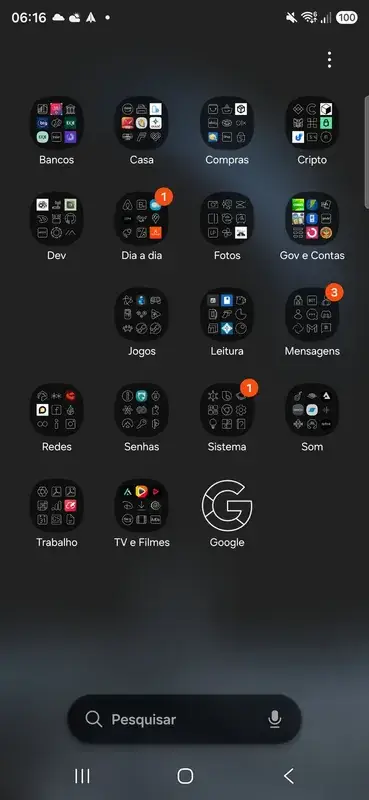
The home screen got the same folders through Add to Home screen, which drops each one in the first free cell. I wanted the top two rows empty for the wallpaper, so I filled them with ten copies of one folder first, added the real folders below, and then removed the copies.
Space, minus the purple #
The first wallpaper was a purple nebula, and I didn't like the purples at all. I tried four more options, all in black, graphite and steel blue:
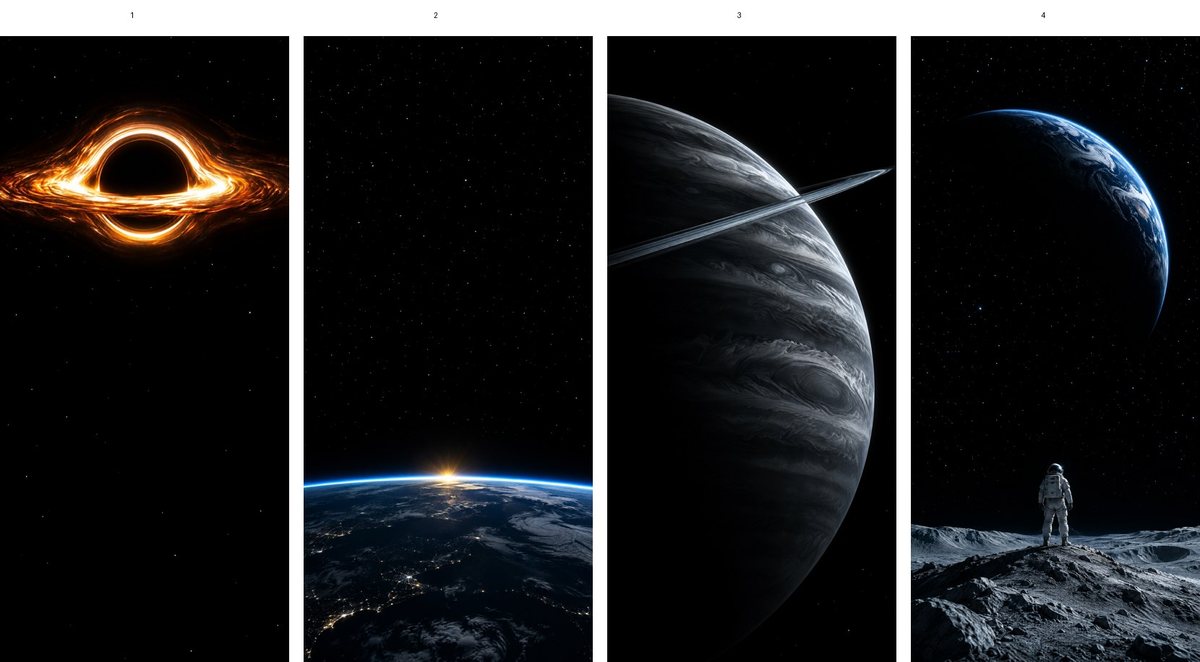
The astronaut won. The images are 1440 x 3120, so the screen went from FHD+ to QHD+ to show them at full size. The color palette came from Samsung's basic colors, in steel blue, because the ones it pulled from the wallpaper kept drifting toward lilac.
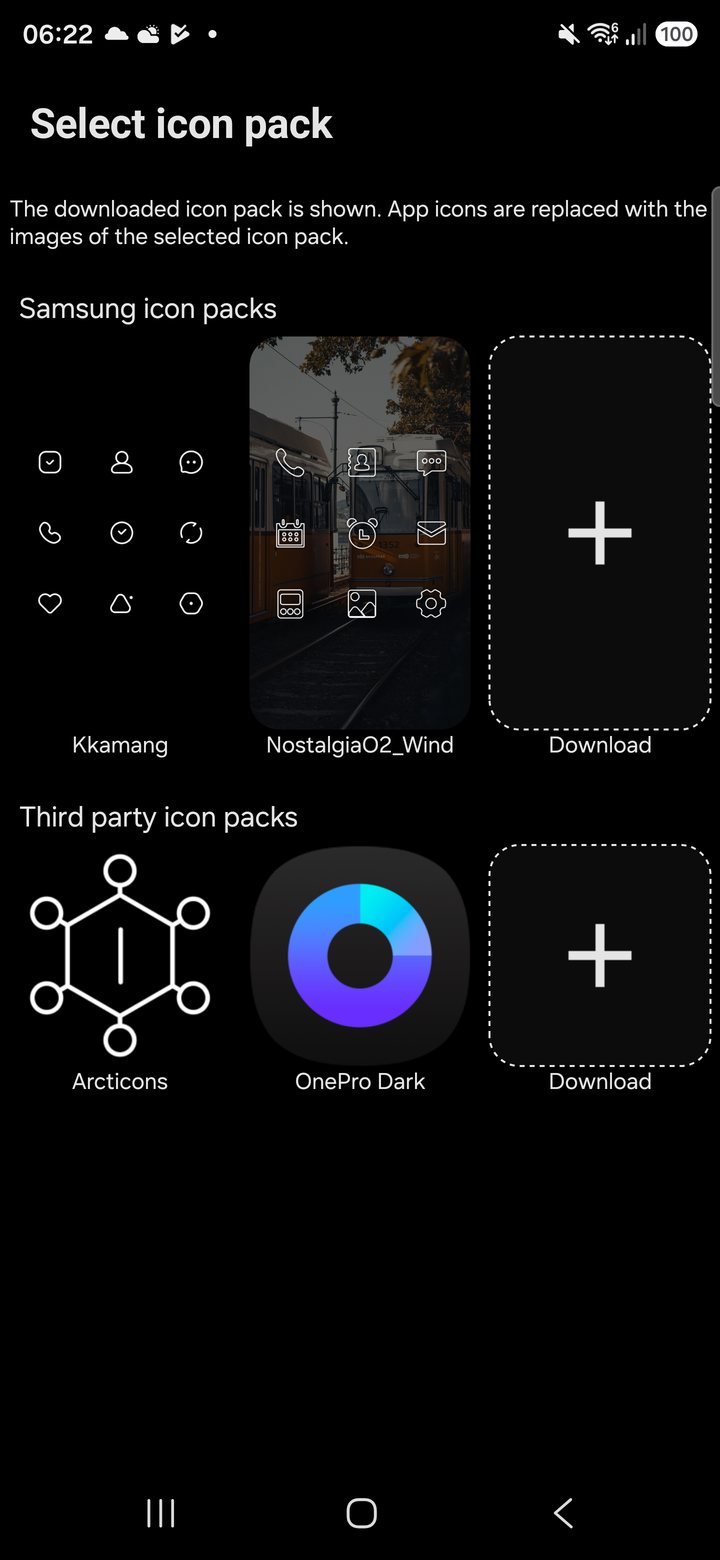
For icons, I bought OnePro Dark on Google Play and applied it through Theme Park, one of the Good Lock modules. Theme Park takes third-party icon packs, and apps the pack doesn't cover get the same dark tile.
The lock screen plays a video. I turned the astronaut image into a 10-second clip, but its last frame didn't match the first, so every loop had a visible jump. One UI accepts up to 15 seconds, so ffmpeg turned the first 7.5 seconds into a loop that plays forward and then backward:
$ ffmpeg -i astronaut.mp4 -filter_complex "[0:v]trim=0:7.5,setpts=PTS-STARTPTS,split[a][c];[c]reverse[b];[a][b]concat=n=2:v=1[v]" -map "[v]" -an -c:v libx264 -crf 18 astronaut-loop.mp4Source
$ ffmpeg -i astronaut.mp4 -filter_complex "[0:v]trim=0:7.5,setpts=PTS-STARTPTS,split[a][c];[c]reverse[b];[a][b]concat=n=2:v=1[v]" -map "[v]" -an -c:v libx264 -crf 18 astronaut-loop.mp4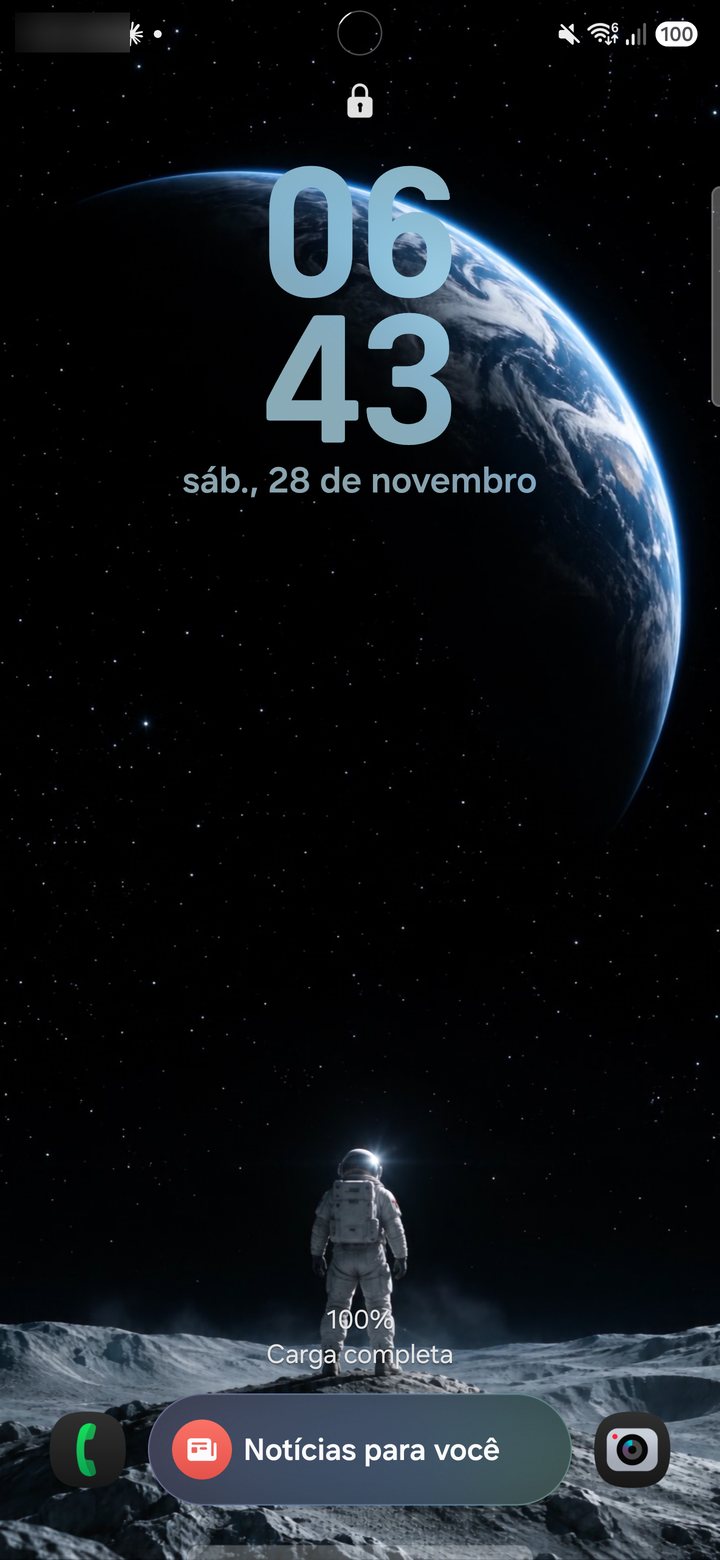
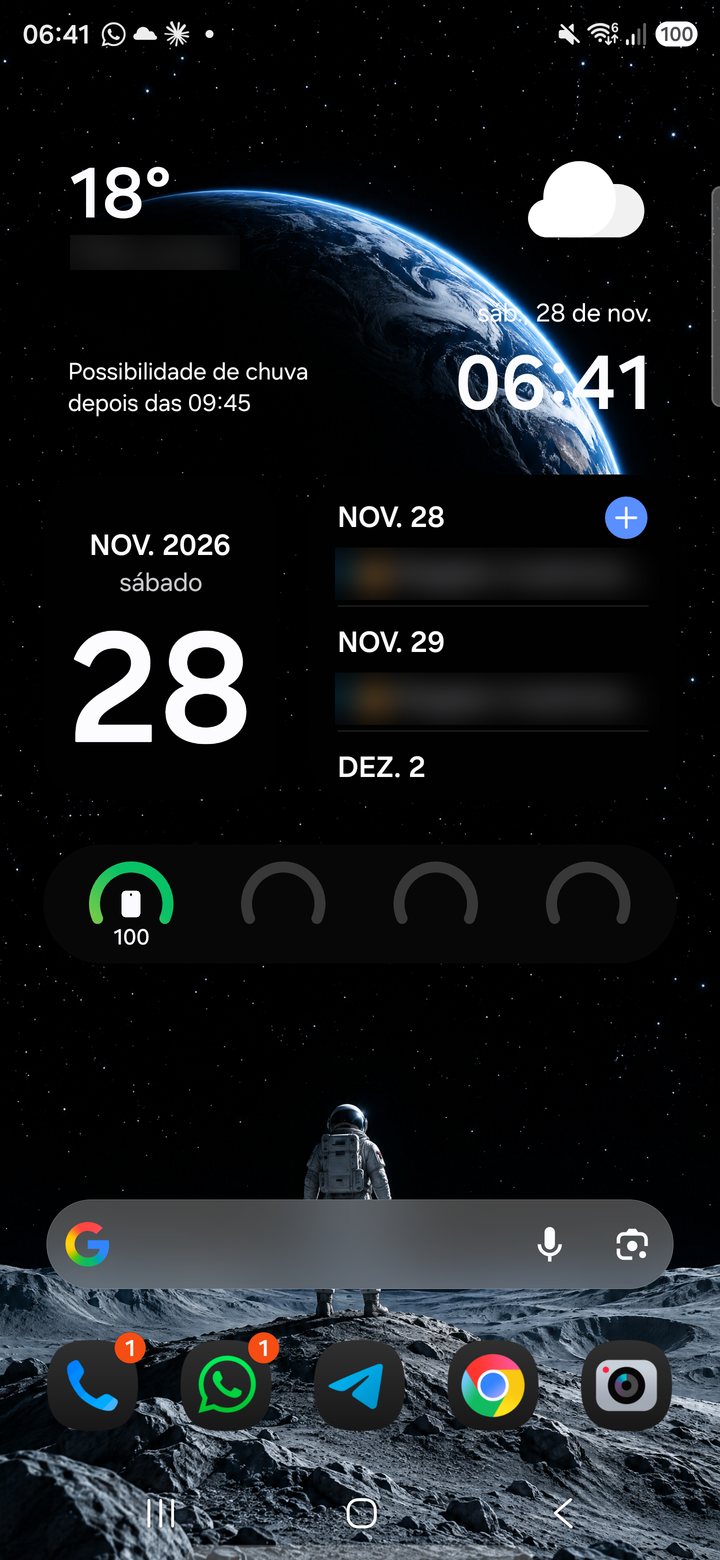
One swipe to the right of the home screen there's a page with only widgets: weather and clock with the background turned off, Samsung's calendar in its big-date style, upcoming events and battery levels.
Animations went down to 0.75x. They still look like animations, only shorter:
$ adb shell settings put global window_animation_scale 0.75
$ adb shell settings put global transition_animation_scale 0.75
$ adb shell settings put global animator_duration_scale 0.75
Source
$ adb shell settings put global window_animation_scale 0.75
$ adb shell settings put global transition_animation_scale 0.75
$ adb shell settings put global animator_duration_scale 0.75
Battery and speed #
The best map of what runs behind my back was 24 hours of process stats:
$ adb shell dumpsys procstats --hours 24Source
$ adb shell dumpsys procstats --hours 24Near the top of the list: bitchat, a Bluetooth mesh chat that scanned for other phones all day long; a message-of-the-day app; Facebook at over 600 MB of memory; TikTok at almost 800 MB; and Link to Windows with two services always on. In Samsung's own battery screen, Link to Windows came second for the day, right behind Facebook.
157 apps lost their right to run in the background: almost all of them untouched for more than 30 days, plus the heavy ones above. They still open normally, they just don't run when I'm not looking. Messaging, banking, passwords, the home cameras and the dev tools stayed off that list.
$ adb shell cmd appops set com.example.app RUN_ANY_IN_BACKGROUND ignore
$ adb shell am set-standby-bucket com.example.app restricted
Source
$ adb shell cmd appops set com.example.app RUN_ANY_IN_BACKGROUND ignore
$ adb shell am set-standby-bucket com.example.app restricted
That's the same thing as setting an app's battery to Restricted in Settings, and it can be undone from there.
What I removed or switched off:
- bitchat and Messenger, uninstalled. Facebook stayed.
- Link to Windows, Meta App Manager, Meta Services, Meta System, Samsung's Smart Suggestions and Rubin, the personalization service. All disabled with
pm disable-user --user 0, so they come back withpm enable. - Wi-Fi and Bluetooth scanning for location, and nearby device scanning. GPS works the same.
- "Hey Google", which keeps the microphone listening all the time.
The app cache came to 34 GB, and one command cleared it:4
$ adb shell pm trim-caches 999GSource
$ adb shell pm trim-caches 999GFree space went from 249 GB to 282 GB.
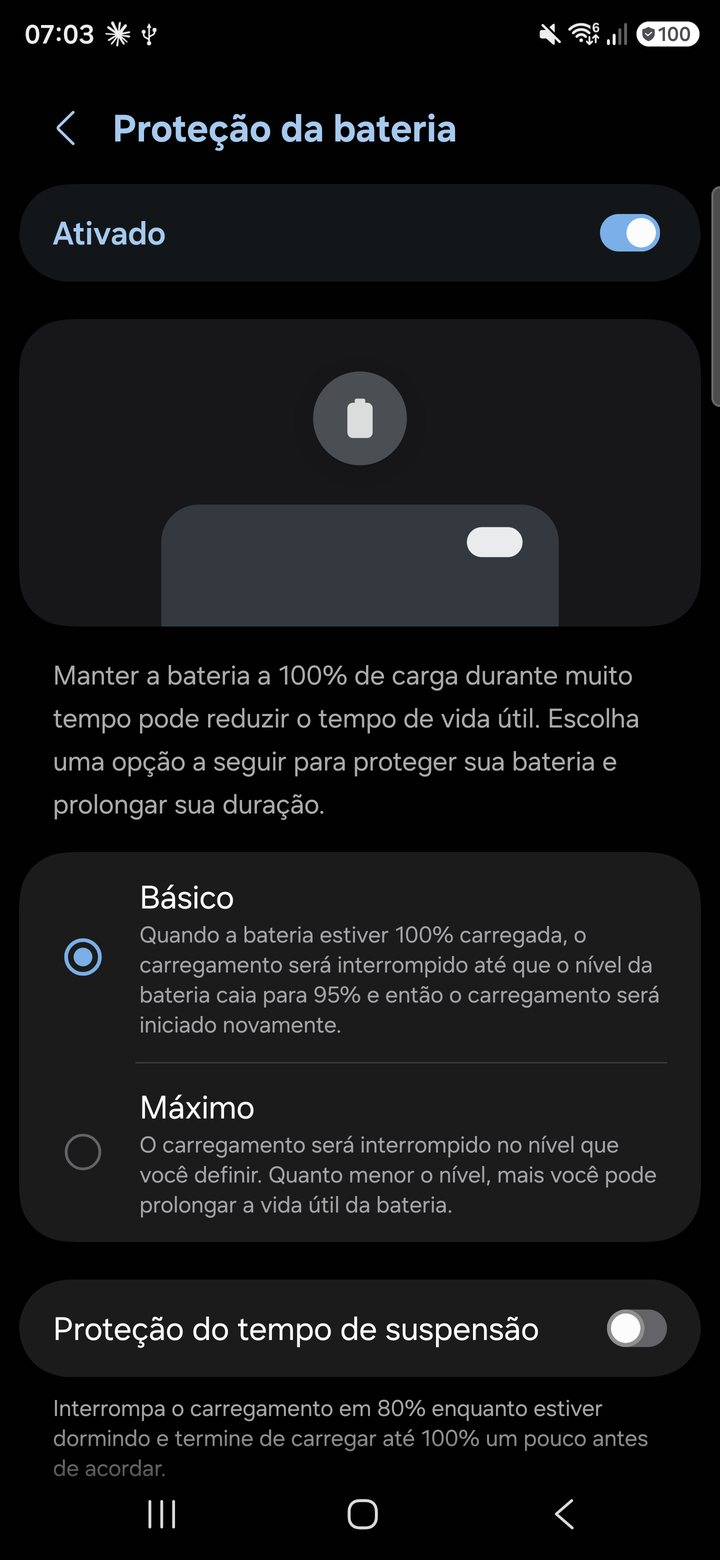
Last, battery protection, set to Basic: charging stops at 100% and only starts again at 95%. There's also a mode that holds the charge at 80% while I sleep and tops it up before I wake, but it needs the personalization service I had disabled a few minutes earlier.
How it ended up #
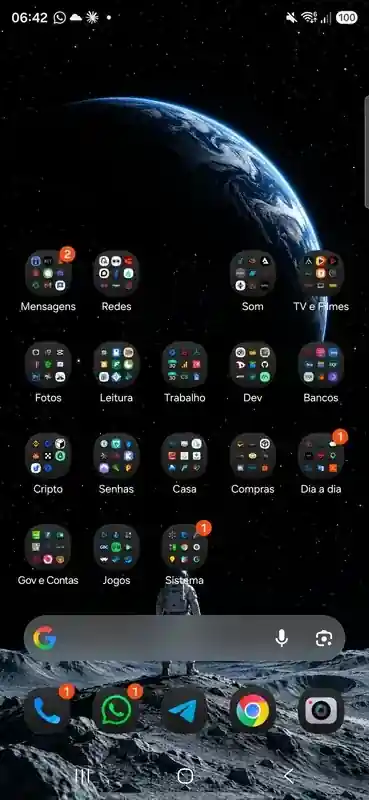
The phone is fast, and every app has a place I can find without searching.
There's one small detail. In a few days I'm trading this phone for the newest model. It will come out of the box with its own Link to Windows, its own Meta services and its own Rubin, all very eager to meet me. The S25 Ultra has never looked better, and it gets about a week to enjoy it.
Notes
-
scrcpy ships with its own copy of adb, and platform-tools had installed a slightly newer one. Both want to run the adb server, so each one kills the other's server and the phone gets caught in the middle. The
ADBvariable tells scrcpy to use the same adb as everything else. ↩ -
Pulling hundreds of APKs just to read one string each would take forever over Wi-Fi. An APK is a zip file, and a zip keeps its table of contents at the end, so the script reads only the bytes it needs with
ddover adb: the table of contents, thenAndroidManifest.xmlandresources.arsc. pyaxmlparser turns those two into the app's name. ↩ -
The output really says "hierchary". That typo has been in the message for years. ↩
-
The number is how much free space to ask the system for. 999G is more than the phone has, so it clears every app cache it's allowed to. ↩