

DNS blocking, seen from your terminal
Quad9 leaves France on November 24 after a court fined it for refusing to block pirate sites. This is the hands-on companion: find out which resolver answers you, read a blocked DNS reply with dig, encrypt your queries and run your own resolver with Unbound.
On November 24, Quad9 stops answering DNS queries from France. A Paris court fined the Swiss non-profit for refusing to block a list of pirate sports-streaming domains, about twenty similar cases are still pending, and leaving the country was the only way out it could afford. Tech Stackups wrote the long version of this story: the law behind it, the rulings, why resolvers are a poor place to fight piracy and where the rest of Europe is heading. Start there if you haven't read it.
This post is the hands-on half. If a court can order your resolver to lie, it pays to know which resolver you're using, what a lie looks like when it comes back, and how to stop depending on somebody else's resolver at all. Everything below works on Linux, and most of it on macOS and Windows too.
Who answers when you type a name #
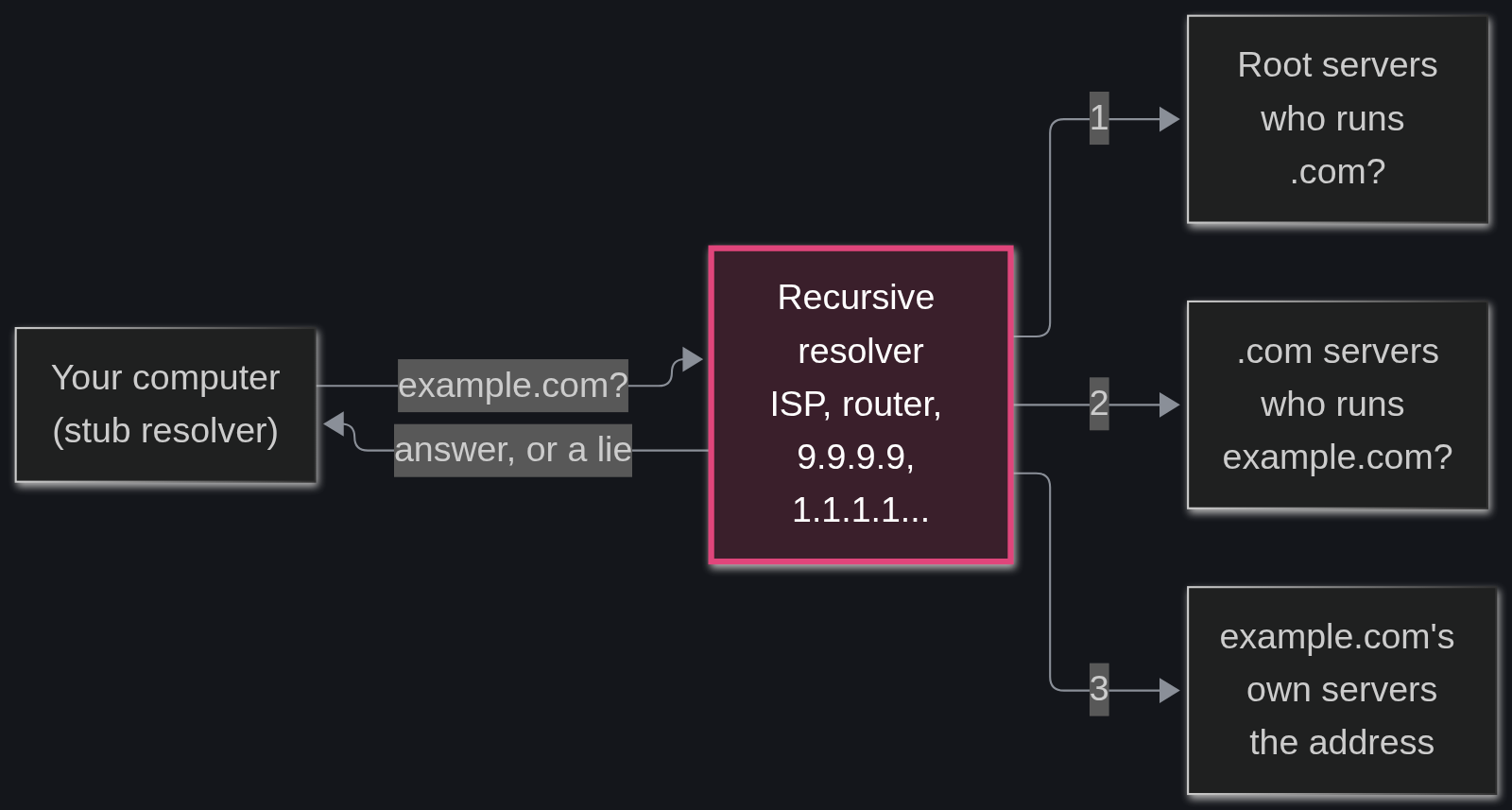
When you open example.com, your computer doesn't look for the address on its own. A small part of the operating system, the stub resolver, passes the question to a recursive resolver: your ISP's, the one in your router, or a public one like 9.9.9.9 or 1.1.1.1. The recursive resolver does the actual work. It asks a root server who runs .com, asks the .com servers who runs example.com, asks that domain's own servers for the address, keeps the answer in its cache for a while and hands it back to you.
That middle box is where blocking happens. The pirate site keeps its address and its own servers keep giving it out. The recursive resolver simply decides not to pass the answer along, which is why French courts go after Google, Cloudflare and Quad9: they sit in the middle.
Step 1: find out which resolver you use #
Start with what your machine is configured to use:
# Linux with a plain /etc/resolv.conf
cat /etc/resolv.conf

# Linux with systemd-resolved (Ubuntu and others)
resolvectl status

# macOS
scutil --dns | grep nameserver

# Windows, in PowerShell
Get-DnsClientServerAddress
Very often this only shows your router, something like 192.168.1.1, and the router forwards everything to whatever it was set up to use. To find out who really answers, ask for a name whose server replies with the address of whoever asked it:
dig +short whoami.akamai.net
dig +short TXT o-o.myaddr.l.google.com
Both print the IP address of the resolver that reached them. Run whois on that address to see which network it belongs to. It won't always be the brand you expect: big public resolvers use anycast, and many of their nodes live inside partner networks. A query sent through Quad9, for example, can come back from an address registered to a university research network in Colorado that hosts one of Quad9's nodes.
For Quad9 there's a shortcut: open on.quad9.net and it answers yes or no.
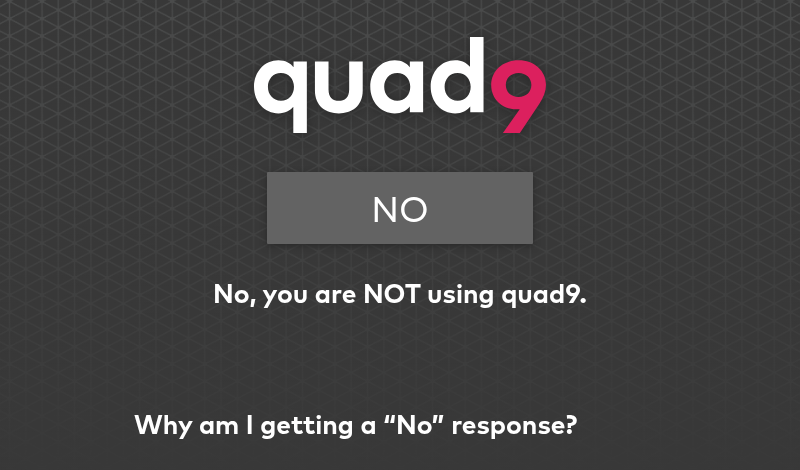
That page also lists the usual reasons for a surprise "no", and they apply to any resolver you pick:
- Firefox and Brave: in some countries they ship with DNS over HTTPS turned on, pointing at Cloudflare, and ignore the system settings.
- iCloud Private Relay: on iOS and macOS it takes over DNS while it's on.
- VPN clients: most use their own DNS servers unless you set custom ones inside the app.
- Mixed settings: one Quad9 address next to one from another provider means some of your queries go to each.
Step 2: read a blocked answer #
You'll need dig. On Debian and Ubuntu it lives in bind9-dnsutils (the old package name dnsutils still works), macOS already has it, and on Windows Resolve-DnsName in PowerShell covers the basics.
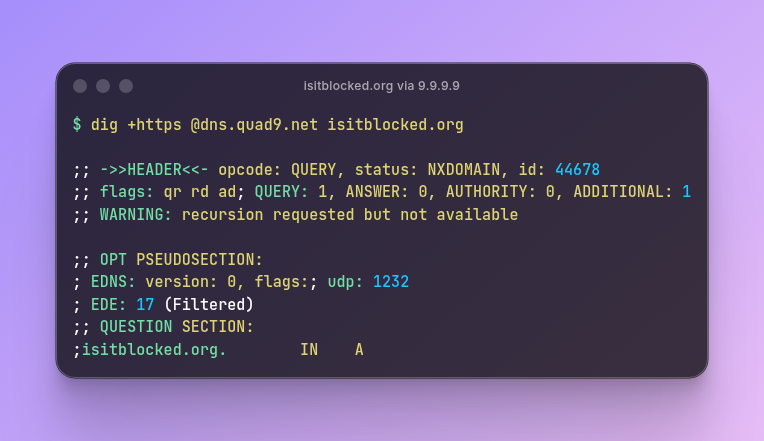
sudo apt install bind9-dnsutilsQuad9 keeps a test domain, isitblocked.org, that its filter always blocks. The examples below use +https, which makes dig send the query over DNS over HTTPS (it needs BIND 9.18 or newer). Plain dig @9.9.9.9 isitblocked.org gets the same status. This is Quad9's filtered service, with the output trimmed:
$ dig +https @dns.quad9.net isitblocked.org

;; ->>HEADER<<- opcode: QUERY, status: NXDOMAIN, id: 44678
;; flags: qr rd ad; QUERY: 1, ANSWER: 0, AUTHORITY: 0, ADDITIONAL: 1
;; WARNING: recursion requested but not available

;; OPT PSEUDOSECTION:
; EDNS: version: 0, flags:; udp: 1232
; EDE: 17 (Filtered)
Four details give the block away.
status: NXDOMAIN means "this name doesn't exist". The domain does exist, so this is the lie itself.
AUTHORITY: 0 is the clearest sign. A real NXDOMAIN comes with a record from the zone that says so. Ask the same resolver for a name nobody registered and you get this:
$ dig +https @dns.quad9.net thisdomaindoesnotexist-pm.org

;; ->>HEADER<<- opcode: QUERY, status: NXDOMAIN, id: 31764
;; flags: qr rd ra; QUERY: 1, ANSWER: 0, AUTHORITY: 1, ADDITIONAL: 1

;; AUTHORITY SECTION:
org.  3454  IN  SOA  v0n0.pir-ns.org. hostmaster.donuts.email. 1795037395 7200 900 1209600 3600
That SOA record comes from the .org zone itself, confirming the name doesn't exist. The blocked answer has nothing like it.
The ra flag is missing in the blocked answer, and dig warns that recursion wasn't available. The resolver never went out to look the name up.
EDE: 17 (Filtered) is an Extended DNS Error, defined in RFC 8914. It's a small note attached to the answer that says why it came back the way it did.
Now ask Quad9's unfiltered service, 9.9.9.10, the same question:
$ dig +https @dns10.quad9.net isitblocked.org +short
74.208.236.124
Without the filter, the same company hands over the real address.
The four codes that matter here #
RFC 8914 has four codes for "I won't give you this", and the difference between them is who wanted the block:
- 15 Blocked: the resolver's operator blocked it under its own security policy.
- 16 Censored: someone other than the operator required the block. The RFC adds that how that requirement is imposed doesn't matter: "in-band DNS filtering, court order, etc."
- 17 Filtered: the client asked for filtering. Quad9 uses this one because choosing 9.9.9.9 is choosing its blocklist.
- 18 Prohibited: the resolver won't serve you at all, for example because your address isn't on its allowed list.
The RFC also says these codes are diagnostic only and must not change how software handles the answer. Browsers generally don't show them, which is why a blocked site just looks broken. dig shows them, so dig is how you find out.
Not every resolver lies the same way #
When the block comes from a court, each resolver answers differently:
- Google Public DNS: for legal blocks in Belgium, France, India, Italy and Portugal it answers REFUSED, optionally with EDE 16 (Censored).
- French ISPs: OONI's 2025 measurements found Free and Orange answering 127.0.0.1, your own machine, for blocked copyright and sports-streaming domains, while SFR and Bouygues answer NXDOMAIN. Illegal gambling sites point to a block page run by the gambling regulator, ANJ.
- Cloudflare 1.1.1.1: its transparency report says it has not blocked anything through the resolver so far. In France it complied by geoblocking domains on its CDN instead, 1,238 of them in the second half of 2025, according to TorrentFreak.
A bare NXDOMAIN or 127.0.0.1 tells you nothing about why. The quickest test is to ask several resolvers the same question and compare:
for r in 9.9.9.9 9.9.9.10 1.1.1.1 8.8.8.8; do
  printf '%s ' "$r"
  dig @"$r" isitblocked.org +noall +comments | grep -o 'status: [A-Z]*'
done
9.9.9.9 status: NXDOMAIN
9.9.9.10 status: NOERROR
1.1.1.1 status: NOERROR
8.8.8.8 status: NOERRORIf one resolver says the name doesn't exist and the others return an address, somebody along the way is filtering. Swap isitblocked.org for any site that fails to load and you have a small censorship test you can run anywhere.
Step 3: encrypt the trip #
Plain DNS travels over UDP port 53 in clear text. Anyone on the path, your ISP or the café Wi-Fi, can read every name you look up, and some networks catch traffic to port 53 and answer it themselves no matter which server you typed. Two protocols close that gap: DNS over TLS (DoT, port 853) and DNS over HTTPS (DoH, port 443, RFC 8484).
Encryption protects the trip only. The resolver at the other end still sees every name you ask for, so encryption decides who can watch along the way and your choice of resolver decides who you trust at the end of it.
On Linux with systemd-resolved, create /etc/systemd/resolved.conf.d/10-dot.conf:
[Resolve]
DNS=9.9.9.9#dns.quad9.net 149.112.112.112#dns.quad9.net
DNSOverTLS=yes
The part after # is the name on the server's TLS certificate, and systemd-resolved checks it. Swap both for the provider you pick (in France, after the 24th, that can't be Quad9). Then:
sudo systemctl restart systemd-resolved
resolvectl status
The Protocols line should now show +DNSOverTLS. With DNSOverTLS=yes, a server that doesn't speak TLS makes every lookup fail, which is what you want: no silent fallback to clear text.
Elsewhere:
- Android 9 and newer: Settings, Network, Private DNS, then type the provider's hostname, for example
dns.quad9.net. This is DoT for the whole phone. - Windows 11: in the DNS settings of your network adapter, turn DNS over HTTPS on. It works automatically for the providers Windows knows.
- Firefox: Settings, Privacy & Security, DNS over HTTPS. Firefox then skips the system resolver completely, which is also why it can disagree with the rest of your machine.
dig can test both protocols directly: dig +tls @dns.quad9.net example.com and dig +https @dns.quad9.net example.com.
Step 4: run your own resolver #
A recursive resolver of your own walks from the root to the authoritative servers by itself, the same way the big public ones do. No public resolver sees your queries, and no court order aimed at one of them changes your answers. There are trade-offs, and they're worth knowing before you start:
- Its queries to authoritative servers leave your network unencrypted, so your ISP can still see them and still intercept port 53.
- You lose any filtering a public resolver did for you, such as Quad9's malware blocklist. Pi-hole or AdGuard Home can sit in front of your resolver if you want blocklists of your own choosing.
- The first lookup of each name takes a little longer. After that it comes from the cache.
Unbound is the usual choice. Debian 13 ships version 1.22:
sudo apt install unbound dns-root-data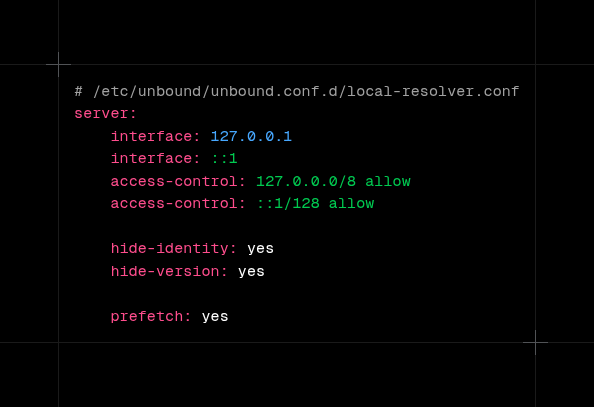
Debian's package already turns DNSSEC validation on (that's /etc/unbound/unbound.conf.d/root-auto-trust-anchor-file.conf) and reads every .conf file in that folder. Add your own, /etc/unbound/unbound.conf.d/local-resolver.conf:
server:
    interface: 127.0.0.1
    interface: ::1
    access-control: 127.0.0.0/8 allow
    access-control: ::1/128 allow

    hide-identity: yes
    hide-version: yes

    prefetch: yes
Line by line:
-
interface: listen only on this machine, over IPv4 and IPv6. -
access-control: who is allowed to ask. Anyone not listed gets refused. -
hide-identityandhide-version: don't tell strangers the server's name or which Unbound version it runs. -
prefetch: refresh popular names shortly before they expire from the cache, so you rarely wait for them.
QNAME minimisation (sending each server only the part of the name it needs, so the root servers see .com and not the full address you asked for) and the DNSSEC hardening options are already on by default in current Unbound, so there's no need to write them.
Check the file, restart and test:
sudo unbound-checkconf
sudo systemctl restart unbound
dig @127.0.0.1 example.com
Then test DNSSEC. The first name is signed wrong on purpose and must fail, the second must resolve with ad (authenticated data) in the flags line:
dig @127.0.0.1 fail01.dnssec.works
dig @127.0.0.1 dnssec.works
SERVFAIL on the first and flags: qr rd ra ad on the second mean validation works.
Last, point the machine at it. On a Debian box without systemd-resolved, /etc/resolv.conf should contain nameserver 127.0.0.1 (if the resolvconf or openresolv package is installed, Unbound's own unbound-resolvconf service writes that line for you). With systemd-resolved, use a drop-in like the one in step 3 with DNS=127.0.0.1 and without the TLS line.
For the whole house #
To serve your local network from a Raspberry Pi or a home server, add a second file, say lan.conf, in the same folder:
server:
    interface: 0.0.0.0
    interface: ::0
    access-control: 192.168.1.0/24 allow
    access-control: fd00::/8 allow
Change 192.168.1.0/24 to your own network, restart Unbound and tell your router's DHCP to hand out the Pi's address as the DNS server. Keep port 53 closed to the internet: open resolvers get abused to flood other people with amplified traffic.
Before November 24, if you're in France #
Quad9 hasn't said how the cutoff will behave on the wire, whether queries will be refused or just go unanswered. Either way, as Cloudflare put it in its post about the withdrawal, people won't see an error message: "Their Internet will simply stop working." Places where Quad9 tends to hide:
- The router: both its own DNS setting and the servers its DHCP hands out.
-
/etc/resolv.conf, systemd-resolved drop-ins and theFallbackDNS=line. - Pi-hole and AdGuard Home upstreams.
- VPN clients with custom DNS.
- Docker's
/etc/docker/daemon.json, under"dns". - Android's Private DNS (
dns.quad9.net) and DoH settings in Firefox or Chrome. - Mullvad Browser on default settings, which switched to Quad9 on November 2.
On Linux machines, this finds the Quad9 addresses and hostnames in /etc:
sudo grep -rnE '9\.9\.9\.(9|10|11)|149\.112\.112\.|2620:fe:|quad9' /etc 2>/dev/nullAfterwards, run the two commands from step 1 again. They're the quickest way to see who answers for you now.