

Email only the right person can read
Email travels like a postcard. GPG seals it so only the recipient can read it. What PGP, OpenPGP and GnuPG are, how keys and signatures work, the common myths, and how to set it up on Windows, Linux and macOS, plus Thunderbird on all three.

An email travels more like a postcard than a sealed letter. It leaves your computer, passes through your provider's servers, crosses the internet to the recipient's provider and sits in a mailbox there, often for years. The connections along the way are usually encrypted, but at every stop the message is stored as plain text, readable by whoever runs that server, by anyone who breaks into it, and by anyone with a court order.
GPG fixes the part that matters most: the content. With it, a message is locked on your computer and only opens on the recipient's. Everyone in between carries a sealed box.
This guide covers what it is, how it works, the myths around it, and how to set it up on Windows, Linux and macOS.
PGP, OpenPGP, GnuPG: one idea, three names #
In 1991 Phil Zimmermann wrote PGP, short for Pretty Good Privacy, and released it with its source code. At the time the US treated strong cryptography almost like weapons, and Zimmermann spent three years under criminal investigation for "exporting" it. The case was dropped in 1996 without charges.
PGP's message format became an open standard called OpenPGP, so that any program could implement it. In 1999 Werner Koch released GnuPG 1.0, the free implementation that most people use today, usually through the gpg command. When someone says "PGP email" or "GPG email", they mean the same thing: messages in the OpenPGP format.
The current release is GnuPG 2.5.24, from September 2026. In 2024 the standard split into two branches, RFC 9580 and LibrePGP, and GnuPG follows LibrePGP. For everyday email with the default key types this doesn't change anything. Keys made with the defaults still work across programs.
How it works #
Everything rests on a pair of keys that are made together and are mathematically linked.
The public key is for sharing. You can put it on your website, in your email signature, on a key server. With it, anyone can lock a message that only you can open.
The private key stays with you, protected by a passphrase. It's the only thing that opens what was locked with your public key.
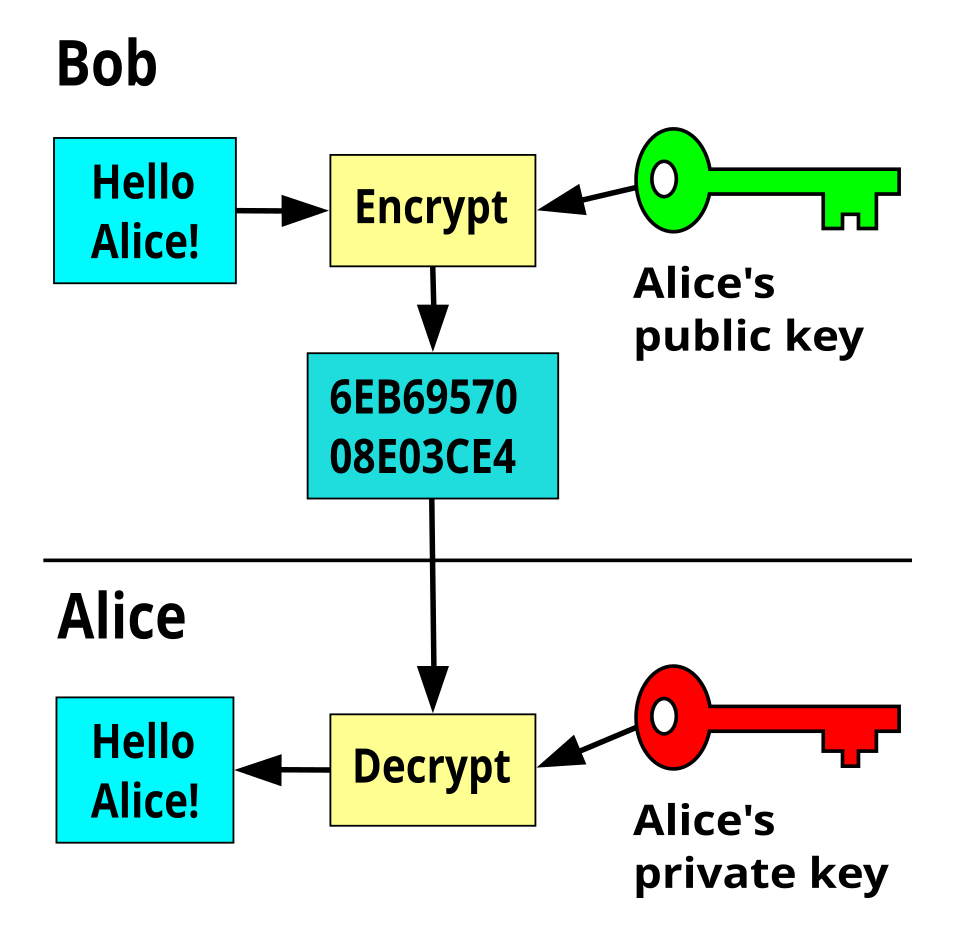
So if Bob wants to write to Alice, he encrypts with Alice's public key, and only Alice's private key can read the result. Bob himself can't decrypt what he just sent. Under the hood, GPG encrypts the message with a random one-time key and then locks that small key with Alice's public key, which keeps things fast even for big attachments.
The same pair works the other way for signatures. Alice signs with her private key, and anyone with her public key can check two things: that the message came from her key, and that not a single character changed on the way.
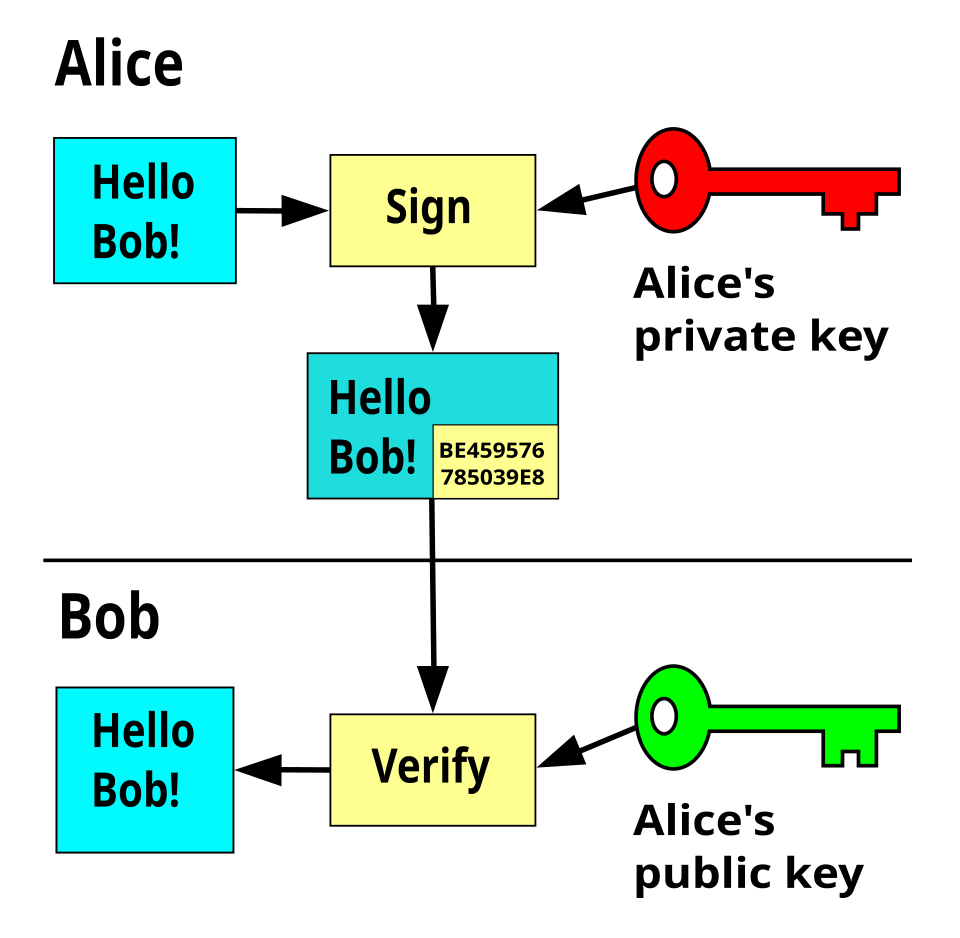
Encryption keeps a message private. A signature proves who wrote it. Most of the time you'll want both.
Each key also has a fingerprint , a 40-character code that identifies it. That's what you compare when you want to be sure a public key really belongs to the person you think it does. Here is a key created for this post, for an imaginary Alice:
$ gpg --fingerprint alice@example.org
pub ed25519 2026-11-15 [SC] [expires: 2028-11-14]
4775 63FB D445 7E52 8701 9D86 9A5F 955D 59BC F65E
uid [ultimate] Alice Example <alice@example.org>
sub cv25519 2026-11-15 [E]
The pub line is the main key, used to sign (S) and certify (C). The sub line is a subkey used to encrypt (E). Modern GnuPG creates this pair of elliptic curve keys by default.
What it protects, and what it doesn't #
GPG protects the body of the message and the attachments. Some programs, Thunderbird among them, also hide the subject line.
It doesn't hide who wrote to whom, when, from which server, or how big the message was. Mail servers need that information to deliver anything, so it travels in the open. If the fact that you talk to someone is the secret, email isn't the right tool, encrypted or not.
Why bother #
Your provider can read your mail. Most do it for spam filtering, some have done it for ads, and any of them can be ordered to hand it over. With GPG, what sits on their disks is a block of text that only opens on your machine.
Breaches happen. Years of stored email in a hacked account are a gift to whoever gets in. Encrypted messages in that same account are useless to them.
Signatures stop impersonation. Faking the "From" line of an email is trivial. Faking a valid signature from someone's key isn't.
It also goes beyond email. Linux distributions sign their packages with OpenPGP keys, and your package manager checks those signatures every time you install something. Many projects sign their releases the same way. Learning GPG for email teaches you how to check that the software you download is what its authors published.
Myths #
"It's only for spies and criminals." You're already using it, indirectly, every time apt or dnf installs a package. Journalists, lawyers and software developers use it for ordinary, everyday reasons.
"My email already uses HTTPS, so it's encrypted." HTTPS and TLS protect the connection between machines. The message is decrypted at each server along the way and stored readable. GPG protects the message itself, from end to end.
"PGP was broken." In 2018 researchers published EFAIL, a set of attacks that could leak the content of encrypted messages. The flaw was in how some email programs handled HTML and remote content, not in the encryption. The affected programs were patched. The lesson that stays: read encrypted mail with remote content turned off.
"Encryption hides everything." As above, the sender, recipient, date and usually the subject stay visible unless your program hides the subject.
"You need to be a command line wizard." Every system below has a graphical way to do it. The terminal is optional.
"If a key is on a key server, it belongs to that person." Anyone can create a key with any name and email. keys.openpgp.org at least confirms the email address before publishing it, but the safe habit is to compare fingerprints with the person through another channel.
Windows: Gpg4win and Kleopatra #
On Windows, install Gpg4win. The current version, 5.1.1, from September 2026, ships GnuPG 2.5.24 and a few tools on top of it.
The one you'll use the most is Kleopatra , the key manager. Open it and create a new OpenPGP key pair from the File menu. It asks for your name and email, then for a passphrase. Pick a long one you won't forget, because there's no way to recover it.
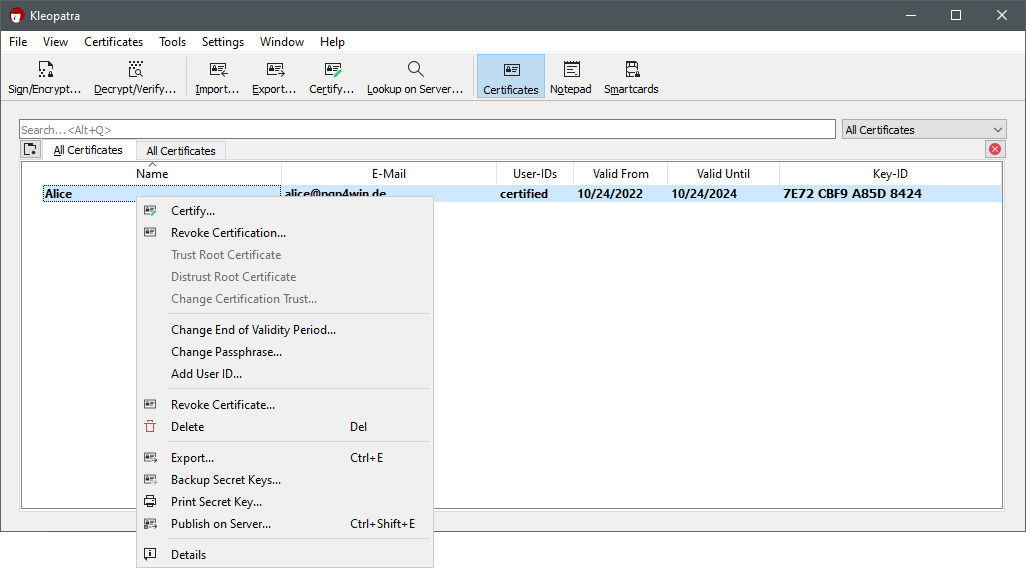
Right-click your key and you'll find what you need next: Export saves your public key to send to people, Backup Secret Keys saves your private key for safekeeping, and Publish on Server sends the public key to a key server. To use someone else's key, save their .asc file and import it.
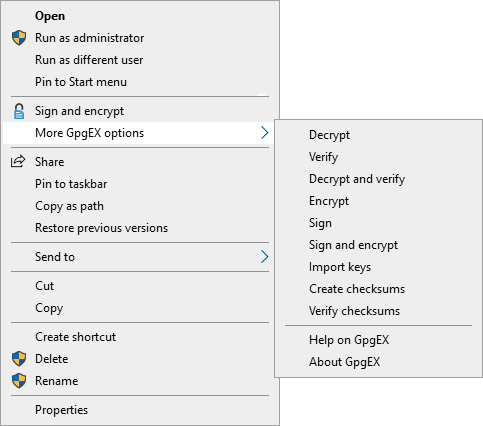
Gpg4win also adds GpgEX to Windows Explorer. Right-click any file and you can encrypt, sign, decrypt or verify it without opening another program.
For email, there are two paths. If you use classic Outlook, Gpg4win installs GpgOL , which adds encrypt and sign buttons to it. For the new Outlook, the add-in is still marked experimental. The other path, which works the same on every system, is Thunderbird, covered further down.
Linux: it's probably already there #
Most Linux distributions come with GnuPG installed, because the package manager depends on it. Check with:
gpg --versionIf it's missing, it's in every repository as gnupg (sudo apt install gnupg, sudo dnf install gnupg2, sudo pacman -S gnupg).
Create your key with:
gpg --full-generate-keyIt asks what kind of key you want, how long it should last, your name, your email and a passphrase. The defaults are good choices. It's worth giving the key an expiration date, two years for example, because you can extend it later whenever you want.
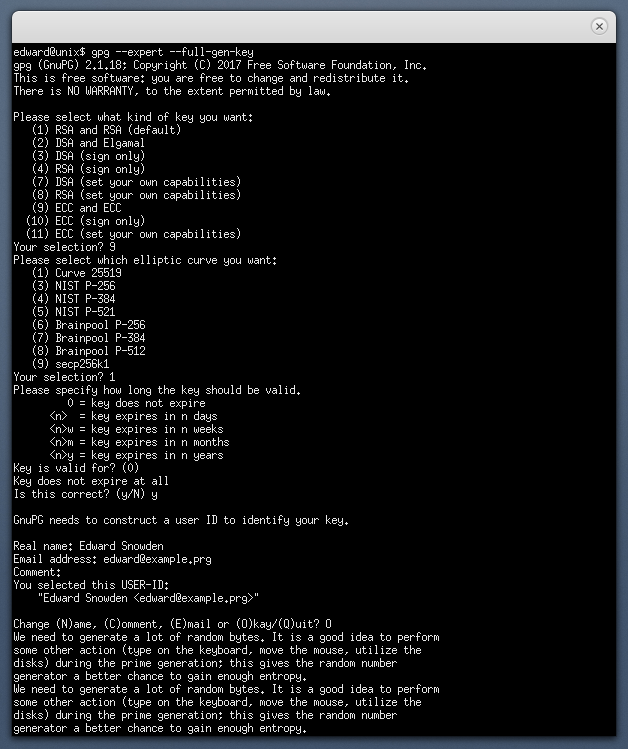
When it finishes, GnuPG also saves a revocation certificate in ~/.gnupg/openpgp-revocs.d/. That file lets you mark your key as dead if you ever lose it or it gets stolen. Copy it somewhere safe, away from the computer.
These are the commands you'll use most. They work the same on Windows and macOS, in the terminal:
gpg --list-keys: list the public keys you have
gpg --list-secret-keys: list your own private keys
gpg --fingerprint alice@example.org: show a key's fingerprint
gpg --armor --export you@example.org > you.asc: export your public key to share
gpg --import friend.asc: import someone's public key
gpg --armor --encrypt -r friend@example.org file.txt: encrypt a file for someone
gpg --decrypt file.txt.asc: decrypt something sent to you
gpg --clearsign note.txt: sign a text and keep it readable
gpg --verify note.txt.asc: check a signature
gpg --armor --export-secret-keys you@example.org > backup.asc: back up your private key
--armor means the output is text instead of binary, which is what you want for pasting into an email. A message encrypted this way looks like this:
-----BEGIN PGP MESSAGE-----

hF4DBaEpbwzwuj0SAQdAJ06jB5TO+6YEg6DGVWcbR2maDOmonN7SkJ6Tr6HA/zUw
cQe65A4W+HPDnRac9lS7U26gfxNUVXKzE/k1TuzK9Cl5Td9U9sYNpZctxSEAIYyS
...
And a signed one keeps the text readable, with the signature attached below:
-----BEGIN PGP SIGNED MESSAGE-----
Hash: SHA512

Meet me at the usual place.
-----BEGIN PGP SIGNATURE-----
...
-----END PGP SIGNATURE-----

$ gpg --verify note.txt.asc
gpg: Good signature from "Alice Example <alice@example.org>" [ultimate]
If you'd rather click, KDE has Kleopatra (the same program as on Windows) and GNOME has Seahorse, which appears as "Passwords and Keys".
macOS: GPG Suite or Homebrew #
On the Mac the friendliest option is GPG Suite. It includes GPG Keychain , a free key manager where you create a key with a name, email and password, and import or export keys by dragging files.
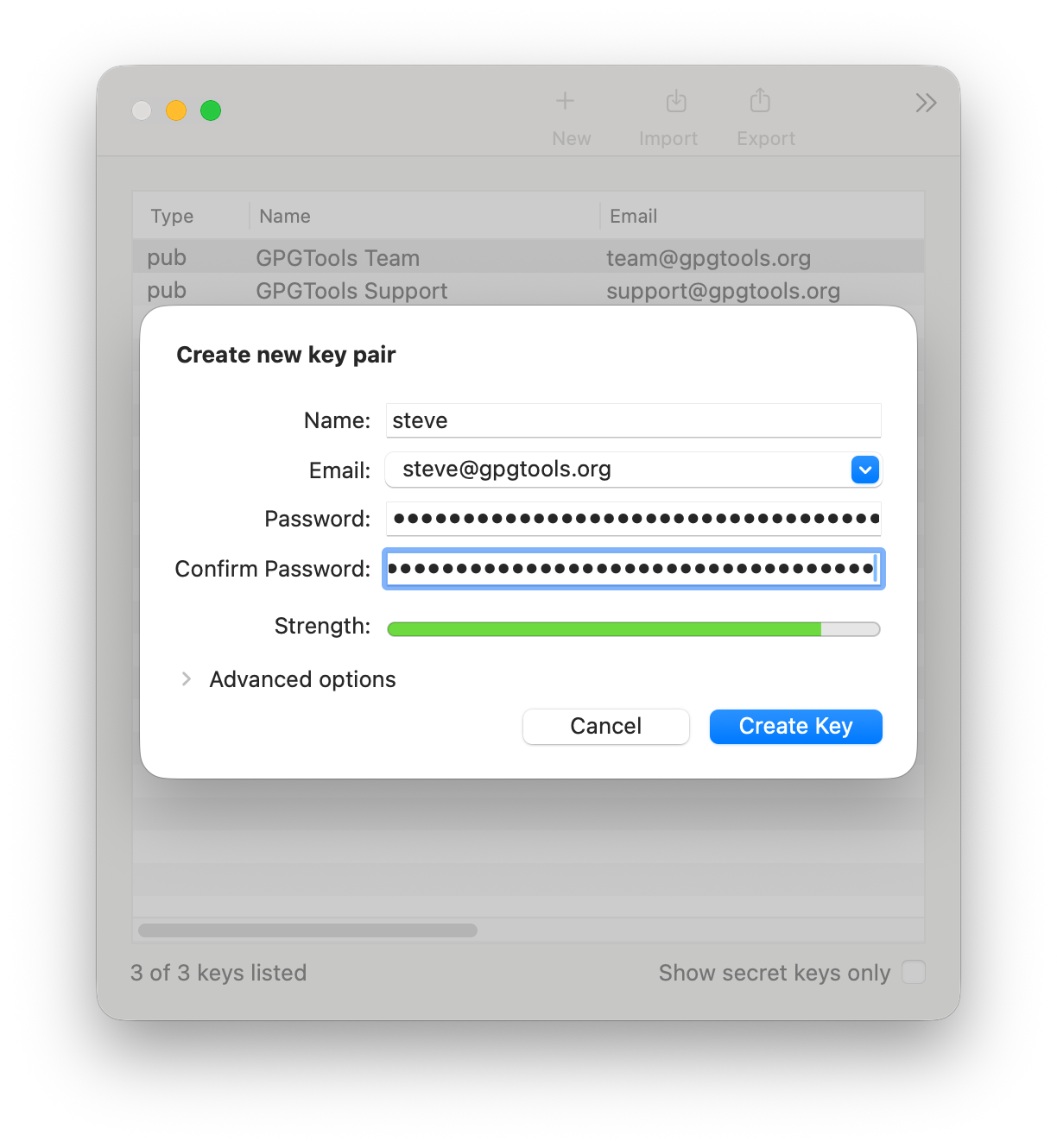
The suite also has GPG Mail , which adds encryption and signing to Apple Mail. That part is paid: it works with a yearly subscription after a 30-day trial, and at the time of writing the version for the newest macOS is still in beta.
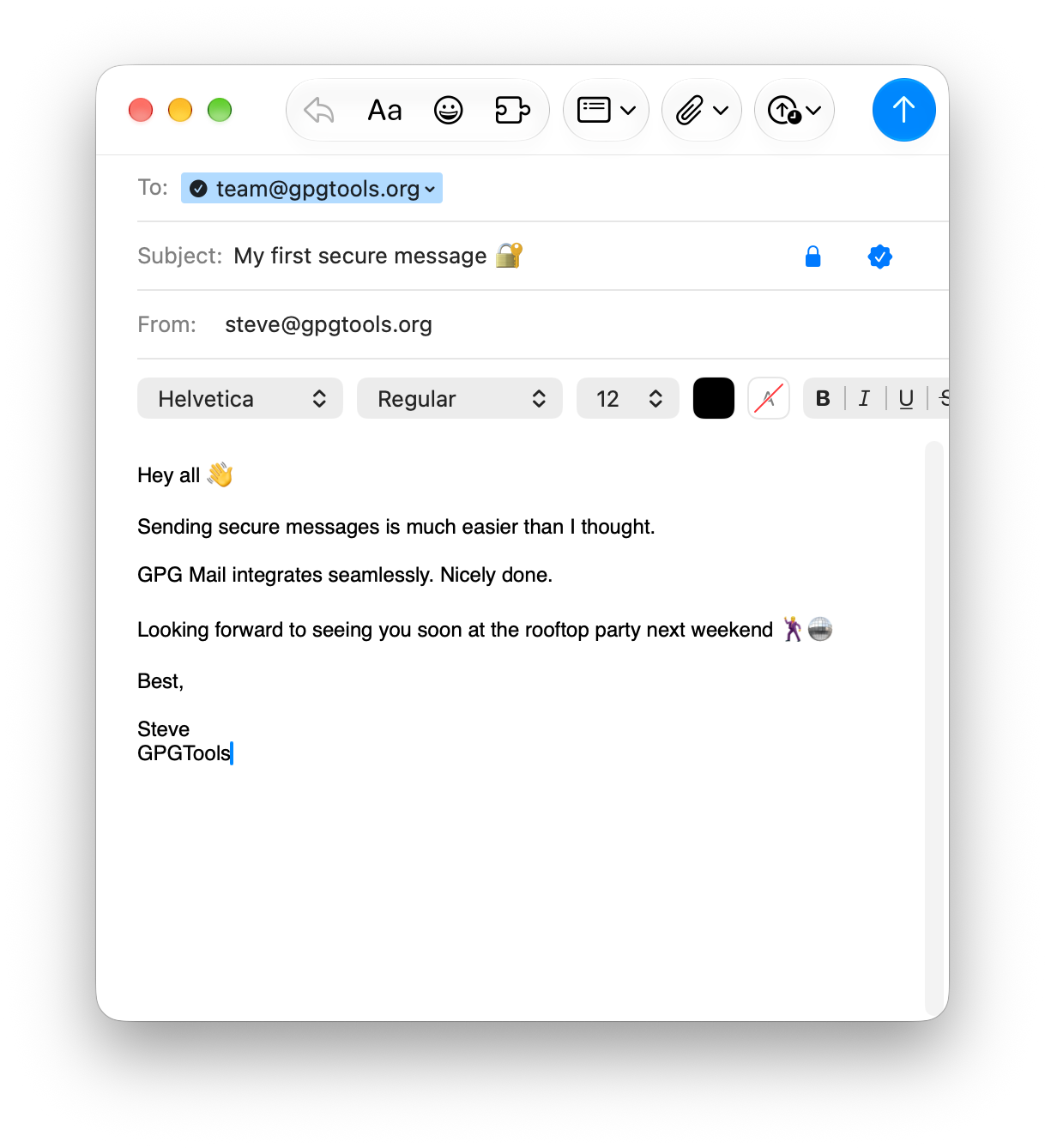
If you prefer the terminal and free tools, install GnuPG with Homebrew and use Thunderbird for email:
brew install gnupg pinentry-macpinentry-mac is the small window that asks for your passphrase. After that, all the commands from the Linux section work the same.
Thunderbird, on any system #
Thunderbird has OpenPGP built in since version 78, released in 2020. It doesn't need GnuPG installed: it brings its own OpenPGP library, called RNP, and keeps its own keys. If you already have a key from Kleopatra, GPG Keychain or the terminal, you import it.
To set it up, open Account Settings, choose your account and go to End-To-End Encryption. Click Add Key and either create a new OpenPGP key or import an existing one, then select it for that account.
When you write a message, the Encrypt button in the toolbar locks it for every recipient whose key you have. Turning on encryption also turns on signing, and by default Thunderbird encrypts the subject too and attaches your public key to signed messages, so people can write back encrypted.
One detail that confuses people: when you import someone's key, Thunderbird asks whether you accept it. Accepting means "I'm willing to encrypt to this key". Do it after you've compared the fingerprint with the person, not before.
Habits that keep it working #
- Back up your private key and the revocation certificate, offline: a USB stick in a drawer, a printed copy, whatever you trust. Without the private key, every message ever encrypted to you is gone for good.
- Use a long passphrase. If someone copies your private key file, the passphrase is all that stands between them and your mail.
- Set an expiration date and extend it when it gets close. It's a safety net in case you lose access to the key and can't revoke it.
- Compare fingerprints in person, by phone or through another app you already trust before you accept someone's key.
- Publish your public key where people can find it. keys.openpgp.org sends you a confirmation email before it shows your address. If you run your own domain, WKD (Web Key Directory) lets email programs find your key automatically from your domain.
My own public key is on keys.openpgp.org, with this fingerprint:
7C3A 051F 5EA9 9005 FC13 7882 4E7F 9C51 4F1D AC87Start with one person you write to often. Exchange keys, compare fingerprints, send a signed message, then an encrypted one. After the first few, it stops feeling like a ritual and becomes one more button you press.