

SSH, dotfiles and secrets, part 1: the PC
The longer version of my SSH post: Tailscale SSH for the tailnet and keys in 1Password for the rest, XPipe in place of Termius, dotfiles in chezmoi with signed commits, age for everything that leaves the PC, Forgejo mirrors on GitHub and licenses out of loose .txt files.

Contents
- Where I started
- SSH in two groups
- Telling SSH which key to offer
- One config, several files
- Testing every host at once
- From Termius to XPipe
- chezmoi: every setting becomes a commit
- One file, two systems
- Programs and a new PC
- age: encryption for everything that leaves the PC
- A key behind a passphrase
- Encrypting and opening
- Private mirrors: Forgejo pushes, GitHub keeps
- 1Password: no more loose .txt files
- The CLI, without a separate login
- Importing without seeing the contents
- Next
- Links
A note before you start: this is the longer, better explained version of my last SSH post, How I organize SSH. That one gives the idea in a few minutes. This one, and part 2 after it, go through every step.
The short post left a lot out. Behind it there were close to fifty hours of work from start to finish, with about eight hours of sleep in pieces along the way. Most of those hours went into the parts that didn't fit in a quick read: the dotfiles, the encryption, the mirrors and a small vault that lives on an Orange Pi.
Where I started #
I had a few dozen servers and services split between Termius and a ~/.ssh folder full of keys, one per service. The Termius side is in the last post: two good years, and backups that were always harder than they should be.
This is where things ended up on the PC, which is what part 1 covers:
- SSH split in two: Tailscale SSH for the machines on my tailnet, and keys kept in 1Password for the rest.
- One
~/.ssh/config, broken into small files. - XPipe in place of Termius, reading that same config.
- Dotfiles in chezmoi, in a private Git repository, with signed commits.
- age encrypting everything that leaves the PC.
- Private mirrors on GitHub, pushed by my Forgejo on every commit.
- 1Password holding the licenses, recovery codes and certificates that used to live in loose .txt files.
Part 2 is about the vault: an Orange Pi Zero2 with 1 GB of RAM that stores secrets it can't read, backs itself up to the NAS and serves files with real HTTPS on the tailnet.
I'll go in the order I did it, because each step leans on the one before.
SSH in two groups #
The machines on my tailnet log in through Tailscale SSH, which checks the tailnet identity and needs no key. Everything outside it (VPSes from other providers, tilde-style services and the like) uses keys that live in 1Password. 1Password works as the SSH agent, so the private keys never touch the disk and every use goes through Windows Hello. The last post shows how to turn the agent on and how to make Git use Windows' own ssh, so I'll skip that here.
Telling SSH which key to offer #
With several keys in the agent, SSH offers them one at a time, and the server can close the door before it gets to the right one.1 The fix is to point IdentityFile at the public key. OpenSSH uses that file only to pick which key from the agent to offer, so the private half stays in 1Password.
The public key comes out of 1Password through its CLI:
op read "op://Personal/Example SSH key/public key" | Out-File -Encoding ascii ~/.ssh/example.pubA warning that cost me SSH twice: don't save that .pub inside ~/.ssh/1Password/. 1Password uses that folder for its SSH Bookmarks, and when the bookmarks are turned off, it deletes the whole folder when it starts.
One config, several files #
The main config mostly pulls in the others:
# ~/.ssh/config
Include config.d/*.conf

Host *
ServerAliveInterval 30
AddKeysToAgent no
Each file in config.d holds one group of hosts. Hosts on the tailnet use their MagicDNS name and no key. The rest point at a public key:
# ~/.ssh/config.d/10-servers.conf

# on the tailnet: MagicDNS name, no IdentityFile (Tailscale SSH)
Host nas
HostName nas
User you

# outside the tailnet: a key from 1Password
Host vps
HostName vps.example.org
User you
IdentityFile ~/.ssh/example.pub
IdentitiesOnly yes
On each server, Tailscale SSH is sudo tailscale set --ssh, and the tailnet policy file decides who can log in as which user. For servers outside the tailnet, Windows has no ssh-copy-id, but one line of PowerShell does the same job. It asks for the server's password one last time:
Get-Content ~/.ssh/example.pub | ssh you@vps.example.org "umask 077; mkdir -p ~/.ssh; cat >> ~/.ssh/authorized_keys"Testing every host at once #
With that many hosts, checking them by hand is out of the question. This PowerShell 7 script reads every Host line in config.d and tries them all in parallel. BatchMode makes ssh fail instead of asking for a password, so a broken host shows up as a failure and doesn't freeze the script:
#Requires -Version 7.0
$hosts = Select-String -Path ~/.ssh/config.d/*.conf -Pattern '^Host\s+(\S+)' |
ForEach-Object { $_.Matches[0].Groups[1].Value }

$hosts | ForEach-Object -ThrottleLimit 16 -Parallel {
$null = ssh -o BatchMode=yes -o ConnectTimeout=8 $_ exit 2>&1
[pscustomobject]@{ Host = $_; OK = ($LASTEXITCODE -eq 0) }
} | Sort-Object OK, Host | Format-Table -AutoSize
It prints a table with each host and True or False, failures on top.
From Termius to XPipe #
XPipe doesn't need servers entered one by one, because it imports ~/.ssh/config itself. I add each file from config.d as an SSH config file entry, and the hosts show up inside it. User, port and key all come from the config, so the terminal, the editor and XPipe read from the same place.
Three things worth knowing before you start:
-
Hosts without
IdentityFileshow up in red. XPipe wants a password and key choice on each one, and for the Tailscale hosts the answer is "none" in both fields. Those choices are lost every time the config file entry refreshes. I ended up with a script that copies the identity settings from one host I set by hand to the others, though doing it by hand works too. - XPipe's vault syncs through Git. In the sync settings, a private repository (mine is on my Forgejo) holds the connections, scripts and identities marked for sync. Local preferences and the license stay out of it.
- The vault's Git identity can be 1Password's agent. In the identity used for sync, pick Password manager agent and choose the key. That way not even XPipe keeps a key on disk.
The terminal XPipe opens is Windows Terminal Preview, with copy on select turned on, because without it I couldn't copy and paste with the mouse:
// Windows Terminal settings.json (excerpt)
{
"copyOnSelect": true,
"firstWindowPreference": "defaultProfile",
"actions": [
{ "command": { "action": "globalSummon" }, "keys": "ctrl+alt+t" },
{ "command": "togglePaneZoom", "keys": "ctrl+shift+enter" }
]
}
chezmoi: every setting becomes a commit #
Every config file I touched along the way (~/.ssh, Windows Terminal, Git, the editor, the vault scripts) lives in a private repository managed by chezmoi. It keeps a source copy of the files and knows how to apply that source to any machine, with differences per operating system.
The everyday cycle:
winget install twpayne.chezmoi
chezmoi init https://git.example.com/you/dotfiles.git

chezmoi add ~/.ssh/config ~/.ssh/config.d # start tracking
chezmoi re-add # changed a file directly? bring it back
chezmoi diff # what apply would change
chezmoi apply # source to machine

chezmoi git -- add -A
chezmoi git -- commit -m "ssh: one config.d file per group"
chezmoi git -- push
The first clone goes over HTTPS on purpose, since SSH only works after chezmoi has delivered ~/.ssh/config. And when a script calls chezmoi, pass --no-tty, or it sits there waiting for a terminal that doesn't exist.
One file, two systems #
A file whose name ends in .tmpl is a template. This is my Git config, trimmed down, with commits signed by an SSH key from 1Password:
# dot_config/git/config.tmpl
[user]
name = Your Name
email = you@example.com
signingkey = ssh-ed25519 AAAAC3NzaC1lZDI1NTE5AAAAIExampleExampleExampleExampleExample0
[gpg]
format = ssh
[gpg "ssh"]
allowedSignersFile = ~/.config/git/allowed_signers
{{- if eq .chezmoi.os "windows" }}
program = <path to op-ssh-sign.exe>
[core]
sshCommand = C:/Windows/System32/OpenSSH/ssh.exe
{{- else }}
program = <path to op-ssh-sign>
{{- end }}
[commit]
gpgsign = true
The program lines point at 1Password's signing helper, and its path depends on how 1Password was installed. 1Password can write this block for you: open the SSH key item and look for the commit signing option.
The allowed_signers file is what lets git log --show-signature call a signature good:
# dot_config/git/allowed_signers
you@example.com ssh-ed25519 AAAAC3NzaC1lZDI1NTE5AAAAIExampleExampleExampleExampleExample0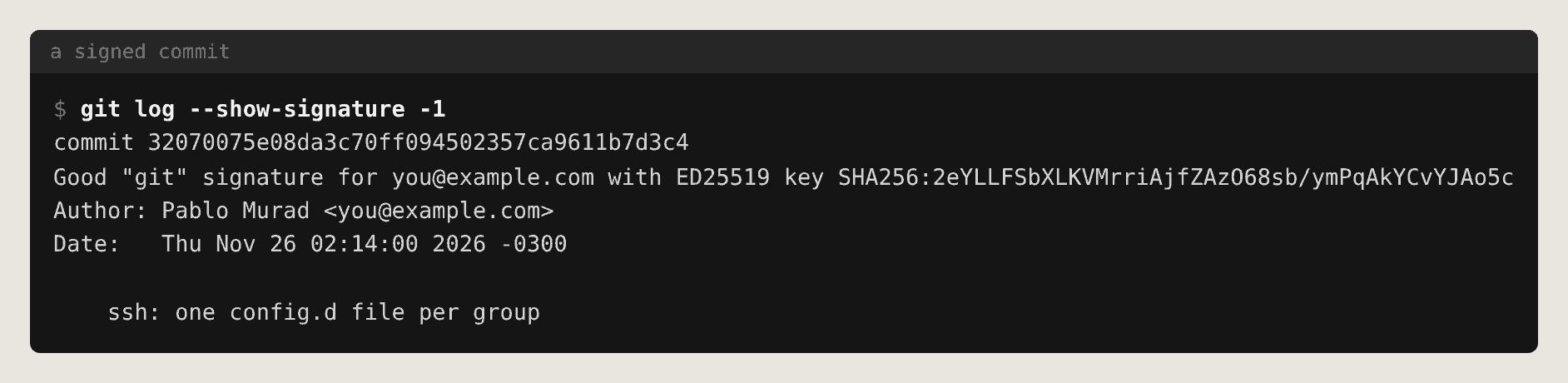
The .chezmoiignore file decides what each system gets:
{{- if ne .chezmoi.os "windows" }}
AppData
Documents
{{- end }}
{{- if ne .chezmoi.os "linux" }}
.bashrc
.config/fastfetch
{{- end }}
meta
If 1Password is locked or closed, the commit fails with failed to fill whole buffer, an error that explains nothing. Unlock the app and try again.
Programs and a new PC #
The meta/ folder in the repository, which apply ignores, holds what isn't a dotfile: the program list and the script I run after a fresh install. The list is a JSON file that winget reads on its own:
winget export -o meta/packages-winget.json
winget import -i meta/packages-winget.json --accept-package-agreements --accept-source-agreements
The export picks up everything installed, so the list gets cleaned by hand afterwards.
age: encryption for everything that leaves the PC #
age encrypts files to one or more public keys, and only someone holding a matching private key can open them. There's no key server and no web of trust, and the commands are short enough to remember. I prefer age over GPG for this. Here it encrypts the SD card image that goes to the cloud, an archive of old keys and every secret in the vault from part 2.
A key behind a passphrase #
The private key, which age calls an identity, gets encrypted with a passphrase right after it's created, and the open copy is deleted. age takes the encrypted file straight in -i: it asks for the passphrase and carries on. The public key goes into a recipients file versioned in chezmoi, because it isn't a secret.
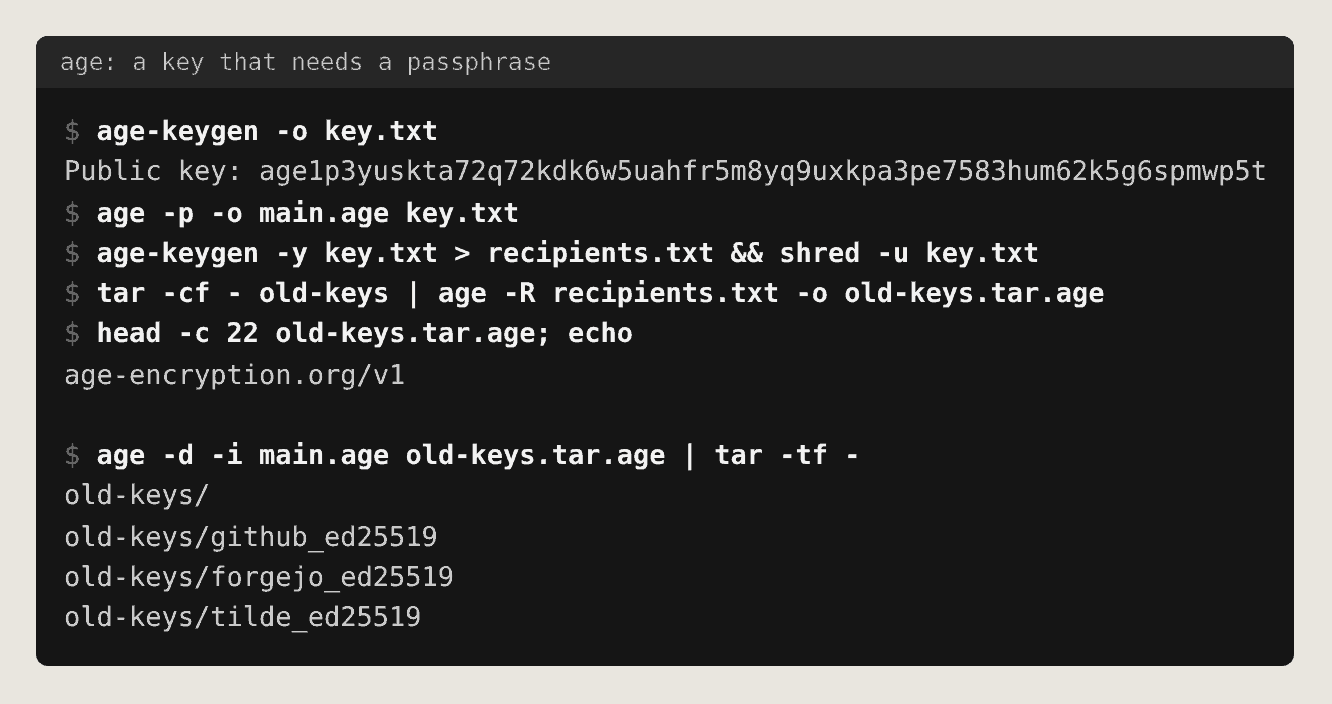
On Windows, where there's no shred, the same steps look like this:
winget install FiloSottile.age
age-keygen -o key.txt
age -p -o main.age key.txt
age-keygen -y key.txt | Out-File -Encoding ascii ~/.config/age/recipients.txt
Remove-Item key.txt
Encrypting and opening #
# a disk image, compressed and encrypted in one go
xz -T0 -6 -c vault.img | age -R ~/.config/age/recipients.txt -o vault.img.xz.age

# a whole folder
tar -cf - old-keys | age -R ~/.config/age/recipients.txt -o old-keys.tar.age

# check without extracting: list what's inside
age -d -i main.age old-keys.tar.age | tar -tf -

# open
age -d -i main.age vault.img.xz.age | xz -d > vault.img
Every encrypted file starts with the line age-encryption.org/v1, so head -c 22 on a file is a quick way to confirm nothing went out in the clear.
The rule I follow: the private identity never goes to any server. Servers only get the public key, and they encrypt. Opening always happens on the PC.
Private mirrors: Forgejo pushes, GitHub keeps #
I don't trust a single place. Forgejo runs on my server and it's where I work, and a private repository on GitHub is the second copy. I didn't want to push the dotfiles to both by hand, so Forgejo pushes a mirror on every commit.
The cleanest way is a mirror over SSH. Forgejo creates a key pair just for that mirror, and the public half goes into GitHub as a deploy key with write access to that one repository. No GitHub token is stored on the server.
In the Forgejo repository, the mirror settings take the address git@github.com:you/dotfiles.git, with SSH authentication and sync on commit turned on. On the GitHub side, the gh CLI creates the repository and adds the key:
gh repo create you/dotfiles --private
gh repo deploy-key add mirror.pub -R you/dotfiles -t "forgejo push mirror" -w
To check it, push a commit to Forgejo only. It should show up on GitHub within seconds, with the same hash on both sides:
git push
git rev-parse --short HEAD
gh api repos/you/dotfiles/commits/main --jq '.sha[0:7]'
Never push straight to GitHub, because the mirror overwrites it. And a Forgejo shortcut while you're there: with push-to-create turned on, the first git push to a repository that doesn't exist yet creates it, private.
1Password: no more loose .txt files #
Software licenses, account recovery codes, GPG keys, digital certificates: all of that used to live in text files in a synced folder. Now it sits in a separate 1Password vault, with the right item type for each thing and the original files attached.
| What it was | What it became in 1Password |
|---|---|
| license key in a .txt | Software License, key in the notes |
| license file (.key, .dat, .rar) | Software License with the file attached |
| recovery codes (GitHub, MEGA, Yubico...) | Secure Note |
| GPG keys, .pfx certificates | Secure Note with the files attached |
Source
| What it was | What it became in 1Password |
|---+---|
| license key in a .txt | Software License, key in the notes |
| license file (.key, .dat, .rar) | Software License with the file attached |
| recovery codes (GitHub, MEGA, Yubico...) | Secure Note |
| GPG keys, .pfx certificates | Secure Note with the files attached |
The CLI, without a separate login #
winget install AgileBits.1Password.CLI
# in the app: Settings, Developer, Integrate with 1Password CLI
op vault list
op vault create "Keys and Licenses"
With the integration on, op uses the app's session and asks for Windows Hello. There's no token sitting in an environment variable.
Importing without seeing the contents #
op item create takes the item as JSON on standard input and the attachments as assignments, so the text goes from the file to 1Password without ever crossing the screen:
function New-VaultItem([string]$Title, [string]$Category, [string]$TextFile, [string[]]$Attachments = @()) {
$item = @{ title = $Title; category = $Category; fields = @() }
if ($TextFile) {
$item.fields += @{ id = 'notesPlain'; type = 'STRING'; purpose = 'NOTES'
value = (Get-Content -LiteralPath $TextFile -Raw) }
}
# a dot in a field name starts a section: "Pro.key" has to go as "Pro\.key"
$files = @(foreach ($a in $Attachments) { "$((Split-Path $a -Leaf).Replace('.', '\.'))[file]=$a" })
$null = $item | ConvertTo-Json -Depth 5 | op item create --vault 'Keys and Licenses' @files
if ($LASTEXITCODE) { "ERROR $Title" } else { "ok $Title" }
}

New-VaultItem 'Program X' SOFTWARE_LICENSE 'licenses\program-x.txt'
New-VaultItem 'Program Y' SOFTWARE_LICENSE '' @('licenses\Y\license.key', 'licenses\Y\activation.pdf')
New-VaultItem 'GitHub recovery codes' SECURE_NOTE 'recovery\github.txt'
Two things I learned here. @files has to be an array even with a single attachment, which is why it's wrapped in @(...). A lone string gets splatted letter by letter, and op refuses it. And the check is done by hash, so the value is never printed:
function Get-TextHash([string]$Text) {
$norm = ($Text -replace "`r`n", "`n").Trim()
[Convert]::ToHexString([Security.Cryptography.SHA256]::HashData([Text.Encoding]::UTF8.GetBytes($norm)))
}
$note = (op item get 'Program X' --vault 'Keys and Licenses' --format json | ConvertFrom-Json).fields |
Where-Object id -eq 'notesPlain' | ForEach-Object value
(Get-TextHash $note) -eq (Get-TextHash (Get-Content -LiteralPath 'licenses\program-x.txt' -Raw))
It prints True when the two match.
Give your functions long names. A function I had named H collided with the alias PowerShell already has for Get-History, and the error message printed the argument I passed. The argument was the secret.
Next #
Part 2, out later today, is about the vault: an Orange Pi Zero2 that's ready the moment it boots, stores secrets it can't read and backs itself up to the NAS.
Links #
Notes
OpenSSH servers count every key offered as one attempt, and by default they give up after six (
MaxAuthTries). ↩