

How I organize SSH: Tailscale for most, 1Password for the rest
How I organize SSH access on Windows after leaving Termius: Tailscale SSH for servers on the tailnet, with no keys at all, and a personal key in 1Password's SSH agent, approved with Windows Hello, for GitHub, Forgejo, tildes and the rest. Plus the plan for when something breaks.
For about two years, my SSH lived in Termius, and they were good years. The app is pleasant to use. The trouble was backups, which were always harder than they should be, and a tool that holds the keys to every door in the house shouldn't make it hard to copy the keyring. Over time I also wanted to customize more and have more control over everything, so I moved to XPipe and kept it synced between my PCs with Resilio Sync.
Today I finished the other half: organizing the keys themselves, for every service I use. It all fits in two rules.
Two rules #
- Servers on my tailnet, which is most of them: Tailscale SSH, with no key at all.
- Everything else (GitHub, Forgejo, the tildes, pico and the VPSes outside Tailscale): my personal key, kept in 1Password's SSH agent and unlocked with Windows Hello. That's the public key I paste into every new account.
Source
digraph {
rankdir=LR
fontname="Helvetica"
margin="0.4,0.12"
node [shape=box, style=rounded, fontname="Helvetica", fontsize=11]
edge [fontname="Helvetica", fontsize=9, arrowsize=0.6]
cmd [label="ssh host"]
ts [label="Tailscale SSH\ntailnet identity"]
pipe [label="Windows OpenSSH\nnamed pipe"]
op [label="1Password agent\nWindows Hello", color="#d93a2b", fontcolor="#d93a2b"]
srv1 [label="server on\nthe tailnet"]
srv2 [label="GitHub, Forgejo,\ntildes, VPS"]
cmd -> ts [label="tailnet host"]
ts -> srv1
cmd -> pipe [label="anything else"]
pipe -> op [label="sign this?"]
op -> srv2 [label="signed"]
}
Rule one: Tailscale SSH #
On a server, Tailscale SSH is one command, run once:
$ sudo tailscale set --sshSource
$ sudo tailscale set --sshFrom then on, Tailscale answers SSH connections that arrive over the tailnet. The server stops asking which key I have and starts asking who I am, and Tailscale already knows, because every machine on the tailnet has its own identity.1 There's no authorized_keys to keep up to date and no key to copy to a new server. It doesn't touch the server's own sshd_config or authorized_keys either, so regular SSH keeps working next to it.
Who may log in, and as which user, is decided in the tailnet's policy file. That's also where check mode lives: it asks for a fresh login with the identity provider before letting someone in, every 12 hours by default, and the period can go from a minute to a week, or every single time.
From my side nothing looks different. It's still ssh pablo@server, with the machine's tailnet name.
The one limit: Tailscale SSH only runs on Linux and macOS servers. Any machine can be the client.
Rule two: 1Password's agent on Windows #
Windows comes with OpenSSH, and its ssh looks for a key agent at a fixed address, a named pipe called \\.\pipe\openssh-ssh-agent.2 Normally Windows' own agent service sits there, and two agents can't sit in the same chair. So the Windows one gets up first, in a PowerShell window opened as administrator:
Stop-Service ssh-agent
Set-Service ssh-agent -StartupType Disabled
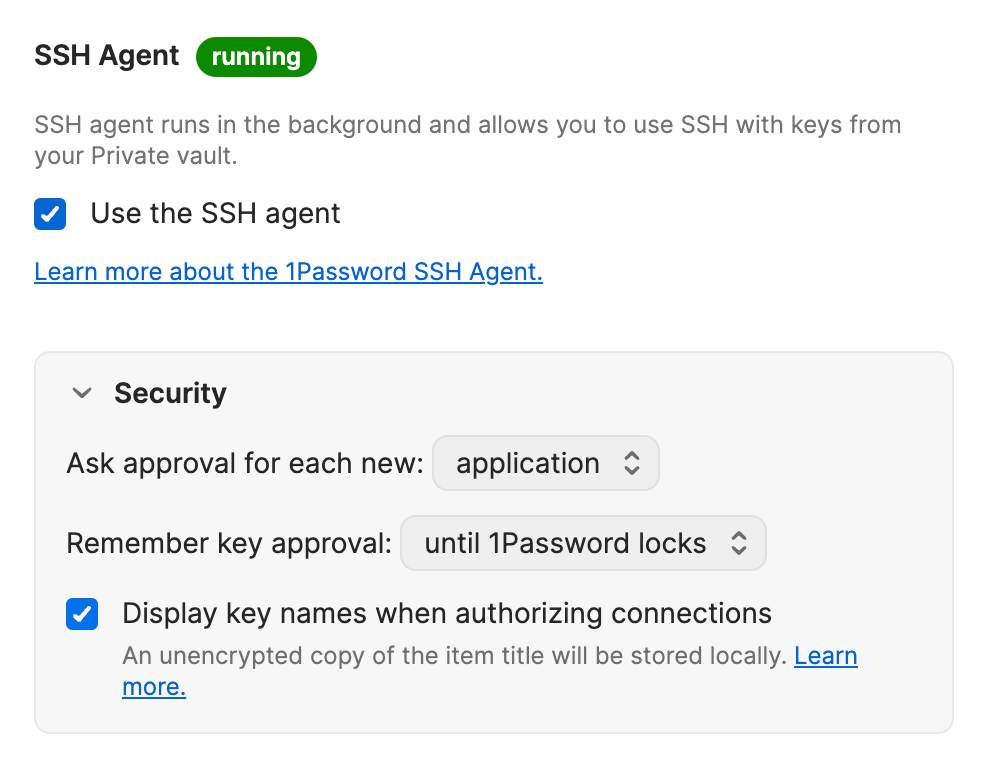
Then, in 1Password, Settings > Developer > Use the SSH agent. The badge at the top turns green and says the agent is running:
After that, ssh works the way it always did:
ssh vps-example1Password pops up, shows which program wants which key, and Windows Hello asks for my fingerprint or my face, whichever gets there first:
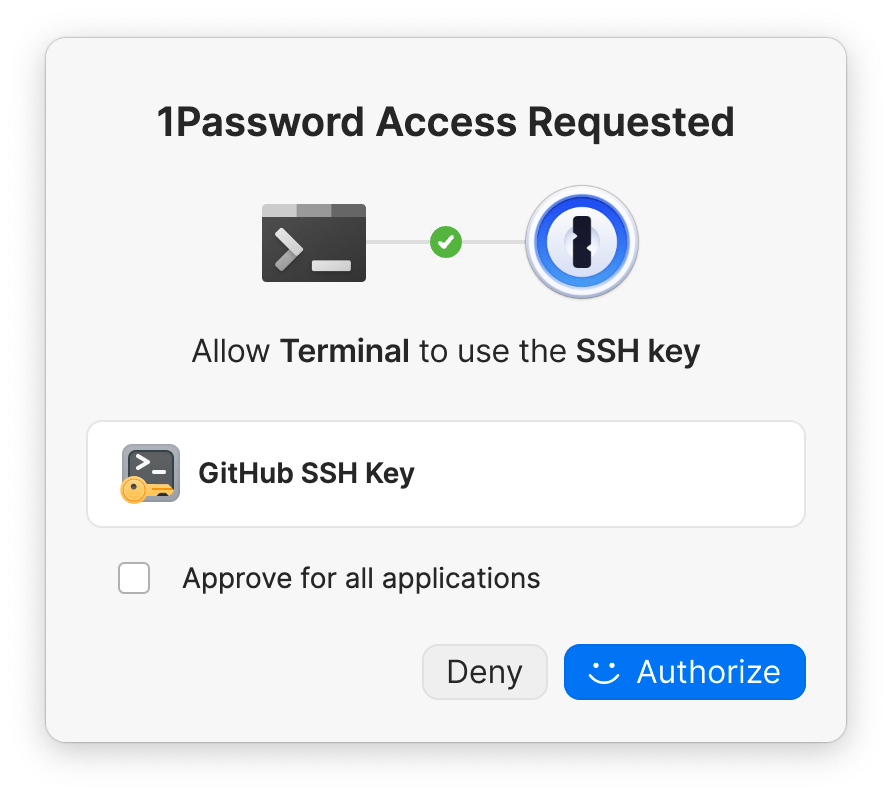
The private key never leaves 1Password. The agent signs the login on its behalf and hands back only the signature. Both screenshots are from 1Password's own docs.
A host in ~/.ssh/config needs nothing special, not even a path to a key file:
Host vps-example
HostName vps.example.org
User pablo
And ssh-add -l lists the keys the agent is offering, a quick way to check that 1Password is the one answering the door.
Everything that uses Windows' ssh #
Since the pipe belongs to the system, anything that calls Windows' ssh gets the same agent with no extra setup: PowerShell, XPipe, the Gram editor, and Remote-SSH in VS Code and Cursor.
Git is the exception. Git for Windows brings its own copy of ssh to the party, and that copy has never heard of the pipe. One line tells Git to use the system's instead:
git config --global core.sshCommand "C:/Windows/System32/OpenSSH/ssh.exe"In my case, that line lives in the Git config of my dotfiles, so every machine gets it.
How often it asks #
A fingerprint on every single connection gets old fast. A morning of git push would turn into a thumb workout. So 1Password can remember an approval for a while. By default, an approval covers one program and that key until the program closes. It can be narrowed to each terminal tab, or tightened to every single request, and the memory lasts until 1Password locks, until it quits, or for a set amount of time.
While 1Password is locked, the private keys aren't in memory at all. Only the approvals are, so a remembered approval still needs the vault unlocked to work.
When something breaks #
Two services carry the whole setup, and every service has a bad day eventually. For that day, I keep a local backup on a USB drive and on a server on my home network, which I reach by its local address.
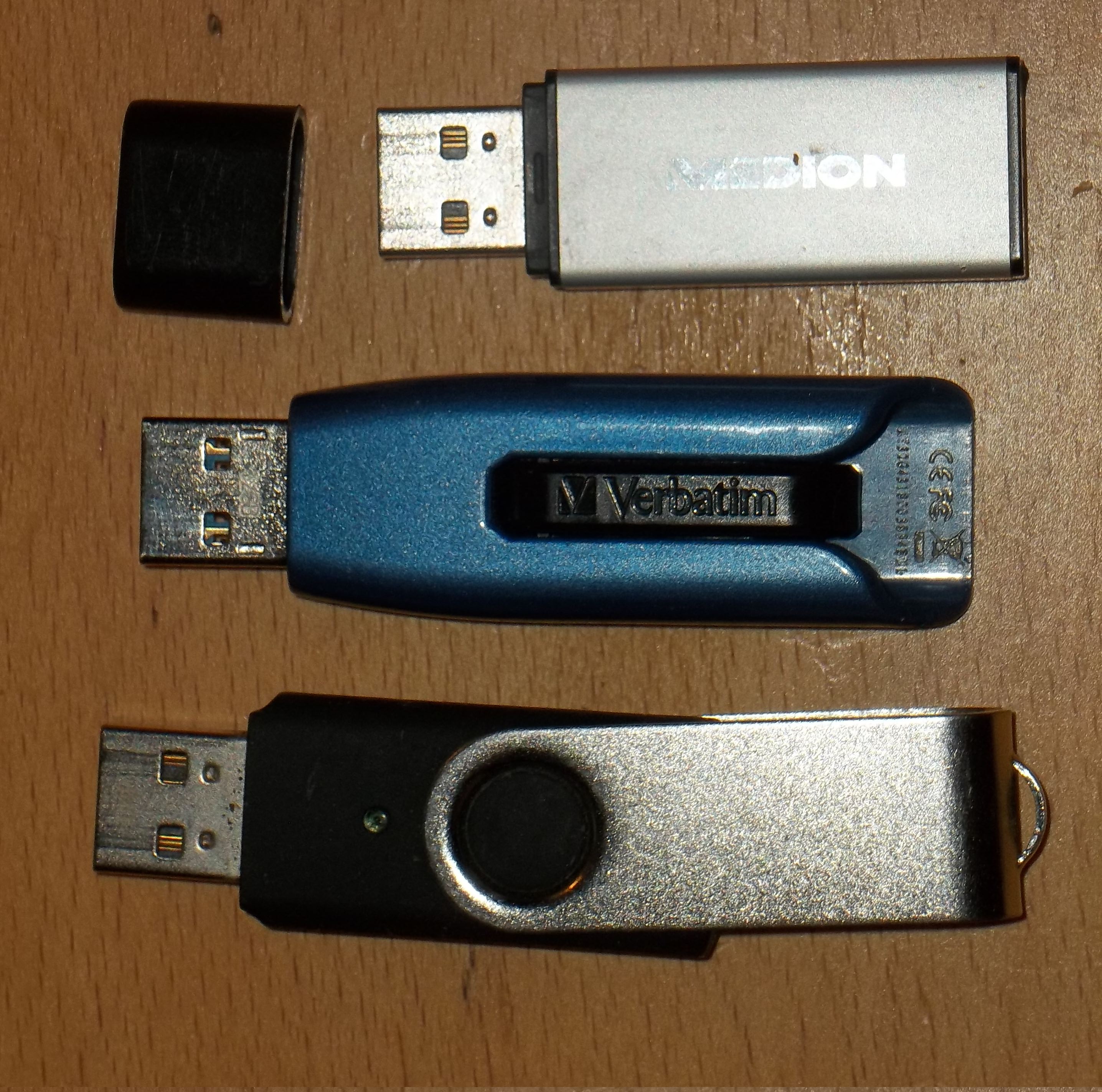
Neither of them needs Tailscale or 1Password to be up. A pendrive has no login screen, no app updates and no status page, and that's exactly the job description.
What changed #
The keys aren't loose files on disk anymore. Setting up a new machine means installing 1Password and Tailscale and pulling the dotfiles. And every connection outside the tailnet passes through a fingerprint first.
Notes
-
Tailscale builds its network on WireGuard, and every machine on the tailnet already has its own key for that. Tailscale SSH reuses that identity, so there's nothing extra to manage. ↩
-
A named pipe is a channel between programs that Windows exposes with a file-like name. On Linux and macOS the same job is done by a socket file, usually pointed to by the
SSH_AUTH_SOCKvariable. ↩