


Emacs beyond the basics, part I: feeds, gopher, the fediverse and mail
Emacs as a small operating system: read RSS with elfeed, browse gopher and Gemini with Elpher, follow the fediverse with mastodon.el, chat on IRC and Matrix, read the web in EWW and send mail. Keys, configs and a starter block.
The first Emacs guide on this blog repeated an old joke: Emacs is a great operating system lacking a decent text editor. This post takes the joke seriously. Emacs can read your feeds, browse gopher and Gemini, talk to the fediverse, sit in IRC rooms, browse the web and handle your email, all with the same keys you already learned for editing text.
You don't have to move your whole life into it. The fun is picking one thing, trying it for a week and seeing if it sticks. Each section below works on its own.
Getting packages #
Some of what follows is built into Emacs, and some comes as packages. Emacs already knows two package archives out of the box, GNU ELPA and NonGNU ELPA. The config from the first guide also adds MELPA, the biggest community archive. With those three, every package in this post is one use-package block away.
Feeds with elfeed #
If you follow blogs, news sites, YouTube channels or forums through RSS, elfeed turns Emacs into a fast, keyboard-driven feed reader. It's on NonGNU ELPA, so Emacs can install it without any extra setup.
(use-package elfeed
:ensure t
:bind ("C-c w" . elfeed)
:custom
(elfeed-feeds
'(("https://planet.emacslife.com/atom.xml" emacs)
("https://example.com/feed.xml" blogs friends)
("https://www.youtube.com/feeds/videos.xml?channel_id=CHANNEL_ID" video))))
Each feed is a list: the address first, then any tags you want to give it. Tags are how you'll slice your reading later. If you already have your subscriptions in another reader, export them as OPML and bring them in with M-x elfeed-load-opml.
Press C-c w to open elfeed, then G to fetch every feed. The main screen is a list of entries, newest first:
RET: read the entry
b: open the entry in your web browser
n / p: next / previous entry
r: mark as read
u: mark as unread
+ / -: add or remove a tag
s: filter the list as you type
c: clear the filter
G: fetch new entries
q: quit
Inside an entry, n and p jump to the next and previous one, b opens it in the browser and q goes back to the list.
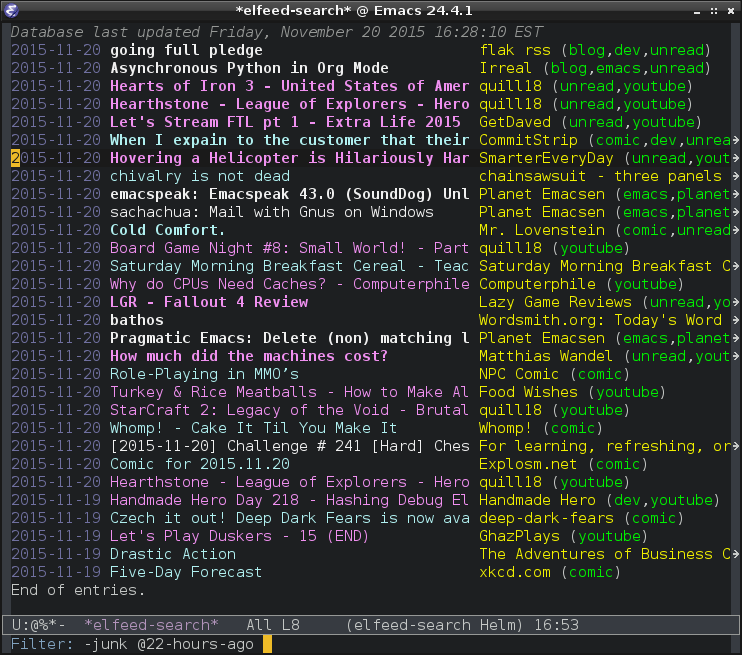
The filter is the clever part. The default shows unread entries from the last six months, and you can write your own with a small language:
+unread: only unread entries
+emacs: only entries tagged emacs
-video: hide entries tagged video
@2-weeks-ago: only entries from the last two weeks
=example.com: only entries from feeds that match this text
Mix them as you like. @1-week-ago +unread -video shows what you haven't read this week, minus the videos. Press s, type the filter, and the list updates while you type.
Emacs also ships a feed reader of its own, Newsticker (M-x newsticker-treeview), if you'd rather not install anything. Elfeed is faster and nicer to filter, but it's good to know the built-in one is there.
Gopher and Gemini with Elpher #
Gopher is the protocol that almost became the web, back in the early 90s. Gemini is its modern cousin, a small protocol made for plain text pages without tracking or scripts. Both are alive and full of personal sites, and Elpher, from NonGNU ELPA, browses both.
(use-package elpher
:ensure t)
M-x elpher opens a start page with your bookmarks. To visit somewhere, press g and type an address:
gopher://sdf.org
gemini://geminiprotocol.net
From there, it's a keyboard browser:
TAB: jump to the next link
RET: follow the link under the cursor
u: go back
g: go to an address
a: bookmark the link under the cursor
A: bookmark the page you're on
B: show your bookmarks
d: download the link under the cursor
.: view the raw source of the page
R: reload
If you read the SDF guide, this is the comfortable way to read the gopherholes of SDF members without leaving your editor.
The fediverse with mastodon.el #
mastodon.el, from NonGNU ELPA, is a full client for Mastodon. It also works with other servers that speak the same API, like GoToSocial, Pleroma and Akkoma. Tell it your server and your username:
(use-package mastodon
:ensure t
:custom
(mastodon-instance-url "https://your.server")
(mastodon-active-user "yourname"))
Run M-x mastodon. The first time, it opens your browser so you can authorize the app on your server, then asks you to paste back the code the server shows you. It keeps the login in your auth-source file (usually ~/.authinfo.gpg), so you only do this once. After that, you land on your home timeline.
The keys are short and easy to remember:
H: home timeline
L: local timeline
F: federated timeline
N: notifications
n / p: next / previous post
t: write a new post
r: reply
b: boost
f: favourite
k: bookmark
T: open the whole thread
o: open the post in the browser
s: search
O: your profile
g: refresh
Q: close mastodon.el
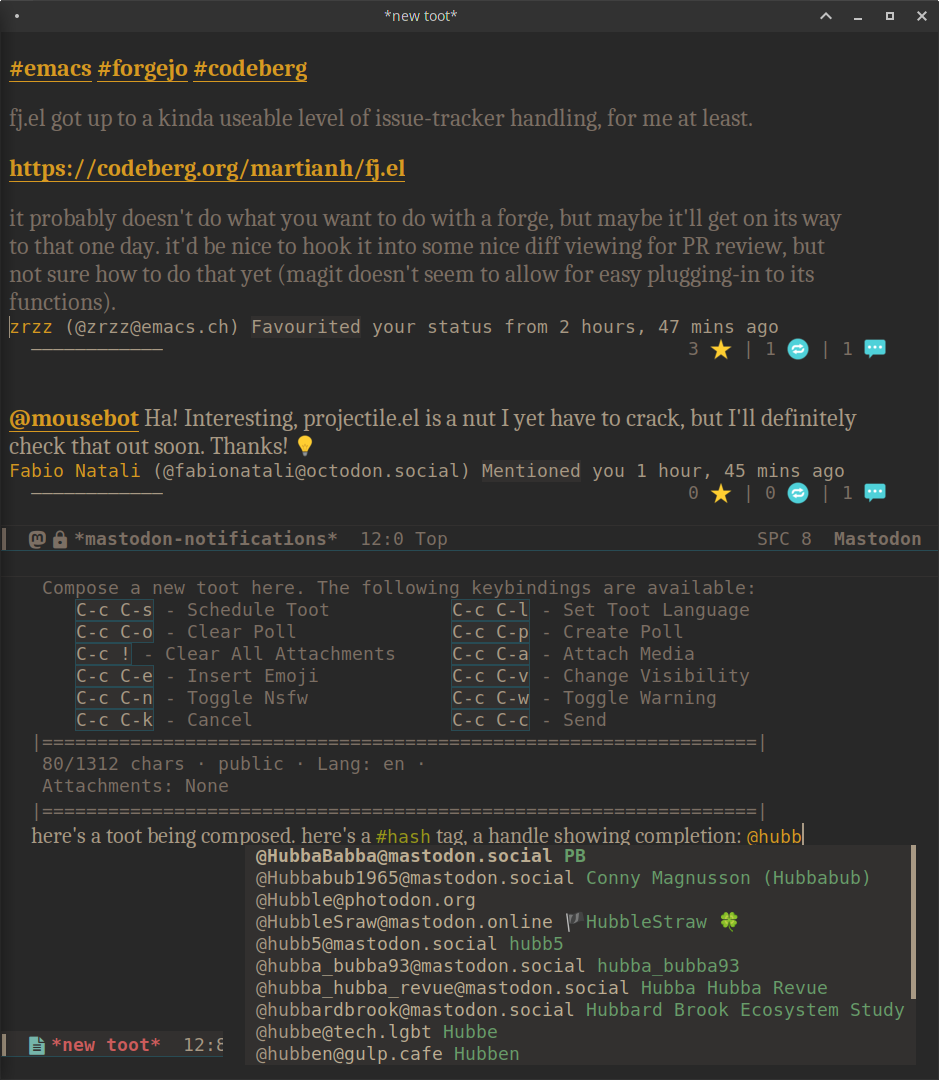
Writing a post opens a small buffer. Type, then C-c C-c sends it. Since it's an Emacs buffer, everything you know works there, including the spell checker (M-x flyspell-mode).
Chat: IRC and Matrix #
ERC is an IRC client that has been part of Emacs for a long time. Run M-x erc-tls, answer the questions about server, port and nickname, and you're connected. Inside, it's IRC as usual: /join #channel, /msg someone hello, /part to leave.
To join the same rooms every time, list them per server:
(setq erc-autojoin-channels-alist
'(("libera.chat" "#emacs")))
Libera.Chat, where a lot of free software projects live, has an #emacs channel full of patient people. Many public Unix systems and pubnixes also run their own IRC servers, and ERC talks to all of them. If your server asks for a SASL login, ERC has a sasl module: add it to erc-modules and use your NickServ password.
For Matrix, there's Ement.el, from GNU ELPA. M-x ement-connect asks for your Matrix ID and password, and then lists your rooms.
The web with EWW #
EWW is a web browser built into Emacs. It doesn't run JavaScript and it shows pages as text with images, which sounds limiting until you realize how many pages read better that way. Documentation, blogs, Wikipedia and most of the small web look great in it.
M-x eww asks for an address or a search term. Then:
l / r: back / forward
g: reload
R: readable mode, which strips everything but the main text
&: open this page in your normal browser
w: copy the address
b: bookmark this page
B: list bookmarks
d: download the link under the cursor
v: view the page source
G: go somewhere else
R is the one that makes EWW worth it. It throws away menus, sidebars and banners and leaves only the article. And & is the escape hatch: when a page really needs a full browser, one key sends it there.
Mail #
Email is the deepest rabbit hole here, so this section is a map more than a manual. There are three common paths.
Gnus comes with Emacs. It started as a newsreader for Usenet and grew into a mail client. It's powerful and has its own way of thinking, which some people love and others don't.
mu4e and notmuch both work with mail stored on your disk. A separate program, usually mbsync from the isync project, downloads your mail from the server into a local folder. Then mu or notmuch indexes it, and Emacs gives you fast search, threads and tags on top. Both are installed with your system's package manager, and their manuals explain the setup step by step.
Sending mail, on the other hand, is simple and built in. Tell Emacs who you are and which server to use:
(setq user-full-name "Your Name"
user-mail-address "you@example.com"
send-mail-function 'smtpmail-send-it
smtpmail-smtp-server "smtp.example.com"
smtpmail-smtp-service 587
smtpmail-stream-type 'starttls)
Put your password in a file called ~/.authinfo.gpg, one line per server:
machine smtp.example.com login you@example.com password your-password port 587The .gpg at the end makes Emacs encrypt the file with GnuPG when you save it, and decrypt it when it needs the password. Your password never sits in plain text in your config.
Now C-x m opens a new message. Fill in the To and Subject lines, write, and C-c C-c sends it.
Small things worth knowing #
A few more built-in tools that make Emacs feel like a small desktop:
-
M-x calendarshows a calendar. Move with the arrows,.jumps to today, andM-x diarykeeps simple appointments in a text file. -
M-x dictionarylooks up words in online dictionaries. -
M-x procedlists running processes, liketop, and lets you kill them with a key. -
M-x webjumpopens favorite sites by short names. -
M-x eshellis a shell that works the same on Linux and Windows. -
M-x doctoris a psychotherapist from the 1960s. It won't help, but it will listen.
If you're on Emacs 31 #
Two changes in Emacs 31 make this way of living a bit nicer. In a terminal, the mouse now works by default in compatible terminals, so emacs -nw over SSH lets you click links in elfeed or scroll a timeline. And there's a new theme called newcomers-presets, off by default, that turns on a set of friendlier settings for people new to Emacs. Enable it like any other theme, with M-x load-theme.
A starter block #
Here are the packages from this post together, to paste after the config from the first guide:
;;; Living inside Emacs

(use-package elfeed
:ensure t
:bind ("C-c w" . elfeed)
:custom
(elfeed-feeds
'(("https://planet.emacslife.com/atom.xml" emacs))))

(use-package elpher
:ensure t)

(use-package mastodon
:ensure t
:custom
(mastodon-instance-url "https://your.server")
(mastodon-active-user "yourname"))

(use-package ement
:ensure t)

(setq erc-autojoin-channels-alist
'(("libera.chat" "#emacs")))
Select it and press TAB to let Emacs indent it nicely. Then M-x eval-buffer, or just restart, and every tool in this post is a command away.